Sync audiences from Adobe Experience Platform

Connecting Adobe Experience Platform (AEP) audiences to Rokt lets you activate first-party segments for targeting and suppression in Rokt Ads campaigns.
Before you begin, contact your Rokt account manager to obtain your API key and API secret. You need these credentials to authenticate the destination connection.
Supported audience types include:
- Audiences generated through the AEP Segmentation Service.
- Audiences imported from CSV files through AEP Workflows.
Find the Rokt destinationDirect link to Find the Rokt destination
- Log in to Adobe Experience Platform at experience.adobe.com.
- In the left sidebar, navigate to Connections > Destinations.
- Click the Catalog tab.
- Search for
Rokt. The Rokt Destination card appears under the Advertising category. - Click Activate audiences on the Rokt Destination card.
Configure the accountDirect link to Configure the account
-
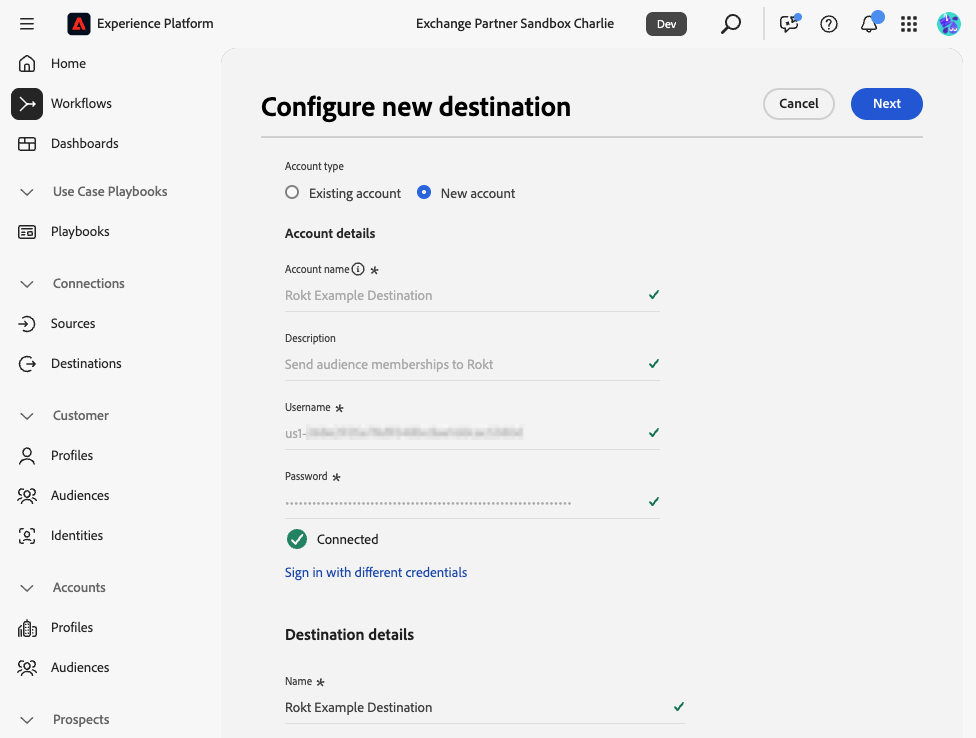
On the Configure new destination screen, select New account.
-
Enter a descriptive Account name for your destination, such as
My Brand – Rokt AEP Connection. -
In Username, enter the API key provided by your Rokt account manager.
-
In Password, enter the API secret provided by your Rokt account manager.
-
Click Connect to destination. A green checkmark appears next to each credential after the connection is validated.
-
Under Destination details, enter a descriptive Name, and click Next.
-
Optionally, review Governance policy & enforcement actions and apply any data labels required by your organization. Click Create.
Select audiencesDirect link to Select audiences
- In the Activate destination workflow, select your new destination, and click Next.
- On the Select audiences tab, select the AEP audiences that you want to send to Rokt.
- Click Next.
Map identitiesDirect link to Map identities
-
On the Mapping tab, click Add new mapping and map identity fields from your AEP profile schema to Rokt's identity namespace. At least one identity is required.
noteRokt strongly recommends an email-based identity, either raw or hashed, to maximize match rates.
Source field Target field Notes IdentityMap: EmailIdentity: emailRecommended IdentityMap: Email_LC_SHA256Identity: emailSha256Recommended IdentityMap: PhoneIdentity: phoneOptional IdentityMap: Phone_SHA256Identity: phoneSha256Optional IdentityMap: GAIDIdentity: gaidOptional IdentityMap: IDFAIdentity: idfaOptional xdm: _idIdentity: aepProfileIdOptional 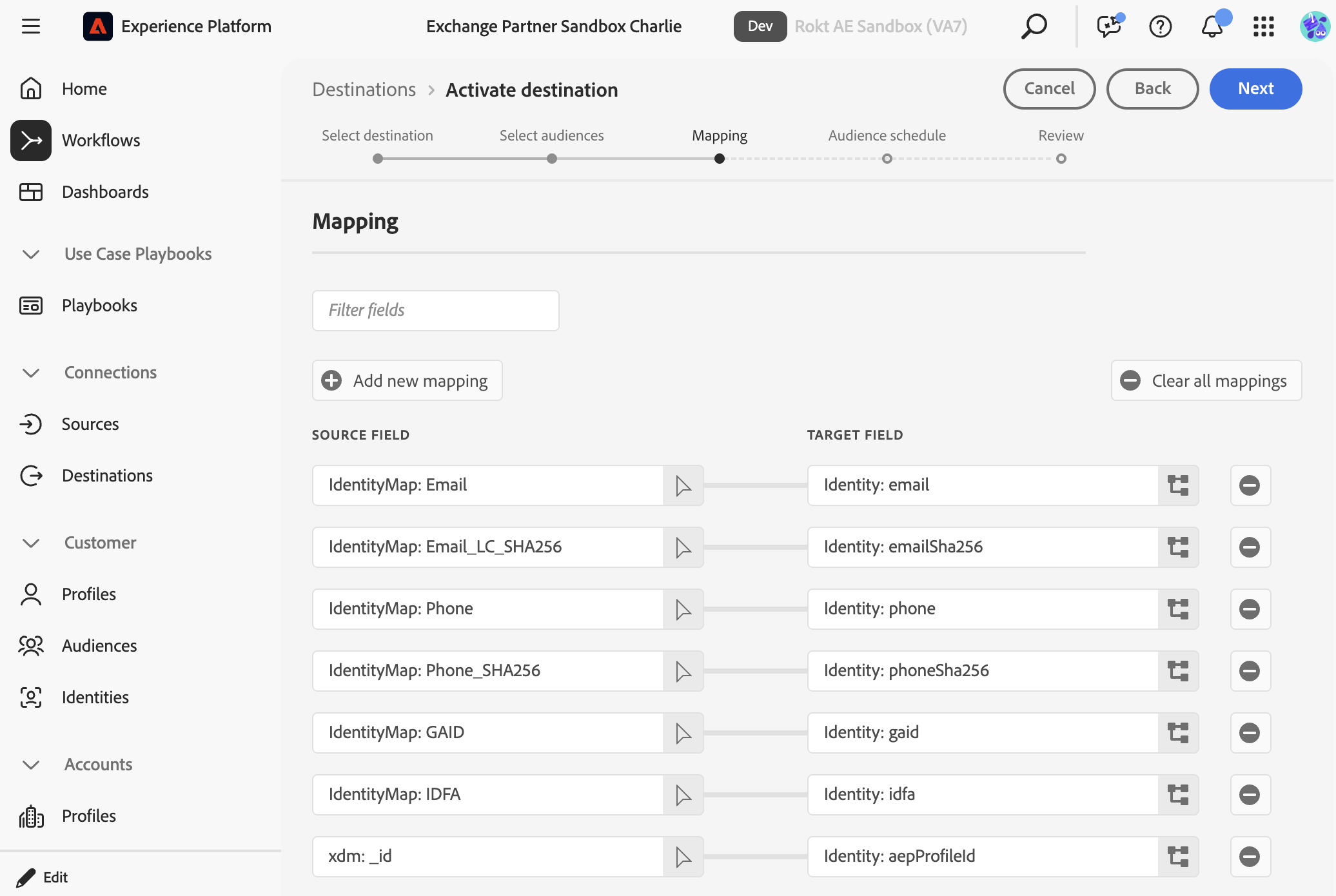
-
Click Next.
Set the audience scheduleDirect link to Set the audience schedule
- On the Audience schedule tab, set a Start date for each audience.
- Enter a Mapping ID that identifies the audience in Rokt. Use the AEP audience name or another descriptive value agreed upon with your Rokt account manager.
- Click Next.
Review and finishDirect link to Review and finish
- On the Review tab, confirm that the connection displays as Connected and that each audience has the correct start date and mapping ID.
- Click Finish. The destination displays as Enabled, and AEP begins syncing your audience to Rokt.