Sync audiences from Segment

The Rokt Conversions API destination for Segment sends Engage audiences to Rokt for targeting, suppression, and retargeting.
Create a destination for your Engage spaceDirect link to Create a destination for your Engage space
Before you begin, reach out to your Rokt account manager to receive your API key and secret.
-
In Segment, navigate to Engage > Engage Settings > Destinations.
-
Click Add Destination, search for Rokt Conversions API, select the tile, and add the destination.
-
Select your Engage space source, and click Confirm Source.
-
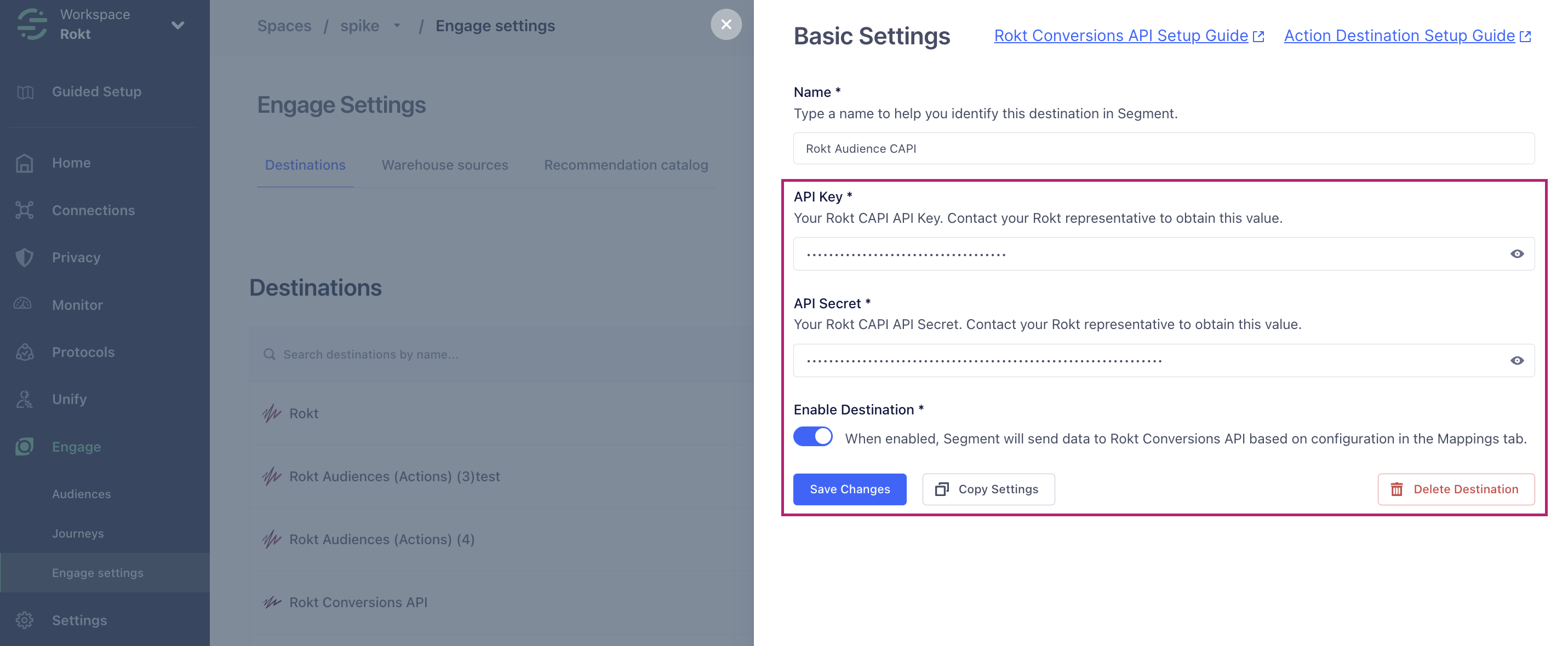
Under Basic Settings, enter a descriptive destination name, API key, and API secret. Enable Enable Destination, and click Save Changes.
-
Open the new destination, navigate to Mappings, and confirm that the Sync Engage Audience mapping is present.
Connect an audience to the destinationDirect link to Connect an audience to the destination
-
Navigate to Engage > Audiences, and select the audience that you want to send to Rokt.
-
From the audience overview, click Add Destination.
-
Select the Rokt Conversions API tile, and click Add Destination.
-
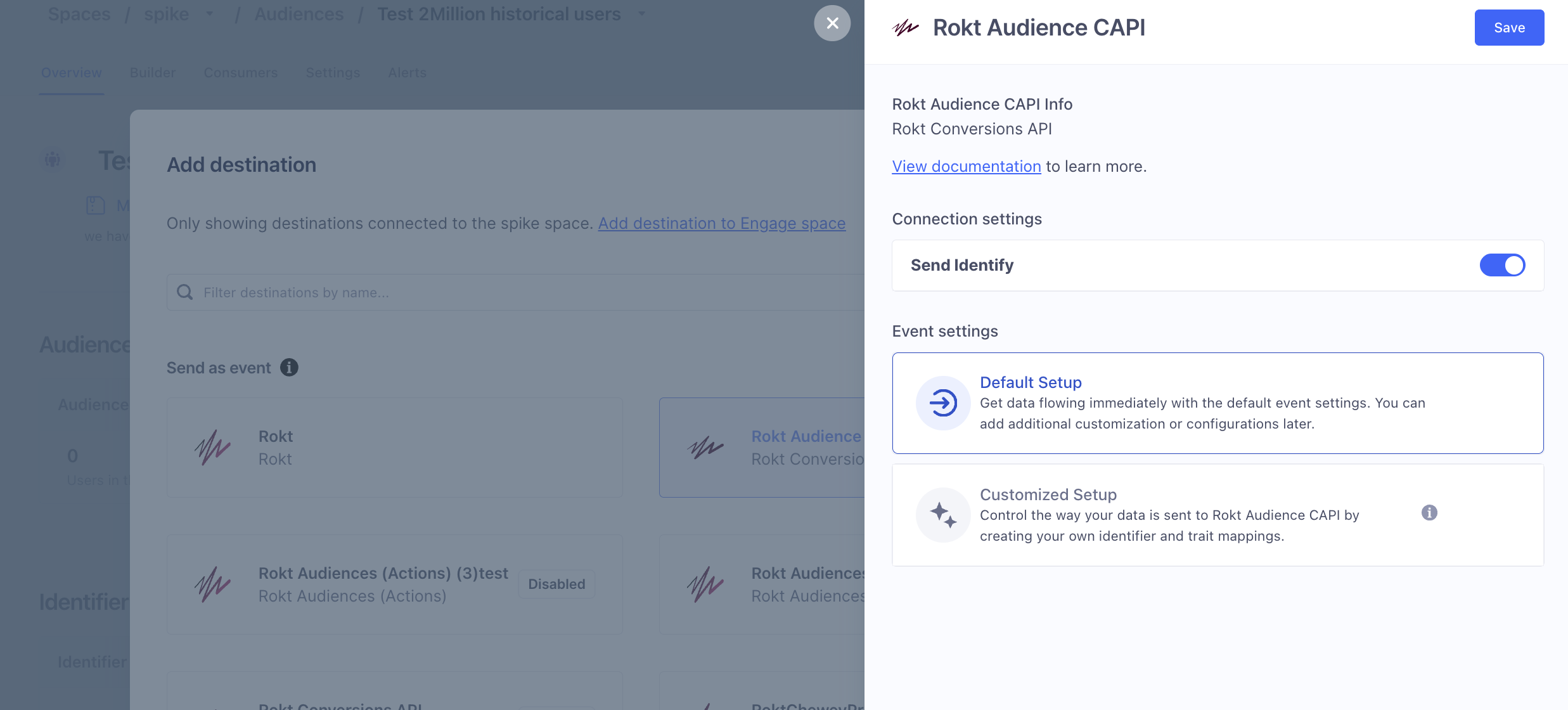
Under Connection Settings, enable Send Identify.
-
Under Event Settings, choose Default Setup or configure a custom setup.
-
Click Save, and then click Add 1 destination. Segment begins the initial sync to Rokt.
The sync can take 10–20 minutes to start. Segment forwards audience membership using the attribute name segment_{audience_name}.