Hightouch

AudiencesDirect link to Audiences
Audience syncs use the Rokt destination in Hightouch. Hightouch labels the audience sync type as Segment in its UI.
Use audiences to target or exclude specific customers in your campaigns, and to determine which customers see Rokt on your site.
By the end of this section you will have:
- Created a Rokt destination in Hightouch
- Created a Segment sync that maps your warehouse data to Rokt identifiers
- Populated a Rokt audience that you can target or suppress in campaigns
Step 1: Get your Rokt API credentialsDirect link to Step 1: Get your Rokt API credentials
Contact your Rokt account manager to request an API key and API secret. You'll need both when creating the destination in Hightouch.
The region prefix on your API key (for example, us1- or us2-) determines which Rokt data center Hightouch sends data to. Keys without a prefix default to US1.
Step 2: Create the Rokt destinationDirect link to Step 2: Create the Rokt destination
-
Log in to your Hightouch account and click on the workspace that you want to connect Rokt to.
-
Click on Destinations in the left toolbar and then click on Add Destination.
-
Search for Rokt, click on Rokt, and click Continue.
-
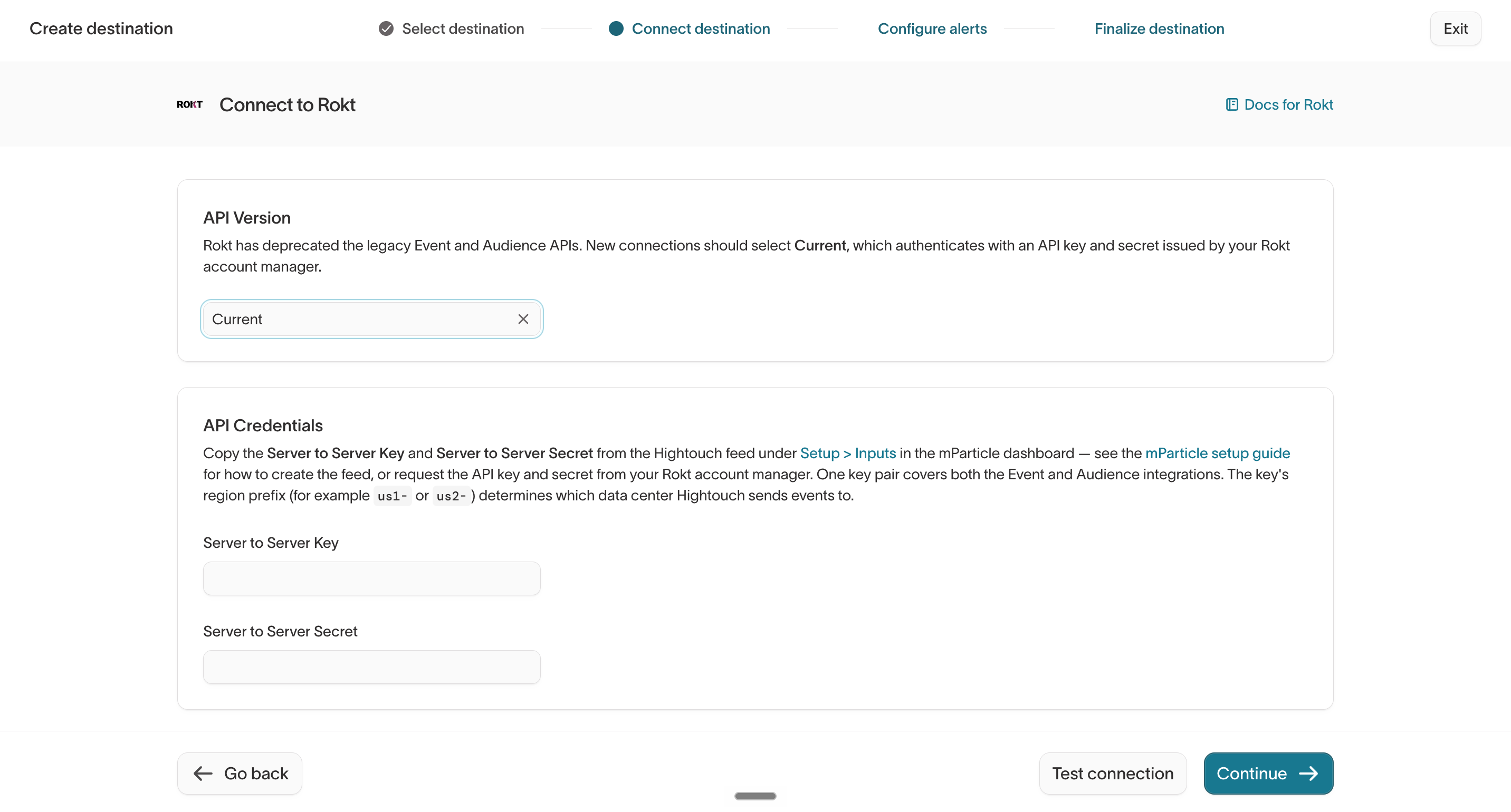
Set API Version to Current, then enter your API key and API secret. If you do not have them, contact your Rokt account manager. Click Continue.
-
Name your connection, e.g. Rokt Integration, and click Finish.
-
Click Test Connection. If you completed the steps above correctly, you should see a success message.
-
You are now finished with establishing Rokt as a destination.
Step 3: Add an audience syncDirect link to Step 3: Add an audience sync
-
Click on Sync in the left-hand toolbar and then choose Add Sync.
-
Choose your model.
-
Select the Rokt destination created in the previous step.
-
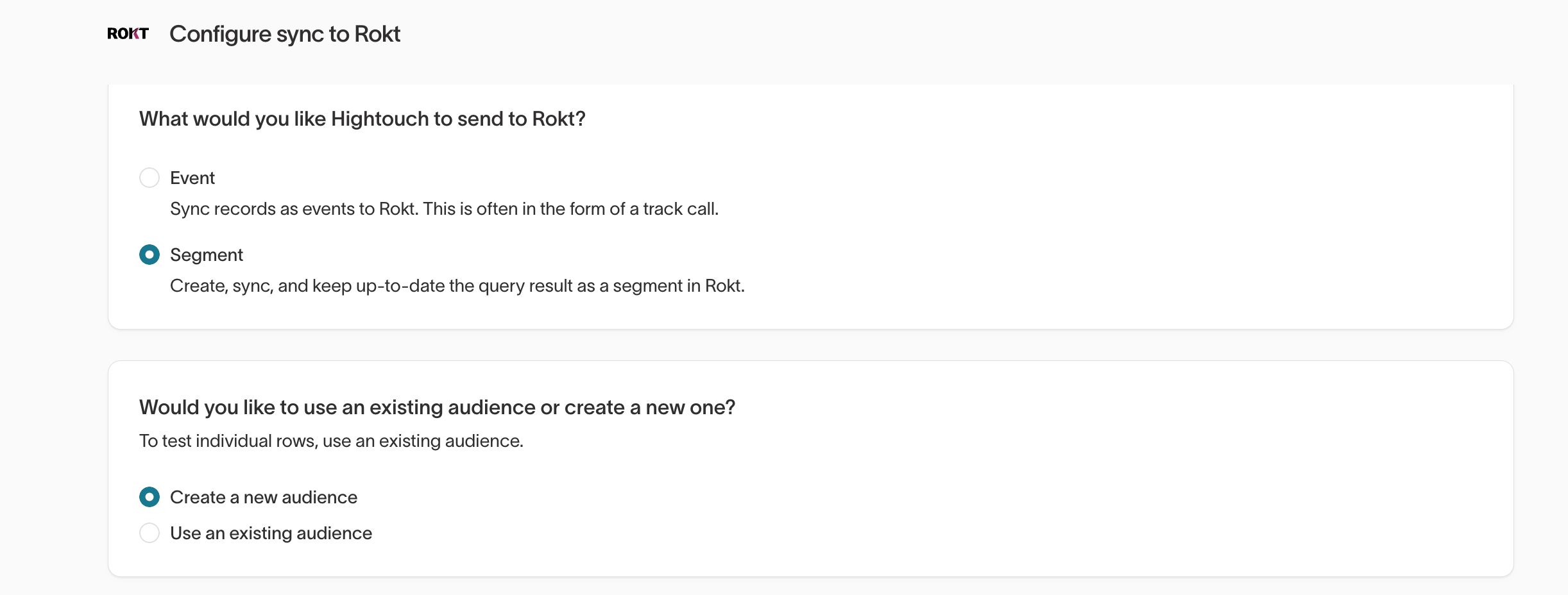
Select Segment and Create a new audience.
-
Name the audience something descriptive, then let your Rokt account manager know the audience name so they can find it in your Rokt account. Audience names are limited to 100 characters. If you leave the name blank, Hightouch defaults to the name of the model.
-
Map your model columns to the Rokt ID fields.
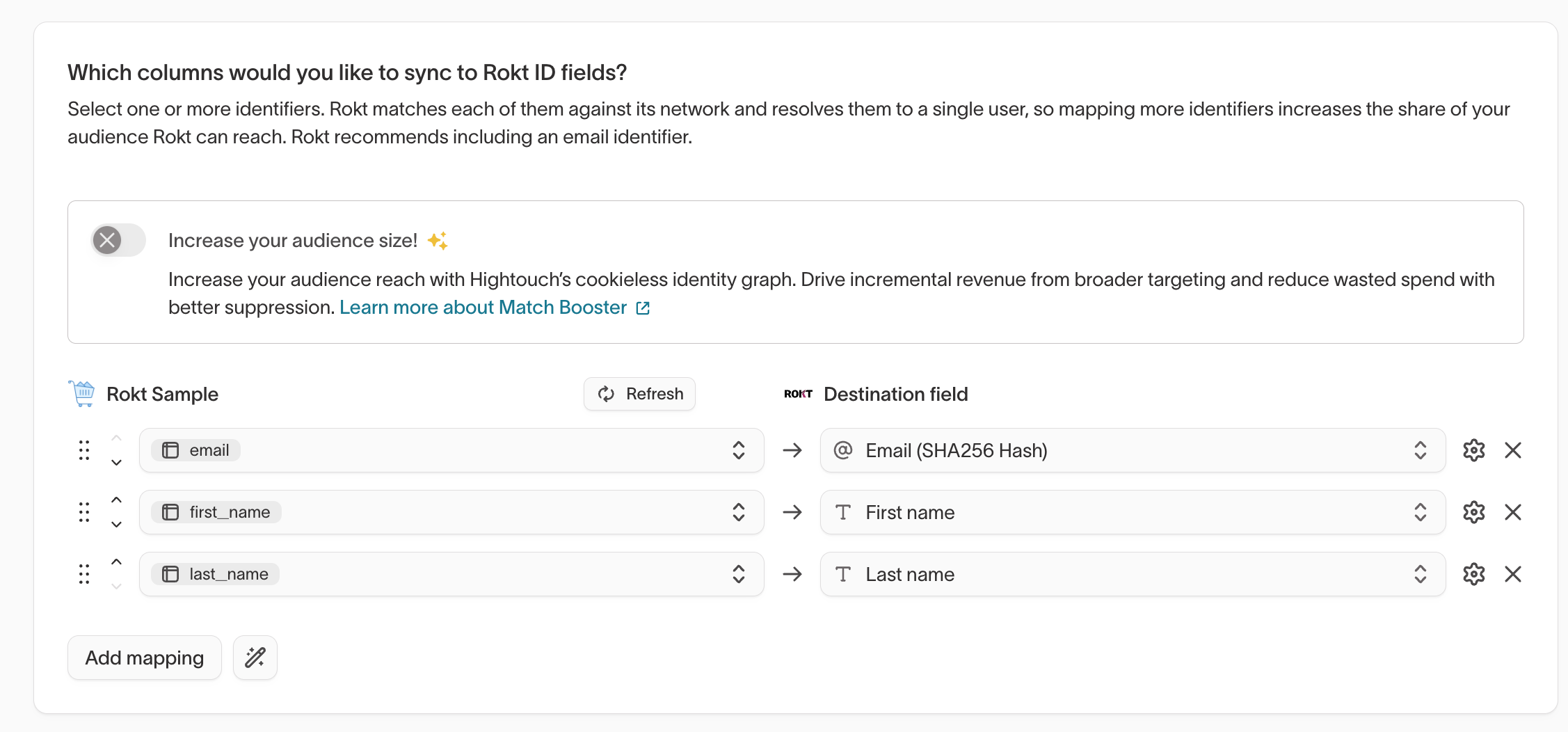
Rokt matches each identifier against its network and resolves them to a single user, so mapping more identifiers increases the share of your audience Rokt can reach. Rokt recommends including an email identifier.
Identifier Anchor Notes Email (SHA-256 hash) Yes Customer ID Yes Your internal customer identifier IDFA Yes iOS advertising ID GAID Yes Android advertising ID Phone (SHA-256 hash) No See phone formatting below First name No Last name No City No State No Postal code No Every record must include at least one anchor identifier: hashed email, customer ID, IDFA, or GAID.
Hightouch automatically hashes plaintext values that you map to a SHA-256 field, so you can map raw columns directly. If your warehouse already stores pre-hashed values, disable automatic hashing in the sync configuration to avoid double hashing.
Phone number formattingRokt hashes phone numbers in national format, without the country code. When you map Phone (SHA-256 Hash), Hightouch strips the country code before hashing. Set a default country in the sync configuration so numbers that don't carry a country code are handled correctly.
-
Click Continue.
-
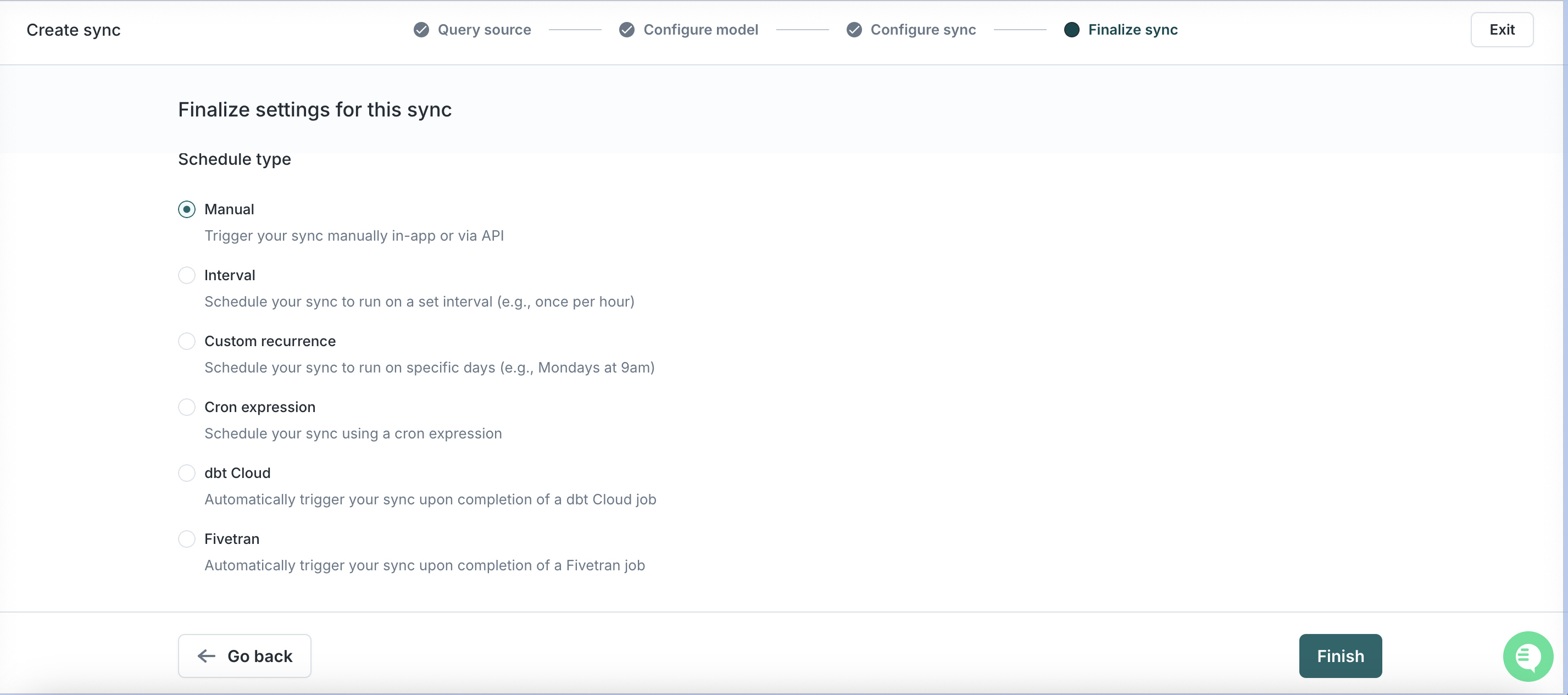
Choose the cadence at which you want to run this sync. The more real-time, the better the performance.
-
Click Finish and then Run.
The audience is created in Rokt on the first record sync, so it does not appear in your Rokt account until the sync has run at least once.
Sync modesDirect link to Sync modes
The Segment sync type supports two modes:
| Mode | Behavior |
|---|---|
| Add | Adds matching records to the Rokt audience |
| Remove | Removes records from the Rokt audience when they leave your model |
Improve match ratesDirect link to Improve match rates
Hightouch's Match Booster enriches your records with additional identifiers before they reach Rokt, which raises audience match rates. Enable it in the sync configuration.
Validate and troubleshootDirect link to Validate and troubleshoot
- Confirm the audience landed: after the first sync completes, check that the audience appears in your Rokt account.
- Inspect individual API calls: use Hightouch's Live Debugger while a sync is running.
- Get notified of failures: configure Hightouch alerts via Slack, PagerDuty, SMS, or email.
- Look up sync errors: see Hightouch's error codes for other destinations.
SupportDirect link to Support
- Hightouch sync or model questions → your Hightouch account manager
- Rokt field requirements or attribution questions → your Rokt account manager