Editing product attributes
This guide covers how to change the product information on a listing that's already live with a retail partner. In this guide, you'll learn how to open a published product for editing, where each kind of field lives on the Attributes tab, and how to send your changes to the retailer.
Before you startDirect link to Before you start
For an overview of what can and can't be changed on a published product, see Editing published products.
Open the product for editingDirect link to Open the product for editing
- Open the Rokt Catalog App.
- Select your retail partner from the Partners tab on the left.
- Scroll down to the products section and open the Approved tab.
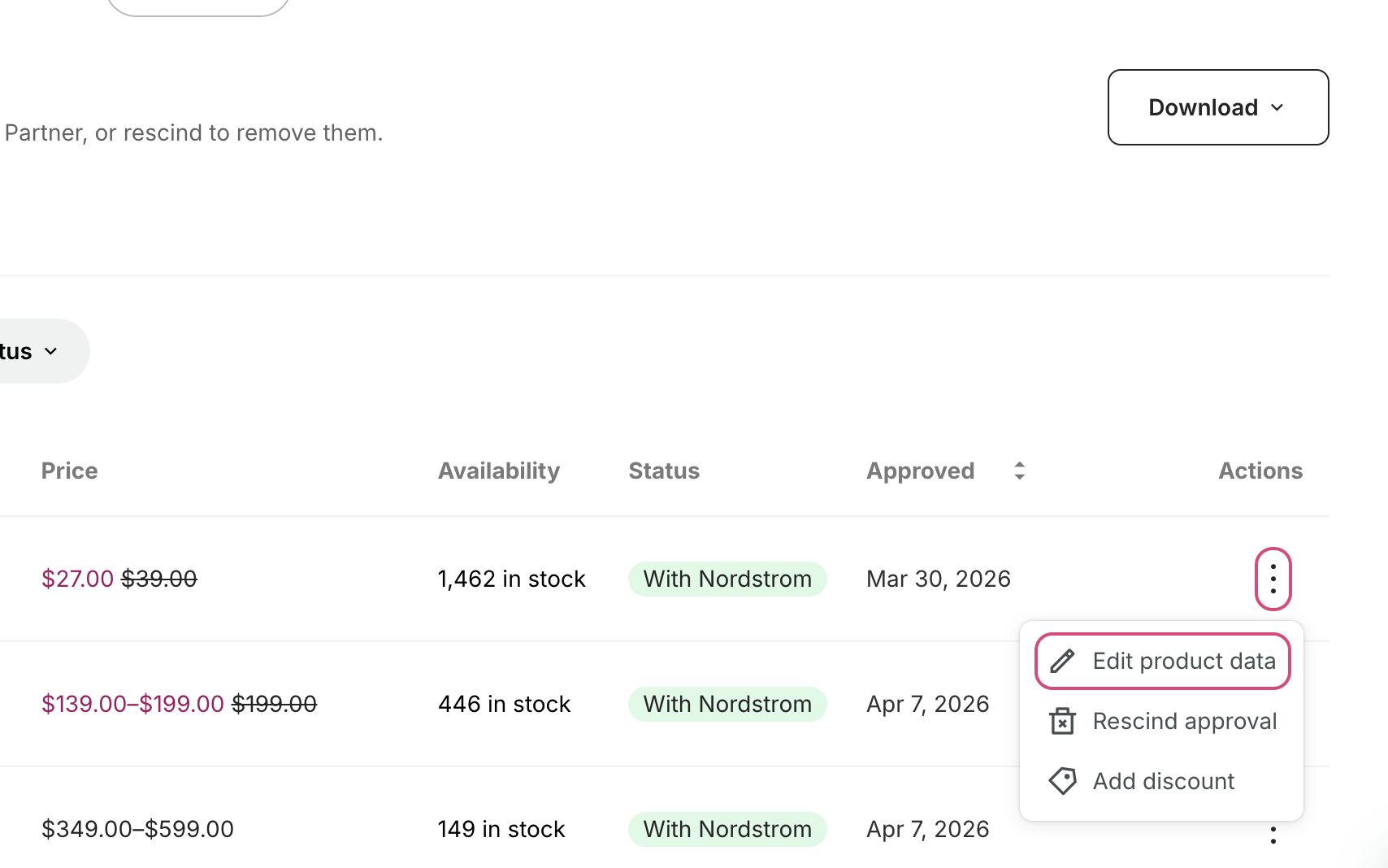
- Scroll the table across to the Actions column, click the three dots on the product's row, then click Edit product data.
- Open the Attributes tab.
How the Attributes tab is organizedDirect link to How the Attributes tab is organized
Fields are split into two groups.
- Top Level Attributes sit at the top and apply to every variant in the product — the product title, copy description, features, brand label, and country of manufacture.
- Variant Attributes sit in a table at the bottom, with one row per variant. These are the fields that change from one variant to the next, such as color and size.
Fields marked with an asterisk (*) are required and can't be left empty.
Edit a top-level attributeDirect link to Edit a top-level attribute
By default, this section shows recommended and required fields. Click the Optional checkbox to show additional attributes that can help your product appear in advanced searches, or Disabled to show fields your retailer doesn't use.

Find the field you want to change and update it in place. Free-text fields such as the product title and copy description can be typed into directly. Fields with a fixed set of values, such as country of manufacture, are dropdowns — open the dropdown and pick the new value.
CategoryDirect link to Category
The Category field is read-only on a published product. If a product is in the wrong category, email roktcatalogsupport@rokt.com.
Edit a variant-level attributeDirect link to Edit a variant-level attribute
Scroll down to Variant Attributes. Each row is one variant, and each column is a field. Update the value in the row for the variant you want to change.
If the product has a lot of variants, use the filter box next to the section heading to narrow the list down before you edit.
Feedback from your retail partner also appears on the Variant Attributes table. If an earlier update was rejected, the reason shows up there — worth checking before you make your changes.

Resolve warnings before you republishDirect link to Resolve warnings before you republish
Fields that need attention are flagged with a warning. You must resolve every warning on a product before it can be published — clear them all, then republish.
Save and republishDirect link to Save and republish
- Click Save at the bottom of the screen. Cancel discards your changes instead.
- Click Republish to Mirakl in the top-right corner to send the updated listing to your retail partner.
Saving on its own doesn't reach the retailer — nothing is sent until you republish. Your changes usually appear on the retailer's site within 48 hours, and your product stays live while the update is being reviewed.
Related articlesDirect link to Related articles
You might also find these helpful: