Managing discounts for Partner stores
Rokt Catalog allows you to set custom discounted prices for your products on a per-partner basis. Discounts apply immediately for the selected partner store, and you will continue to earn your agreed-upon commission on the discounted price.
How to Access the Discount EditorDirect link to How to Access the Discount Editor
- From the left-hand navigation, click Partners.
- Select the partner store you want to manage (e.g., Catalog Demo Store).
- Scroll down to the Products section. You'll see a list of your approved products for that partner.
- Select the products you want to discount by checking the box to the left of each one.
- Click the Actions dropdown and select Add discount.
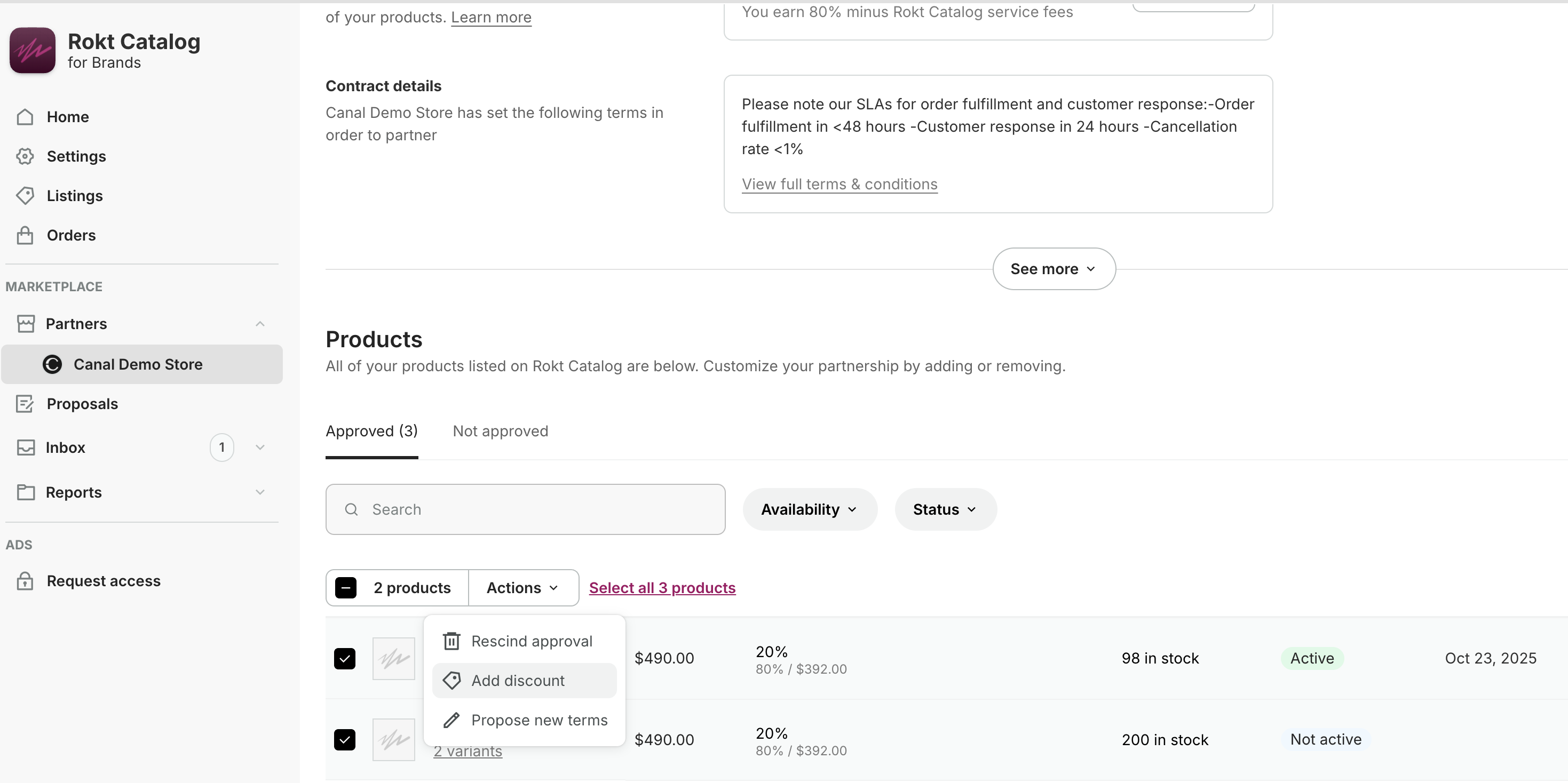
You can select individual products or click Select multiple products to apply changes in bulk.
Adding or Editing a DiscountDirect link to Adding or Editing a Discount
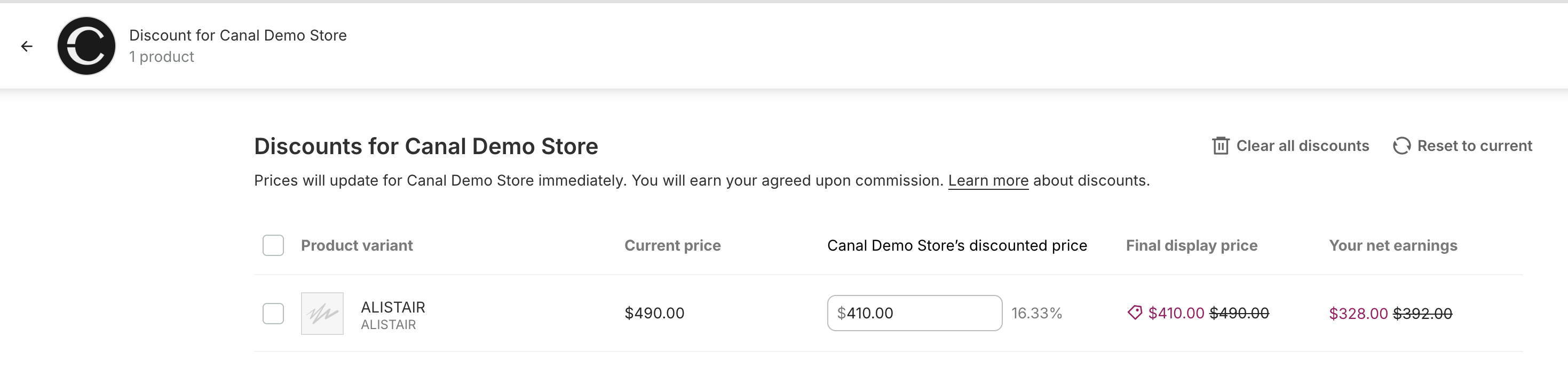
Once inside the Discount Editor, you'll see all product variants associated with the selected partner.
For each product variant, you can:
- Enter a discount amount – Type a dollar value into the discount input field next to the product. This will show you a live preview of the final display price and the percentage off.
- Review your earnings – The editor displays your commission amount based on the discounted price so you always know what you'll earn.
Bulk ActionsDirect link to Bulk Actions
To apply or manage discounts across multiple variants at once, check the box to the left of one or more product variants > Select the Actions dropdown. You'll see the following options:
| Action | Description |
|---|---|
| Edit discount | Update the discount amount for selected variants |
| Reset to current | Revert selected variants back to their current price |
| Clear discount | Remove any discount from selected variants |
| Remove from editor | Remove selected variants from the current editing session |
Applying Your ChangesDirect link to Applying Your Changes
Once you're satisfied with your discounts:
- Click Apply changes at the bottom of the page (or the top-right corner) to save and publish your discounts.
- Prices will update for the partner store immediately upon saving.
To discard all unsaved changes, click Reset to current in the top-right corner of the editor.
Removing All DiscountsDirect link to Removing All Discounts
To clear discounts from all product variants at once, click Clear all discounts at the top right of the Discount Editor. This will remove any active discounts across all variants for that partner.
Things to Keep in MindDirect link to Things to Keep in Mind
- Discounts are partner-specific — changes made here only affect the selected partner store and will not impact other partners or your default pricing.
- You will always earn your agreed-upon commission rate calculated on the discounted price.
- Discount changes take effect immediately after clicking Apply changes.