Track conversions with Tealium CDP

Tealium's Rokt Events Connector sends conversion data from Tealium Customer Data Hub to Rokt. This guide explains how to authenticate the connector, map conversion fields, and test the integration.
AuthenticationDirect link to Authentication
Authenticating with the Rokt Events Connector requires a Rokt Public Key and Rokt Secret. See Events API authentication for more information.
Create a Rokt Events ConnectorDirect link to Create a Rokt Events Connector
Publish your changes for them to take effect. Reloading the site discards unpublished changes.
-
Go to Tealium iQ.
-
Confirm that you have server-side access. Reach out to your account administrator if you need access.
-
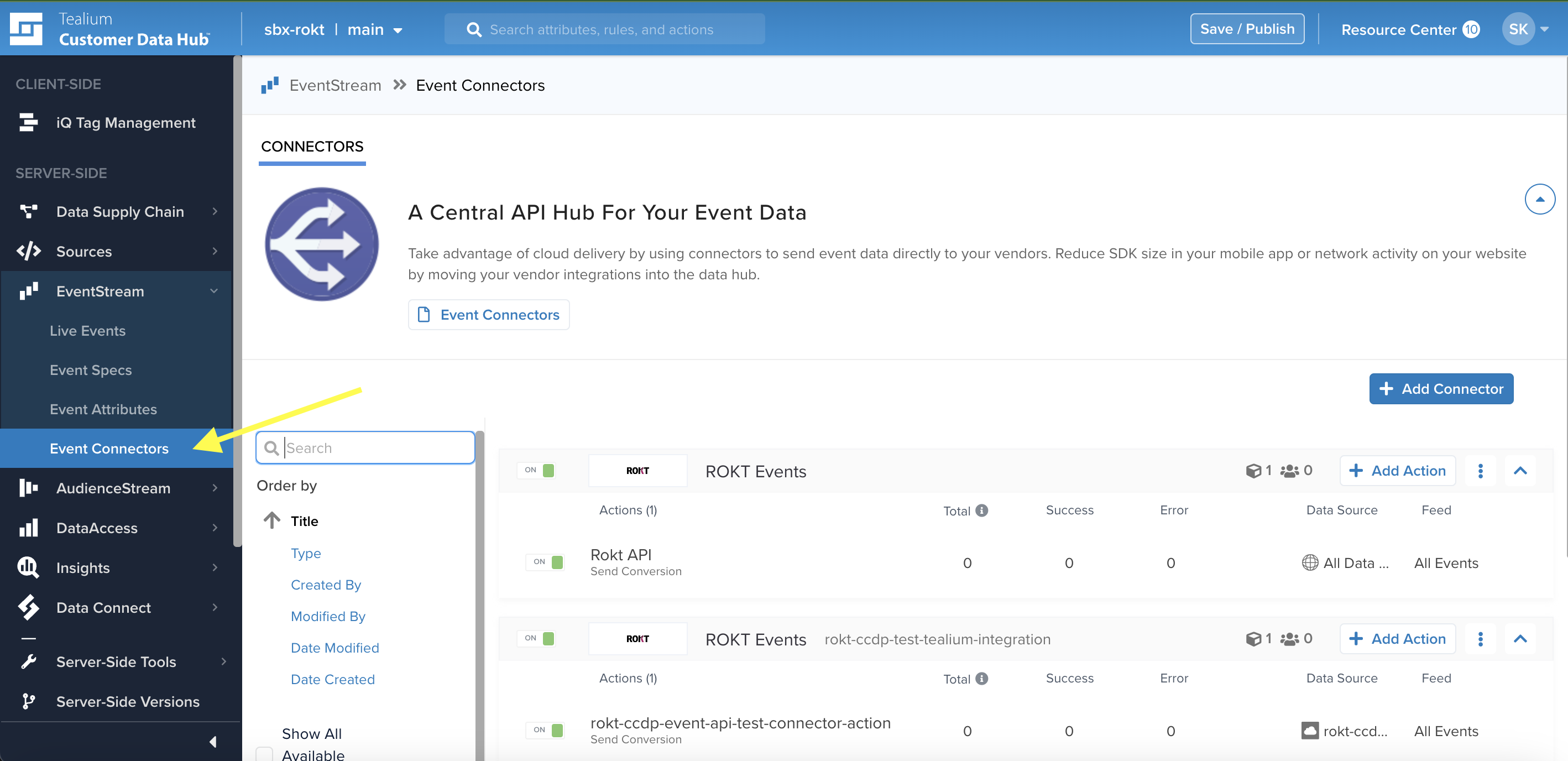
Open EventStream, and select the Event Connector tab.
-
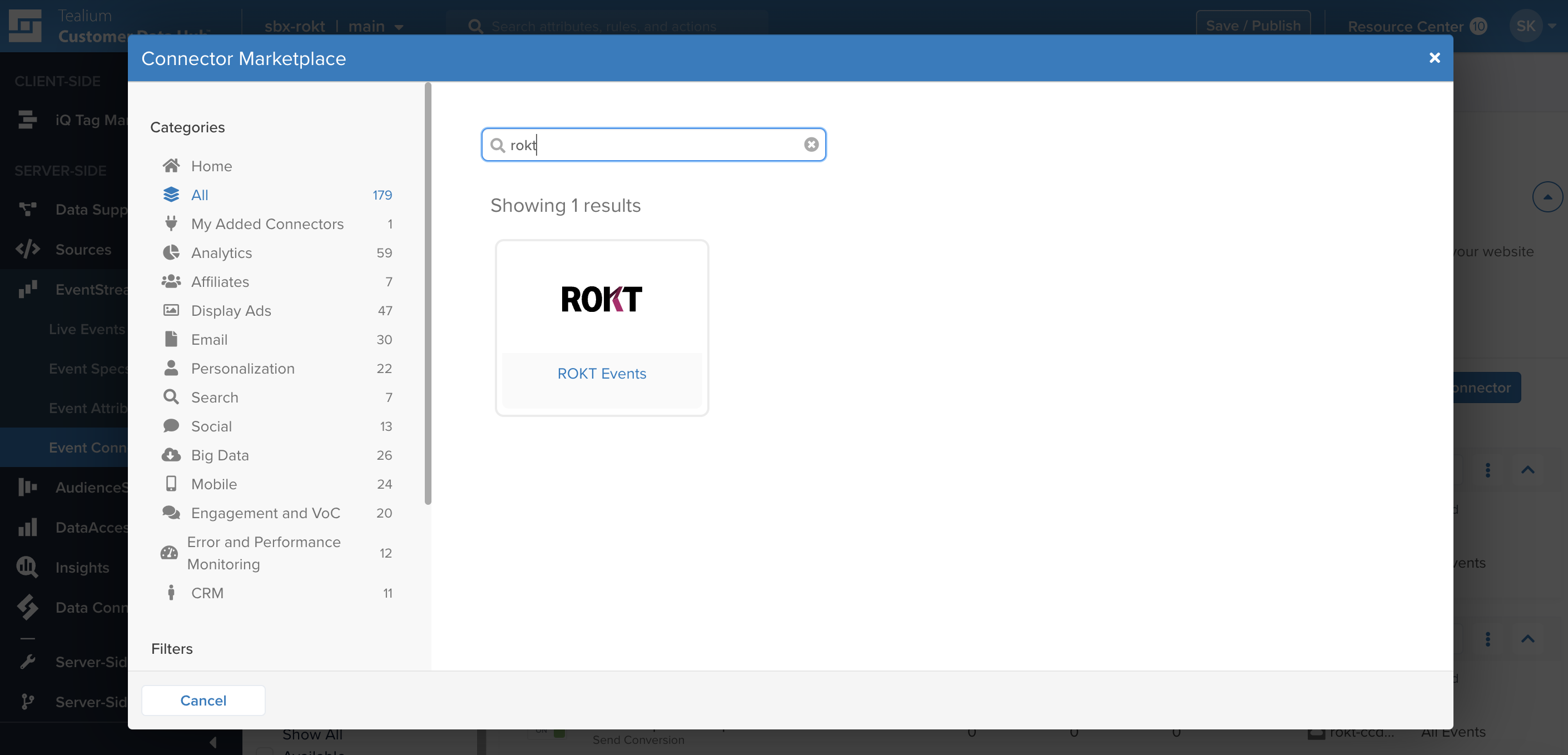
Click Add Connector, and search for Rokt.
-
Click Continue.
-
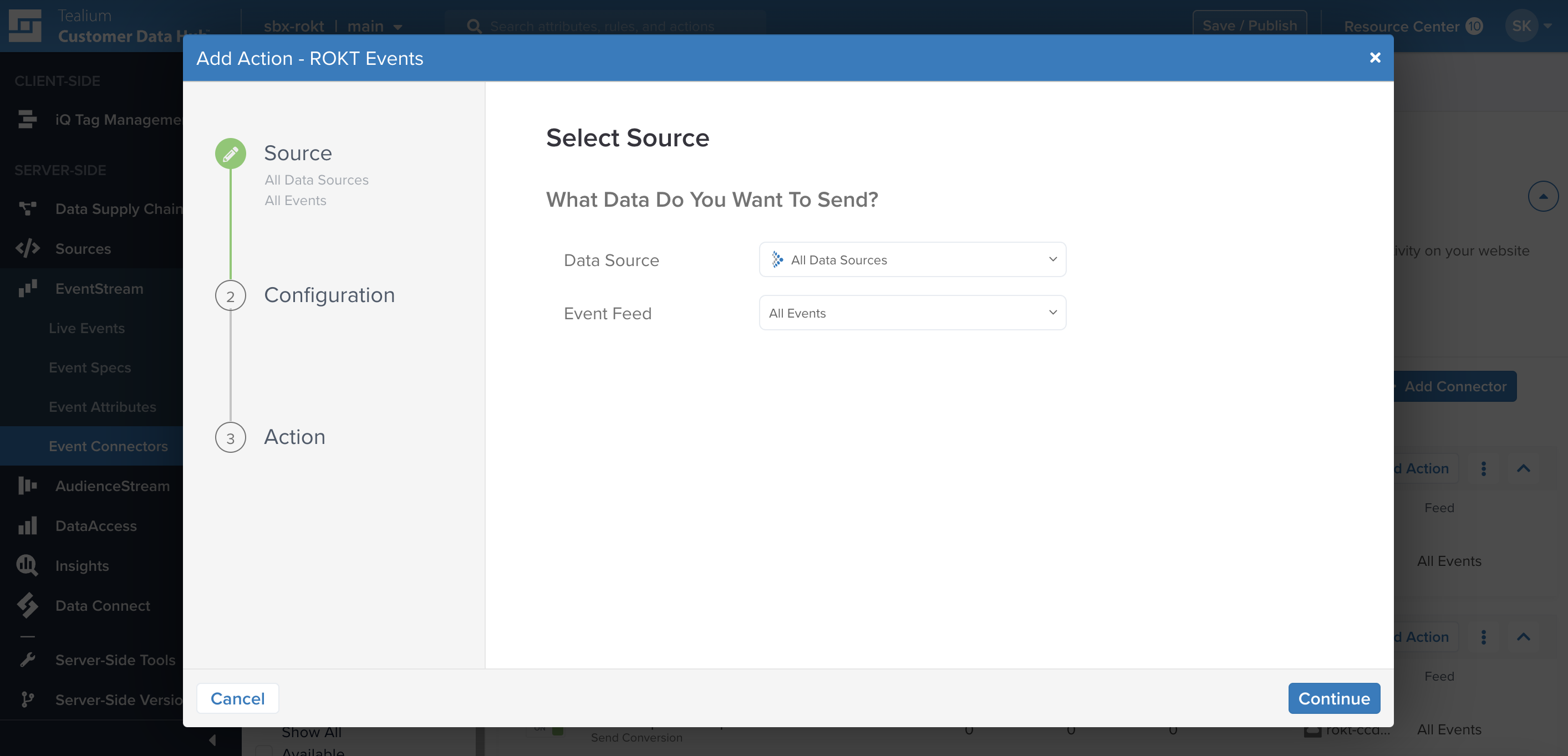
Select the data source for the connector. For information about creating one, see Tealium's Create a data source documentation.
noteThe data source determines where your events originate. You can configure multiple sources, such as web and app sources.
-
Click Add Connector.
-
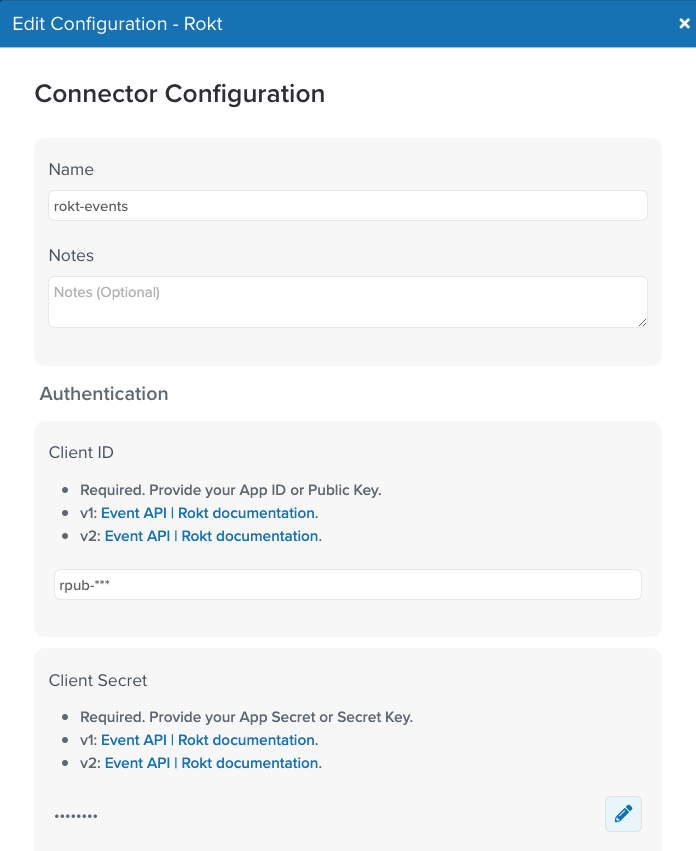
Give the connector a unique name, and enter your Rokt Public Key and Rokt Secret.
-
Click Done.
-
Click Test Connection. After the Connected! message appears, click Done.
-
Click Continue.
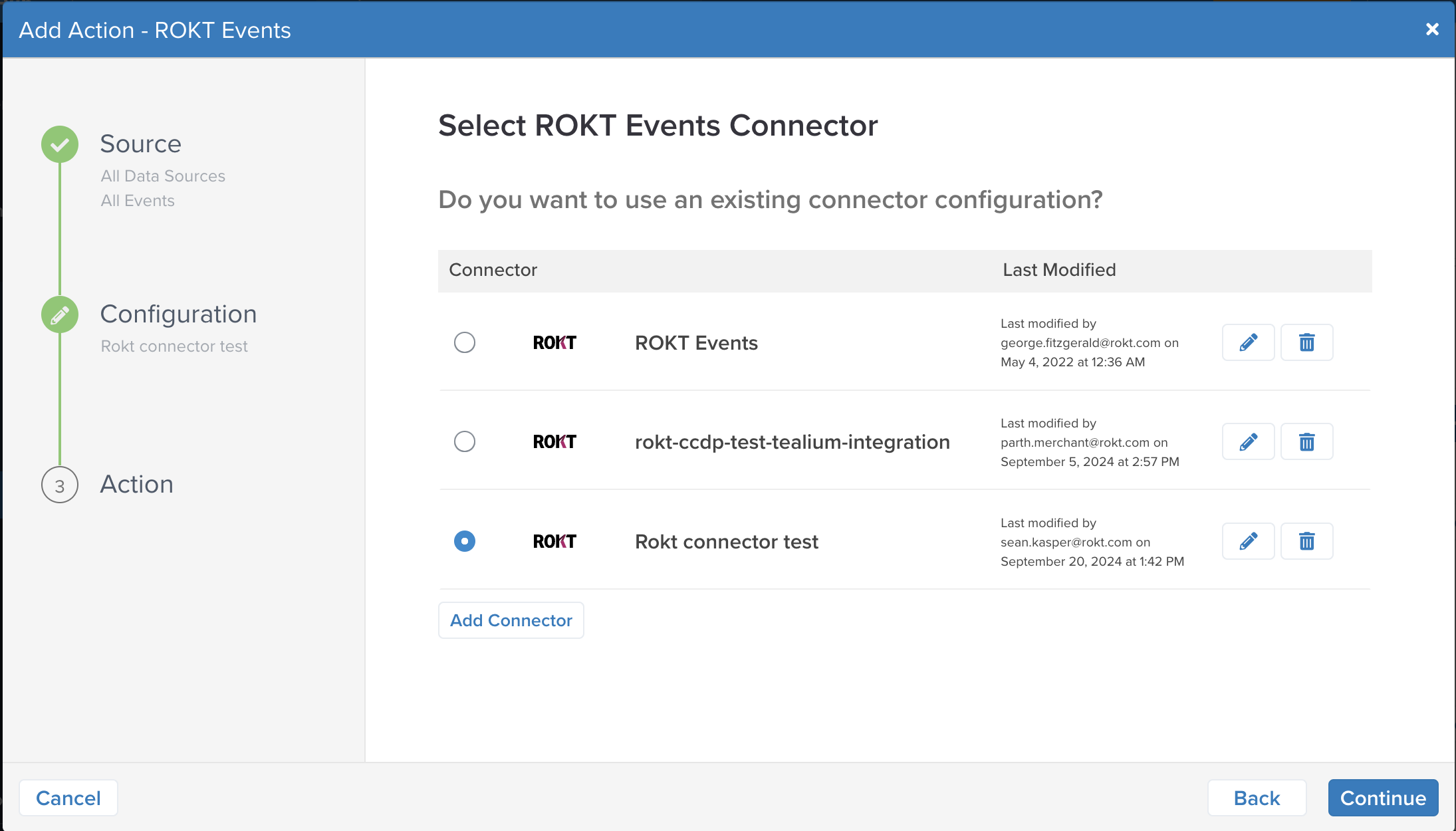
-
Add the action:
- Give the action a unique name, and select Send Conversion as the action type.
- Configure the action settings to define how events from the selected data source are sent to Rokt.
- Include the identifiers and attributes needed for attribution and campaign optimization.
noteForward all events that represent meaningful conversions in your business funnel. The more conversion data Rokt receives, the better it can optimize your campaigns.
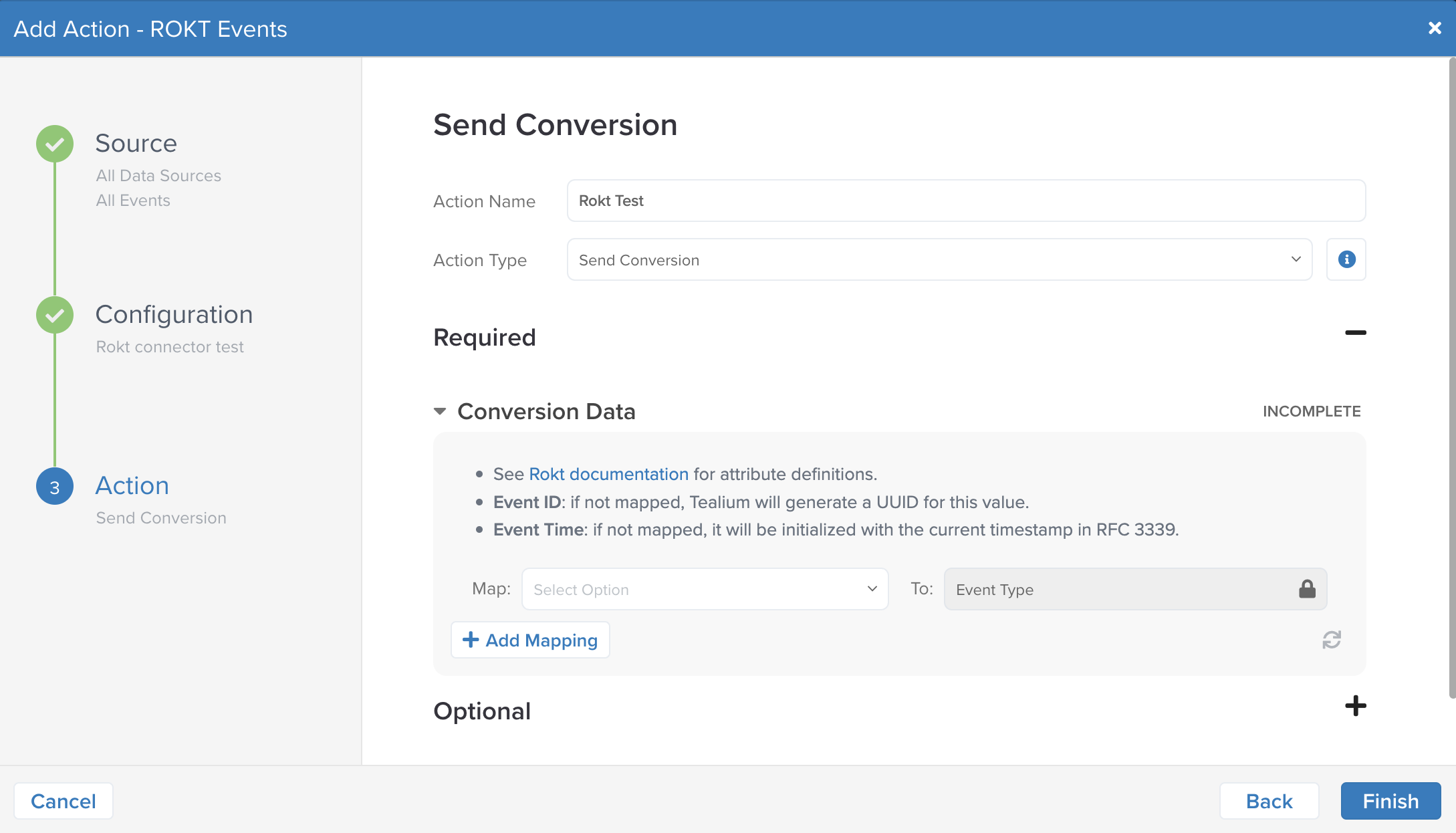
-
Map Tealium event attributes to Rokt event fields:
Parameter Description Requirement Event Type Type of event or action. Required Event ID A unique identifier for the event. Required Event Time Time of the event in UTC. Required Email Raw email address, lowercase and without leading or trailing spaces. At least one email field is required. Raw email is preferred; raw and hashed email together are recommended. Email (already SHA-256 hashed) Existing SHA-256 hash of the email address. See above. Email (apply SHA-256 hash) Email address that Tealium hashes before sending. See above. Rokt Tracking ID A Rokt-generated ID used to match a conversion to the originating click. Recommended Mobile Mobile phone number of the converting customer. Recommended First Name Customer's first name. Recommended Last Name Customer's last name. Recommended For the complete list of supported parameters, see the Events API documentation. Include fields such as transaction amount, currency code, product details, and payment method when available.
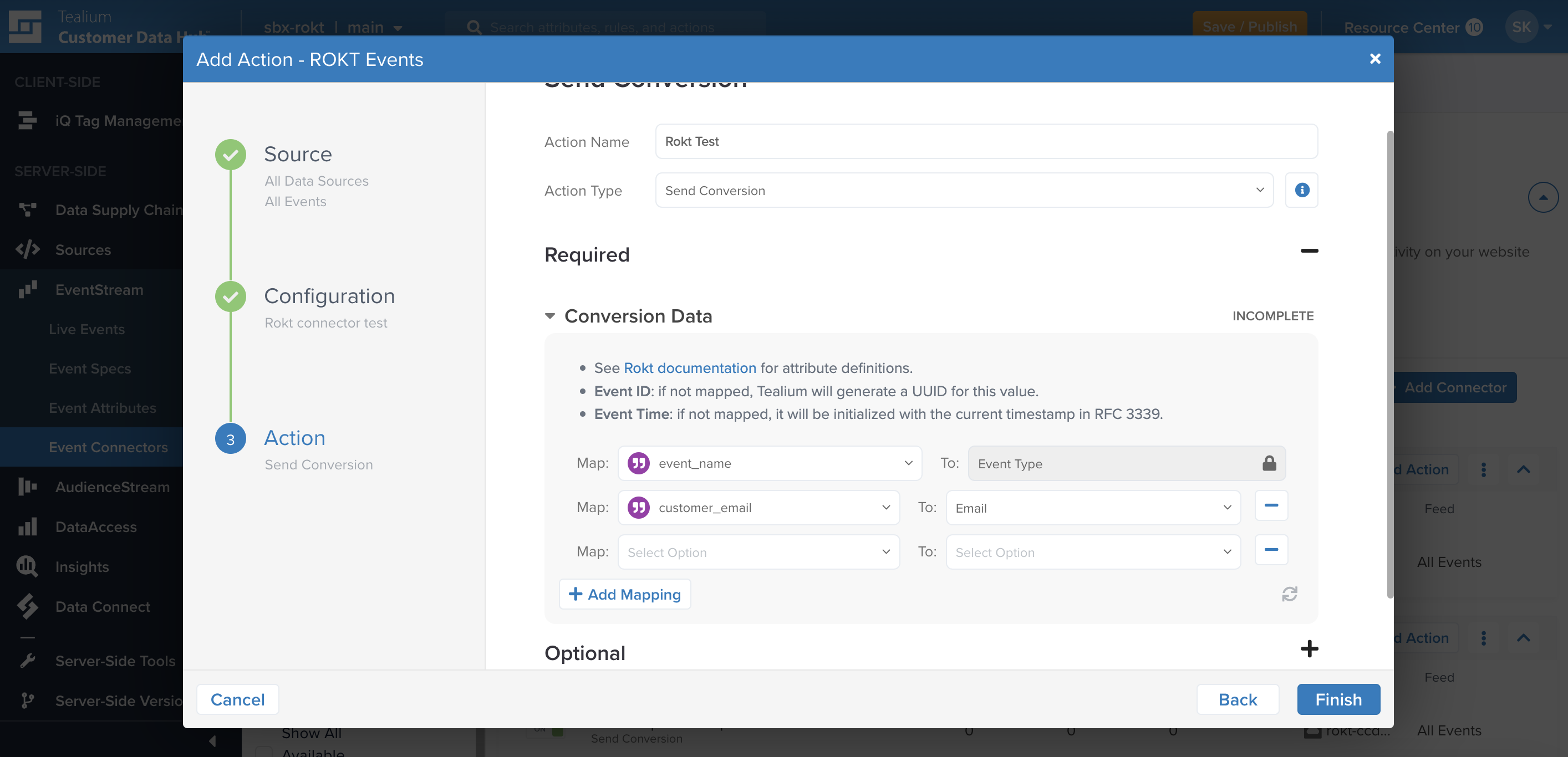
-
Click Finish.
Batch limitsDirect link to Batch limits
The connector batches requests to support high-volume transfers. It sends a batch when one of the following thresholds is met:
| Request parameter | Threshold |
|---|---|
| Maximum number of requests | 100 |
| Maximum time since the oldest request | 10 minutes |
| Maximum request size | 1 MB |
Test the integrationDirect link to Test the integration
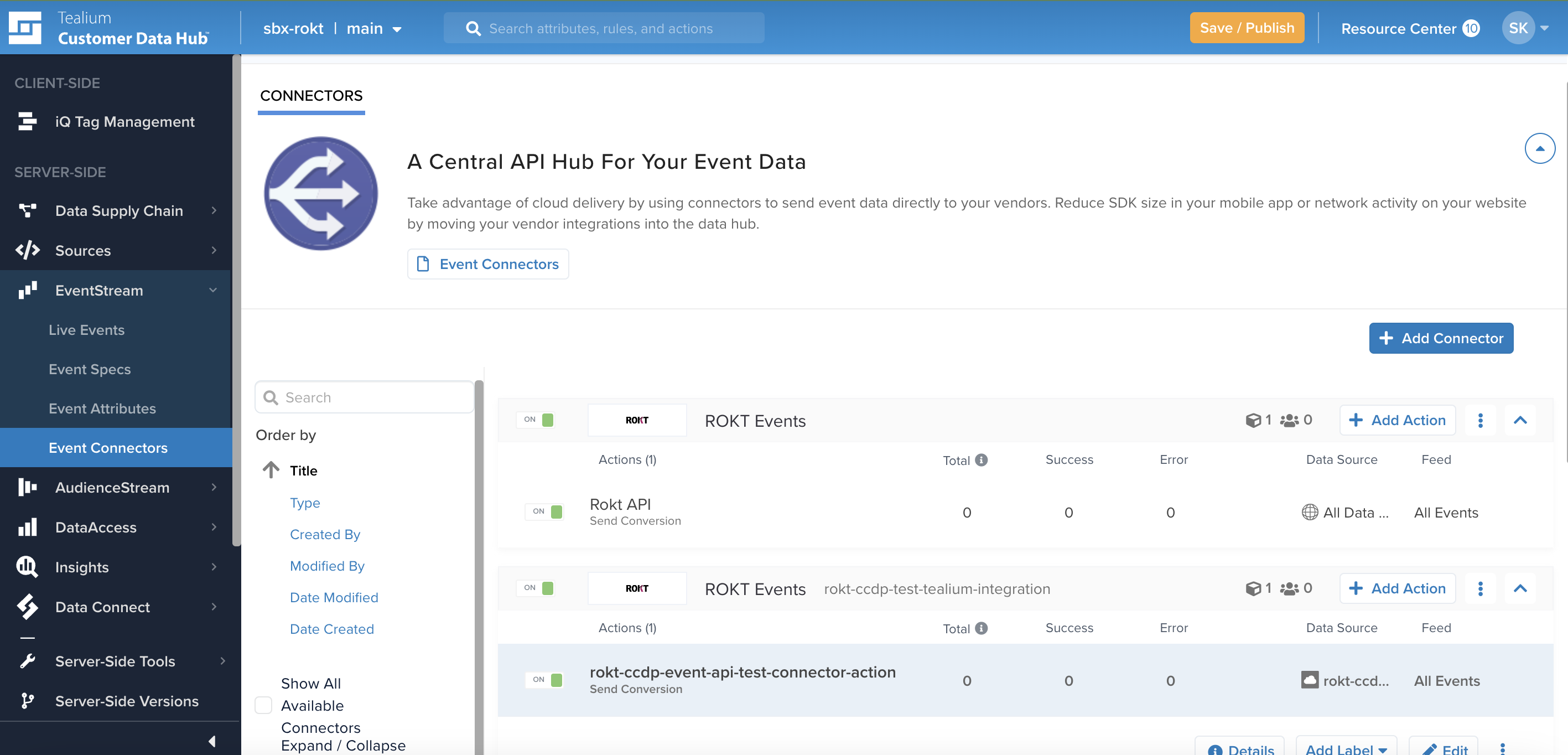
How you trigger a test event depends on your data source. In the Rokt Events Connector dashboard, confirm that the test event reaches the Events API by checking the Success column next to the action.
Your conversion event integration is now configured. For help, reach out to your Rokt contact or account manager.