Track conversions with Census

Census lets you send conversion data from an existing data source to Rokt through its Rokt destination. This guide explains how to authenticate the destination, create an event sync, map conversion fields, and test the integration.
AuthenticationDirect link to Authentication
Authenticating with the Rokt Events destination requires a Rokt Public Key (rpub), Rokt Secret Key (rsec), and Account ID. See Events API authentication for more information.
Create a Rokt destinationDirect link to Create a Rokt destination
-
Log in to your Census account.
-
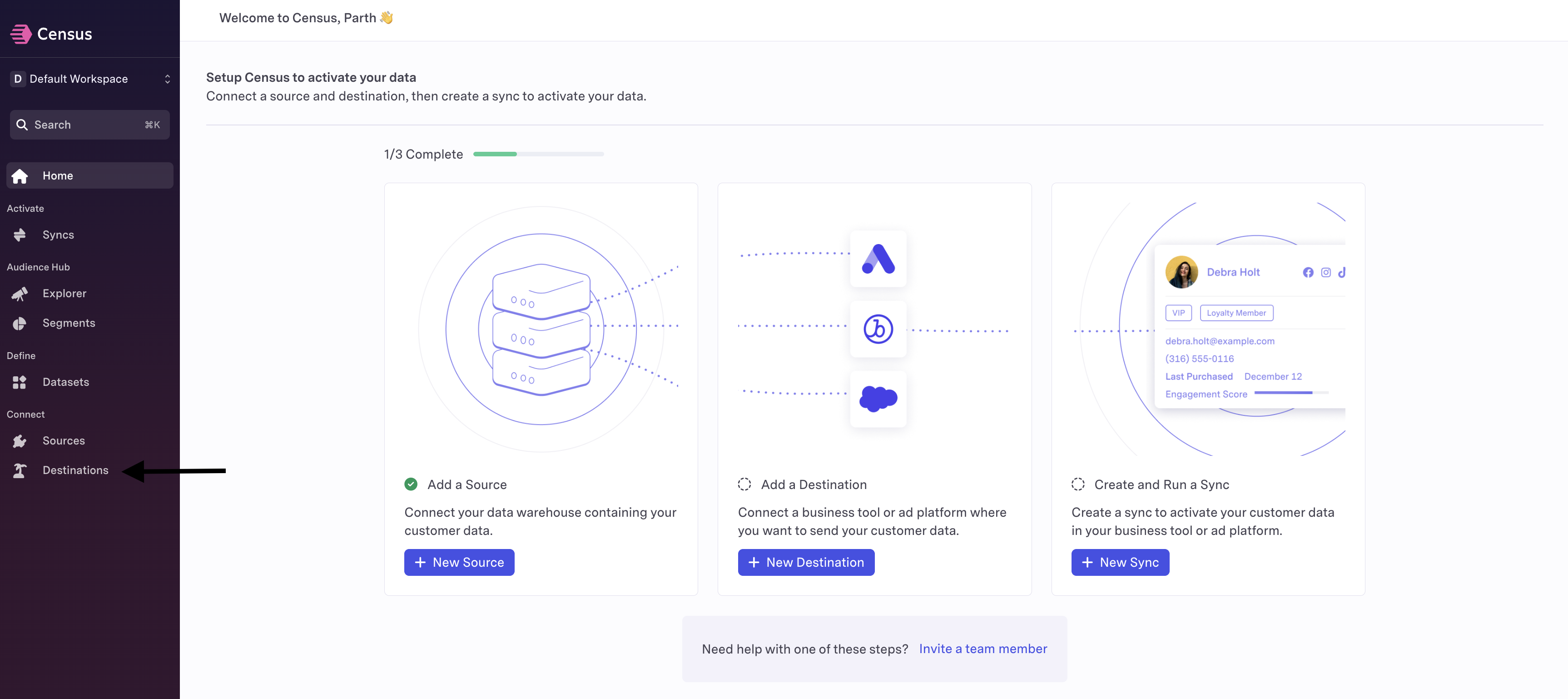
Click Destinations in the left navigation, and then click New Destination.
-
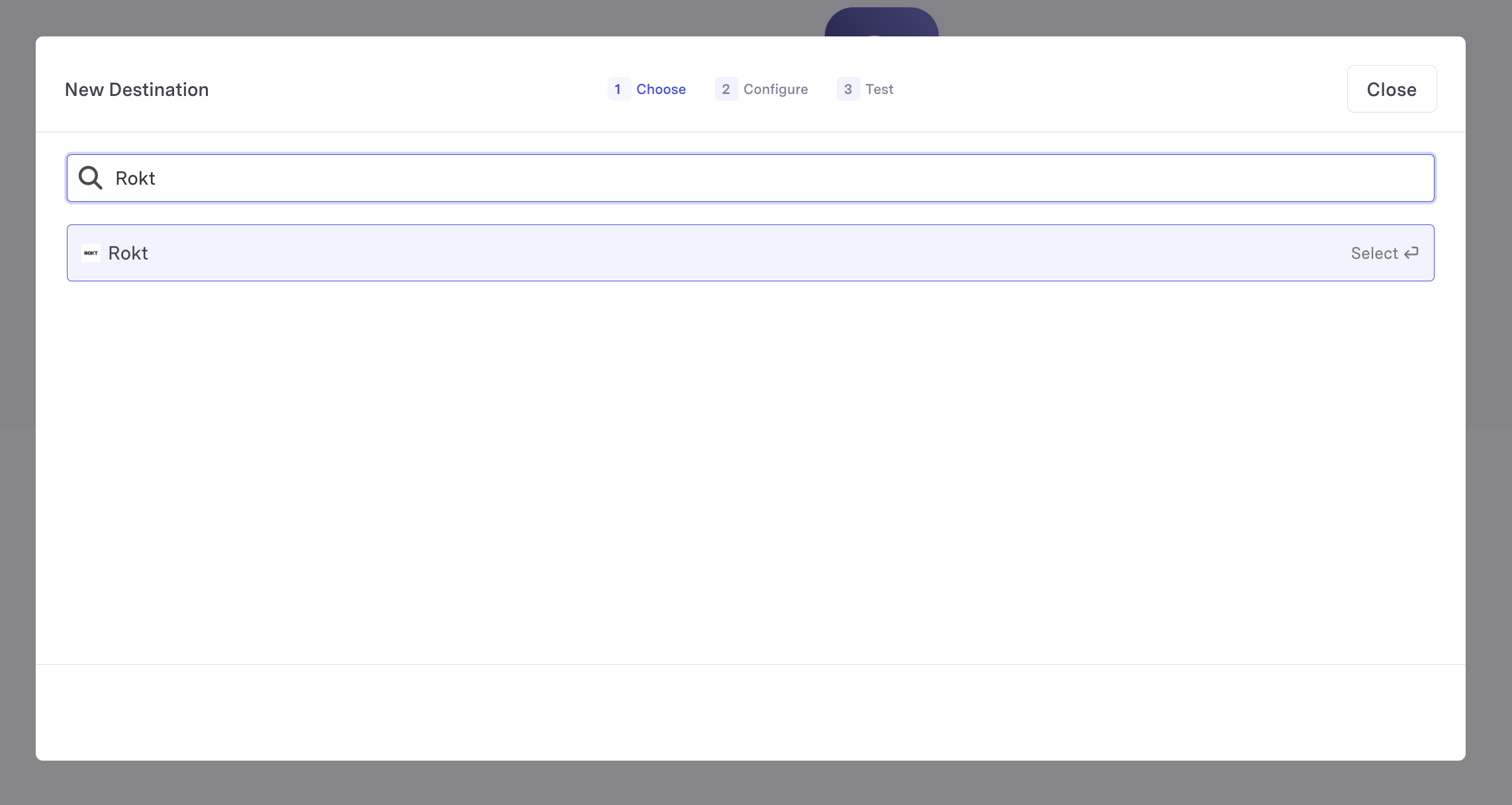
Search for the Rokt destination.
-
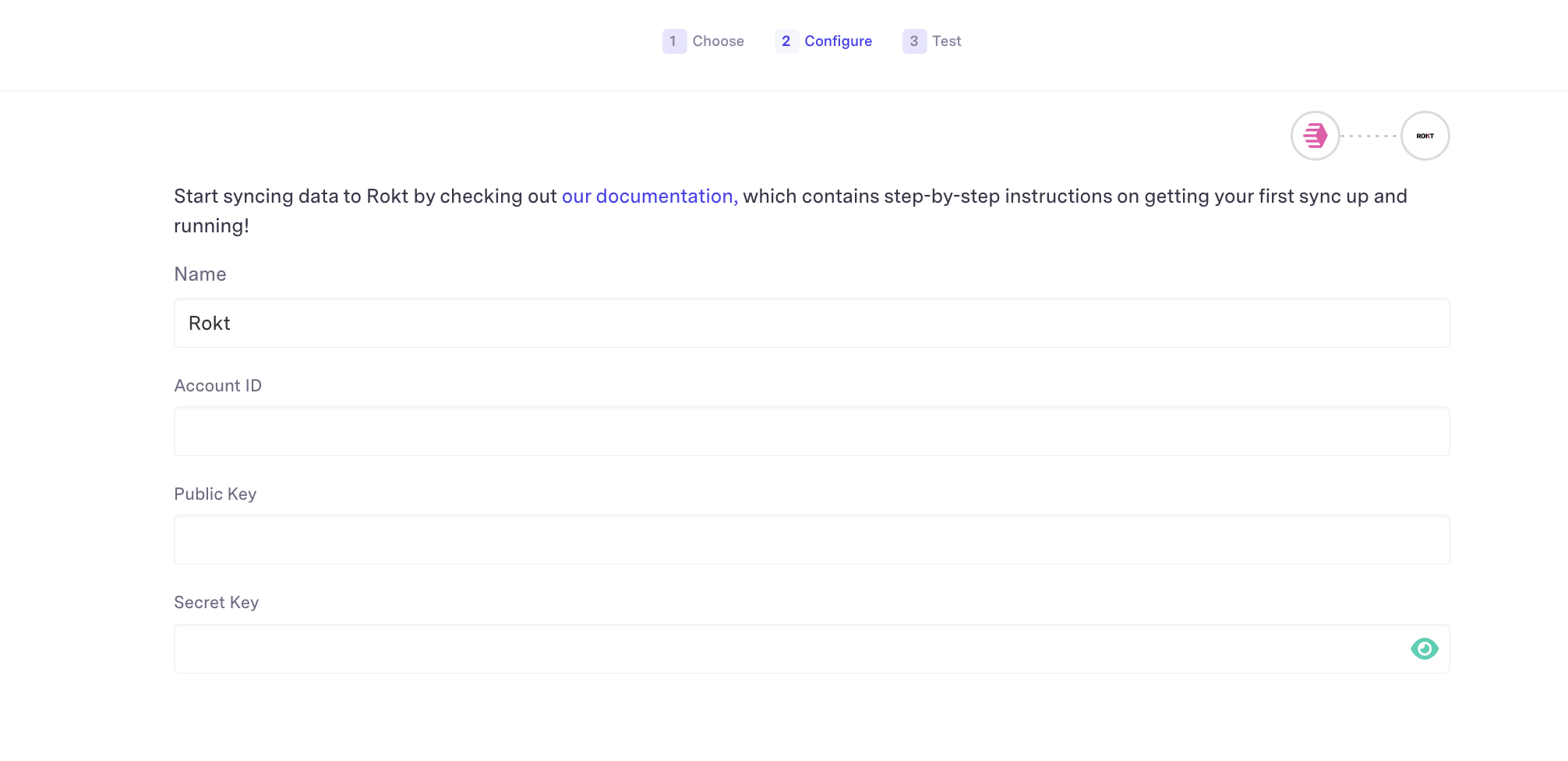
Enter the Account ID to which you want to send conversions, along with your
rpubandrsecvalues. Ask your Rokt account manager for these credentials. -
Click Connect to verify the connection.
-
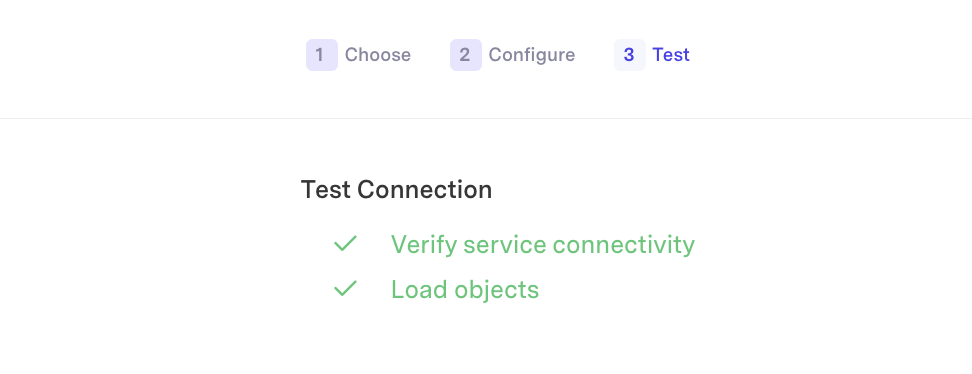
Confirm that the connection succeeds.
-
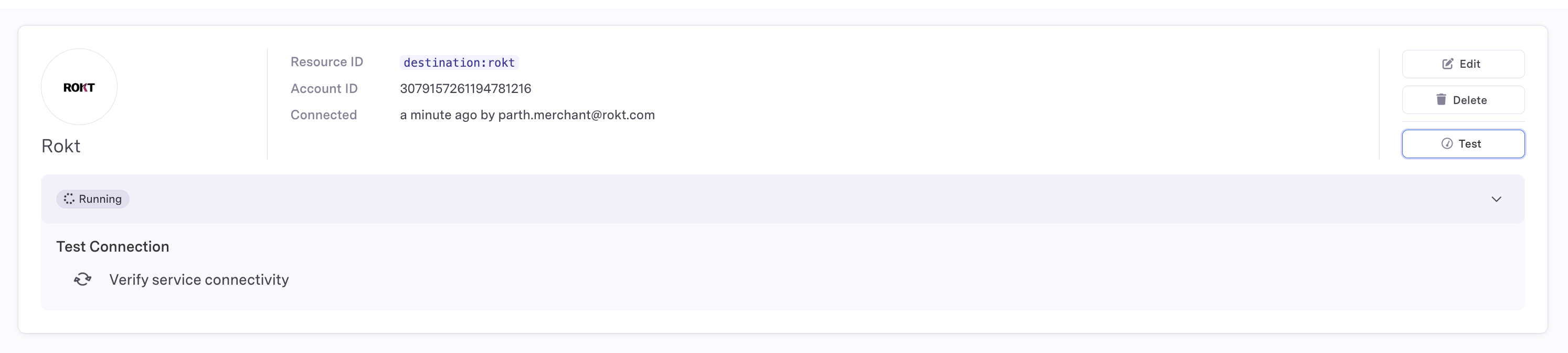
Click Test to create a healthy destination connection.

-
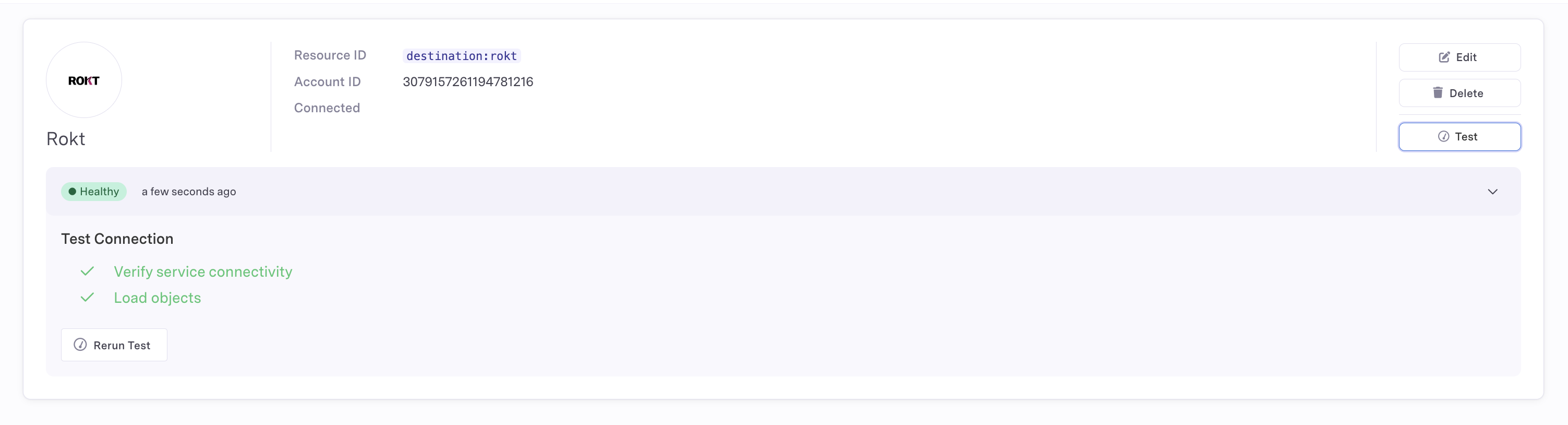
Confirm that the Rokt destination displays as Healthy.
Create an event syncDirect link to Create an event sync
A sync defines how data moves from your selected data source to the destination. For more information, see the Census Sync overview.
Forward all events that represent meaningful conversions in your business funnel. The more conversion data Rokt receives, the better it can optimize your campaigns.
-
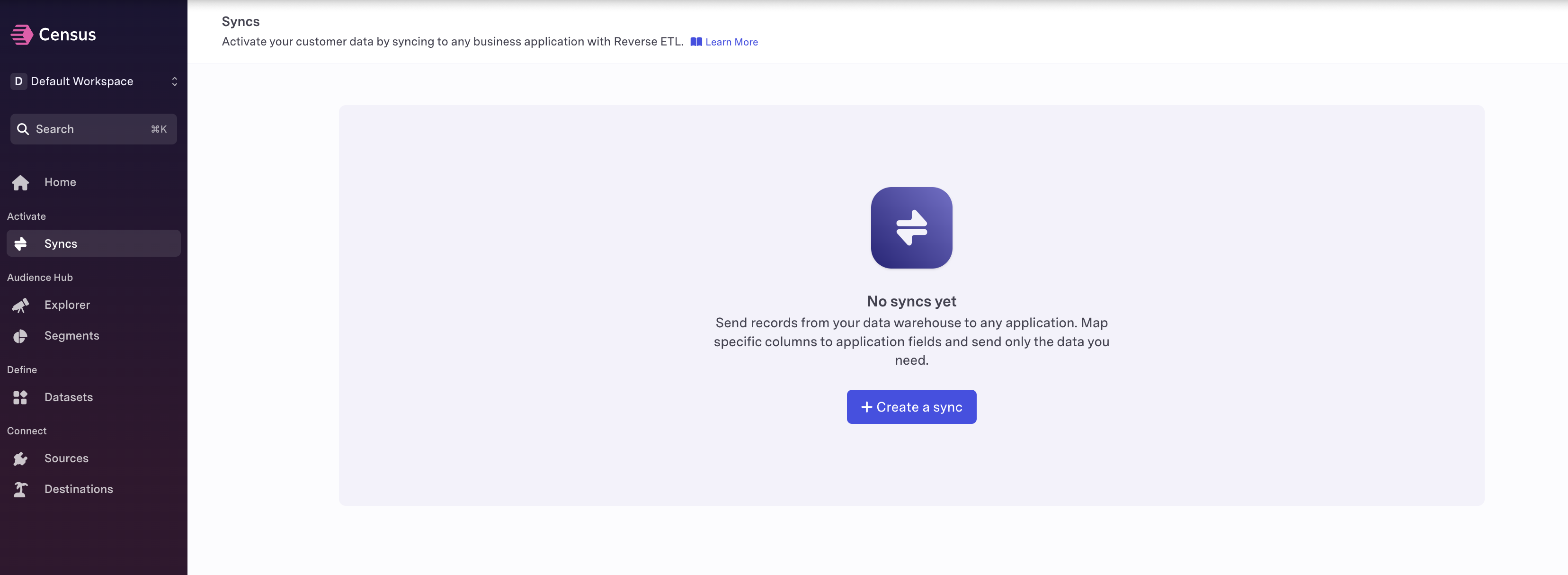
Click Syncs, and then click Create a sync.
-
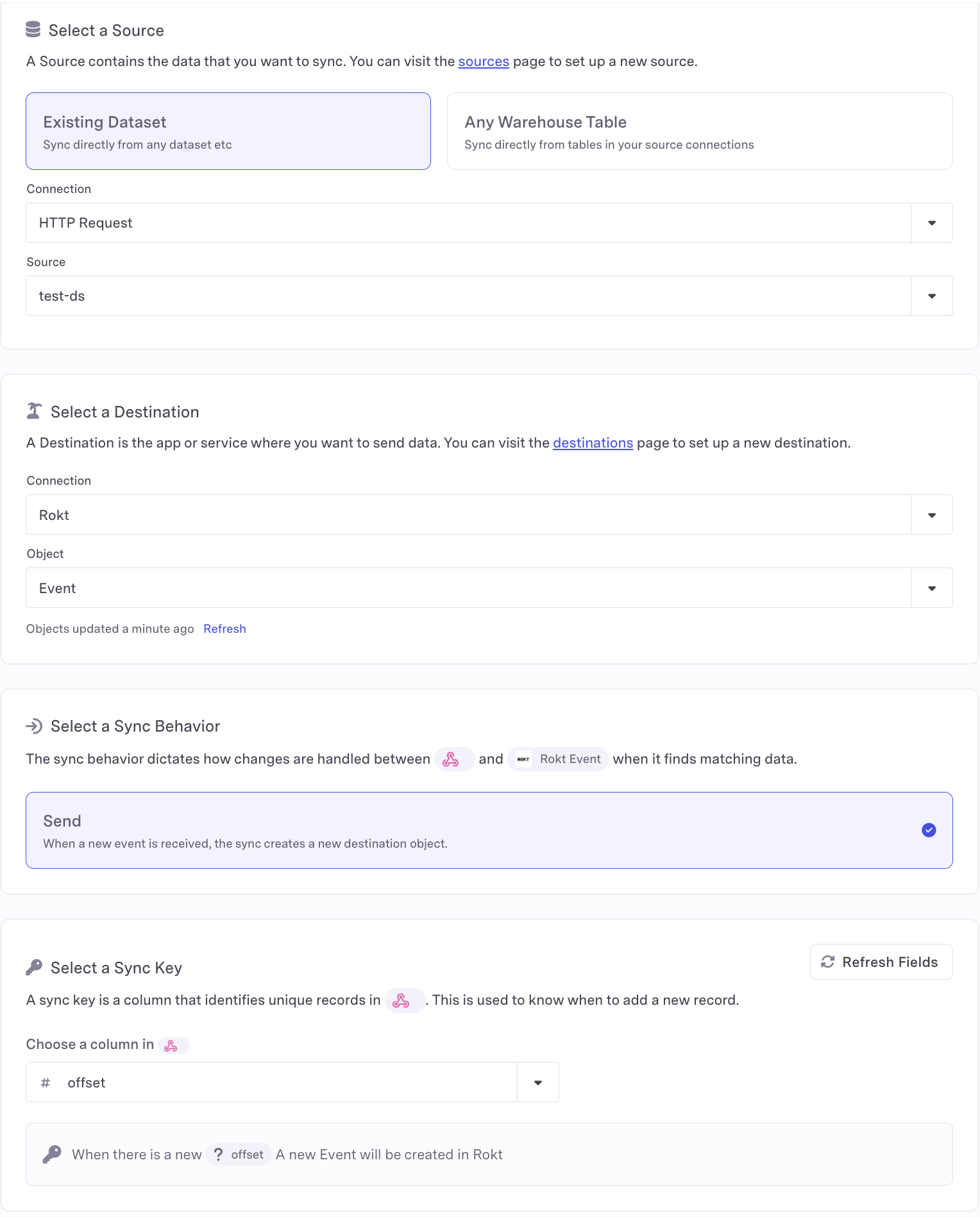
Select your data connection and source. For the destination, set Connection to Rokt and Object to Event. Set Sync Behavior to Send, and define your sync key.
-
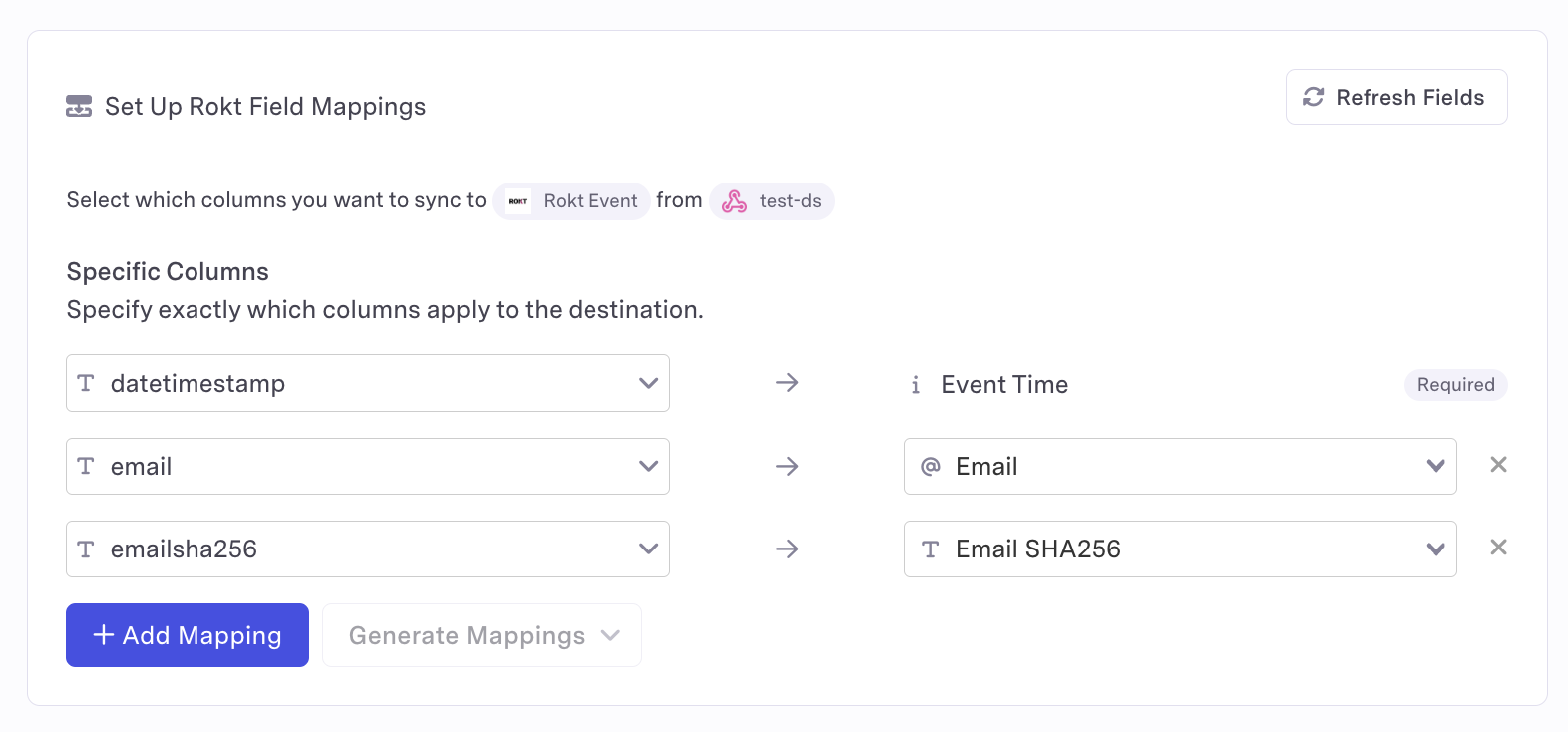
Map the fields that Rokt needs to receive.
Parameter Description Requirement Event Type Type of event or action. Required Event ID A unique identifier for the event. Required Event Time Time of the event in UTC. Required Email Raw email address, lowercase and without leading or trailing spaces. At least one email field is required. Raw email is preferred; raw and hashed email together are recommended. Email (already SHA-256 hashed) Existing SHA-256 hash of the email address. See above. Email (apply SHA-256 hash) Email address that Census hashes before sending. See above. Rokt Tracking ID A Rokt-generated ID used to match a conversion to the originating click. Recommended Mobile Mobile phone number of the converting customer. Recommended First Name Customer's first name. Recommended Last Name Customer's last name. Recommended For the complete list of supported parameters, see the Events API documentation. Include fields such as transaction amount, currency code, product details, and payment method when available.
-
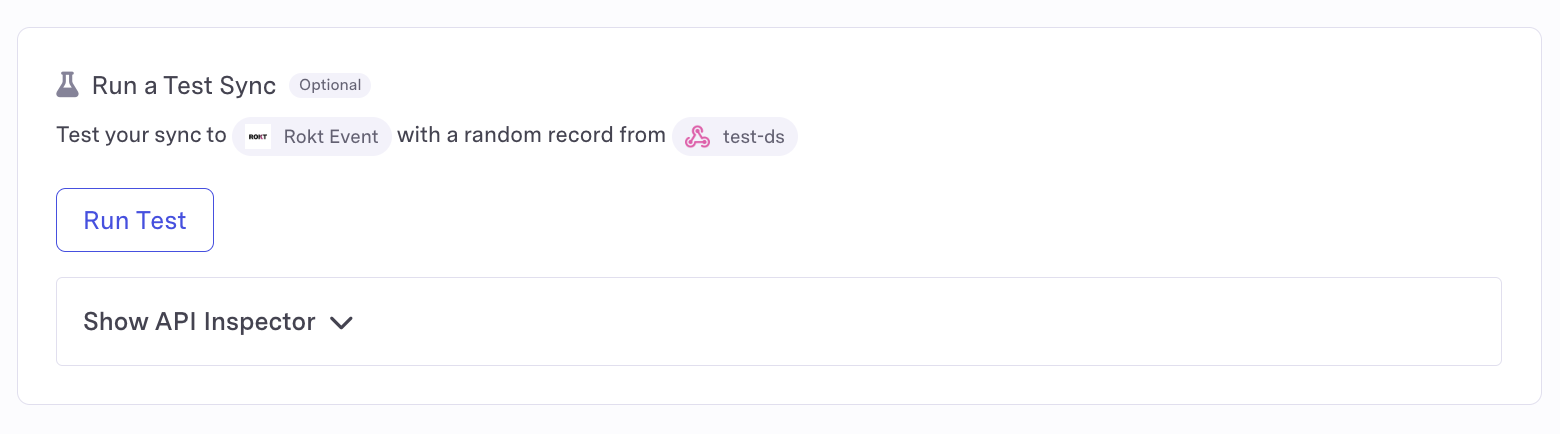
Click Run Test. A successful test displays Sync test succeeded and successful checks for fetching a record and loading it into Rokt.
-
If the test fails, open Show API Inspector to review the status code and response from the Rokt Events API. A successful request returns HTTP status
200.
Your conversion event integration is now configured. For help, reach out to your Rokt contact or account manager.