Account settings
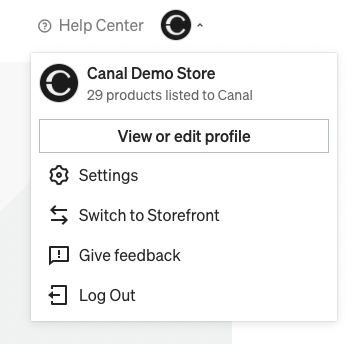
Catalog prompts you to add as much information as possible when onboarding, but you can always update your settings later. Select Settings in the left navigation of the Catalog app.
Brand infoDirect link to Brand info
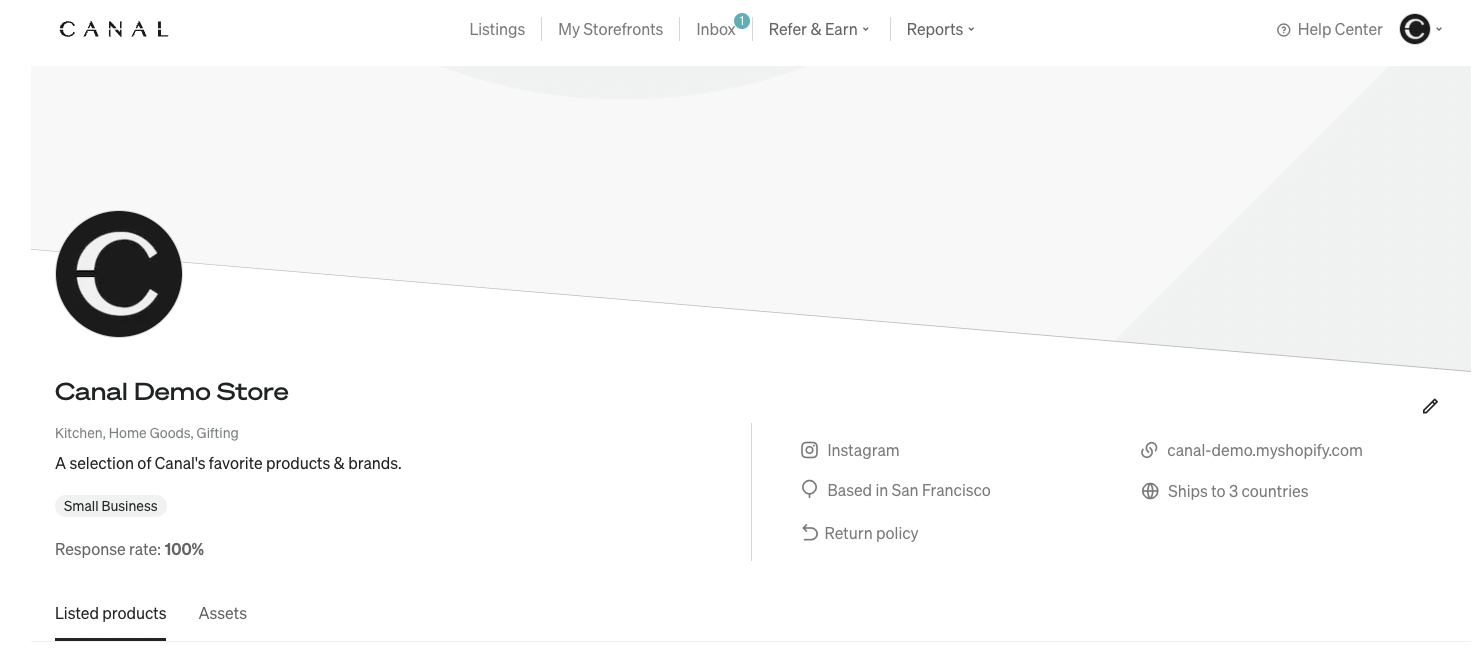
All information added on this page is visible to Partners on your profile. Edit this information under Settings > Brand info > Go to profile.
- Banner image and brand logo
- Return policy link: Link to your store's online policy page for Partners to reference.
- Ships to information: Locations that you ship to. Catalog pulls this from Shopify if applicable, but you can override it here.
- Customer support contact: Email for receiving inquiries about refunds, returns, and fulfillment from Partners.
Contact informationDirect link to Contact information
Add this information during onboarding. You can update it at any time.
- Primary: Main email for receiving proposals, billing, and orders from Catalog.
- Additional contacts: Secondary email that is CC'd on all proposals, billing, and orders from Catalog.
Payment and pricingDirect link to Payment and pricing
- Payout method: Add your payment method here if you skipped it during onboarding. This is how Catalog pays you. Learn more about creating your Stripe account in the Adding your Stripe account article.
- Payment contact: Email for billing updates and questions.
- Recommended storefront commission rate: Set your default commission for Partners here. Partners can negotiate this in their proposals.
- Discounted product pricing: Control whether discounted pricing syncs to your Partners, or if Partners sell at your full MSRP price.
Shipping and inventoryDirect link to Shipping and inventory
All information added on this page is visible to Partners to give them an idea of your shipping times.
- Shipping policy: Provide a summary of your shipping prices and policies.
- Shipping rate: Catalog suggests Partners use the dynamic shipping option. If not possible, this amount is collected from the Partner.
- Average fulfillment time: Indicate how long it takes to fulfill a new order.
- Inventory buffer: When inventory reaches this quantity, the product is marked as sold out on partner stores.
Run a test orderDirect link to Run a test order
To ensure orders are pulled into your backend correctly, we suggest running a test order. The Running a test order article walks you through how to complete that in the Catalog app.