AppsFlyer
If you are using the measurement provider Appsflyer for attributions, follow the steps below to connect with Rokt. Before getting started, please reach out to your Rokt account manager to obtain your unique token.
Use the Rokt V2 Integration for all new implementations. The original Rokt integration is in the process of being deprecated and will be retired in a future release.
-
Log in to your Appsflyer account.
-
Go to Configuration > Integrated partners.
-
Navigate to Collaborate using the left-hand menu, then search for and select Rokt V2. The integration setup page will open.
-
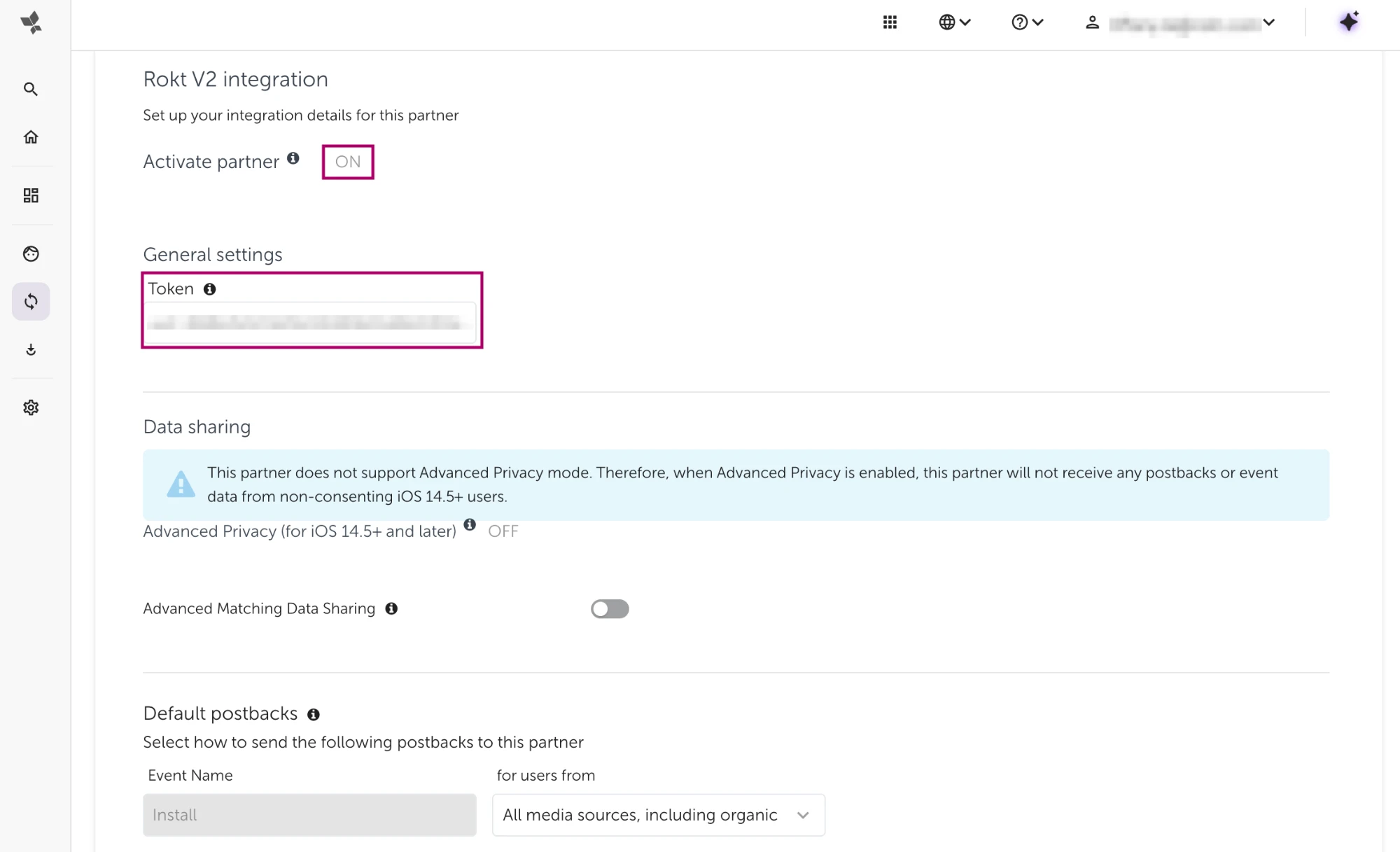
Under the Integration tab, turn on Activate partner and add the token provided by your Rokt account manager under General Settings.
-
Appsflyer forwards hashed identifiers to supported partners, including Rokt, through Advanced Matching Data Sharing to improve conversion matching. To enable this, under Data sharing, turn on Advanced Matching Data Sharing. The forwarded identifiers are the hashed email address, phone number, first name, and last name. To collect these identifiers in your app, follow Appsflyer's SDK or API guides. Learn more about Advanced Matching Data Sharing on Appsflyer's website.
-
Under Default postbacks, select the drop down under for users from and set it to All media sources, including organic.
-
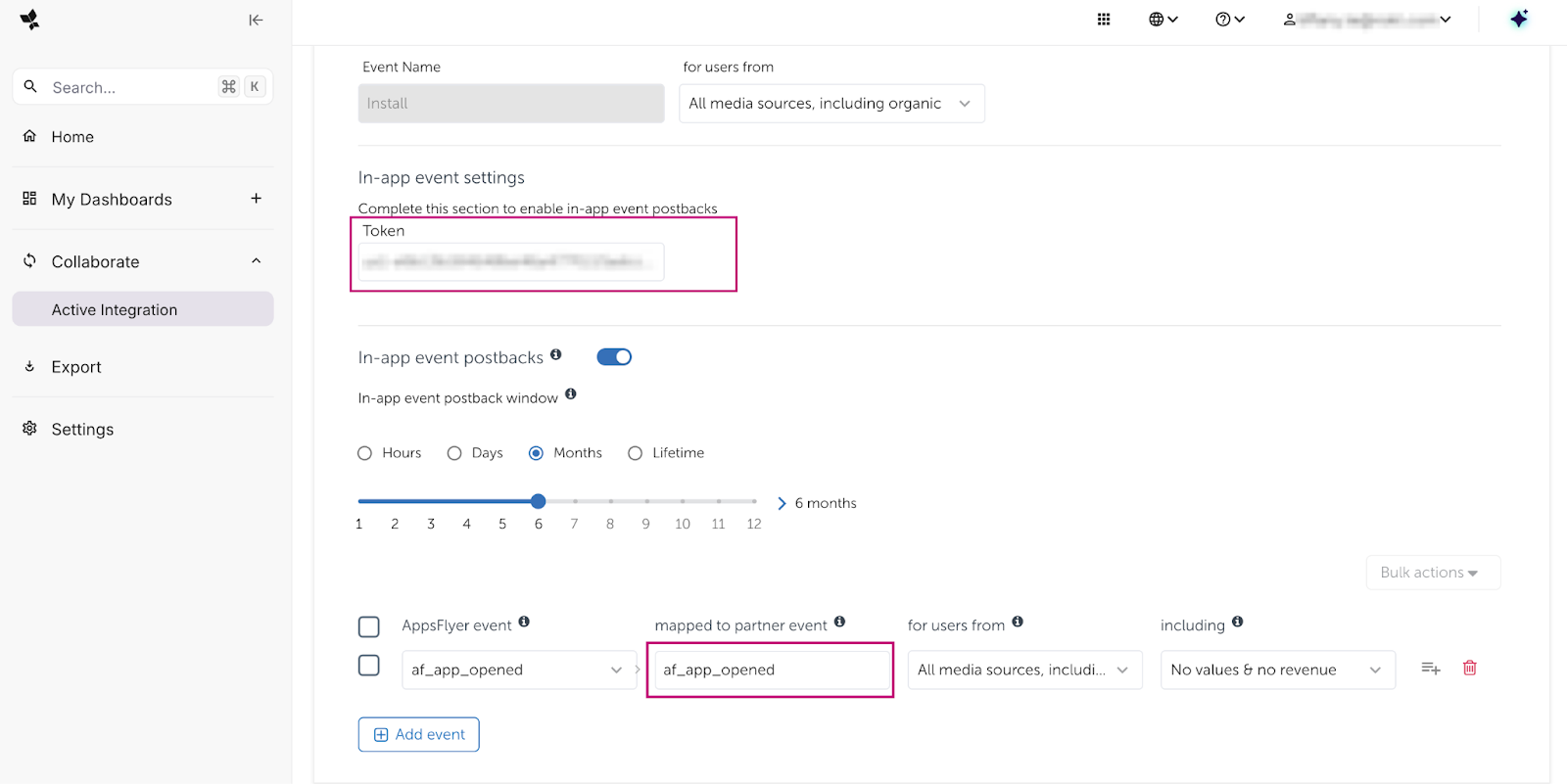
(Recommended) To help Rokt optimize your campaigns, configure in-app event postbacks to send post-install event data (e.g., purchases, registrations). If you only need to track installs, you can skip this step.
- Under In-app event settings Token, input the same token you added in General Settings.
- In the mapped to partner event column, enter the name of the conversion event you want to send to Rokt (e.g.,
purchase,registration). You may use the same name as the Appsflyer event. Learn more about in-app events postback on Appsflyer's website. - For all In-app event postbacks, set for users from to All media sources, including organic.
-
Click Save Integration.
-
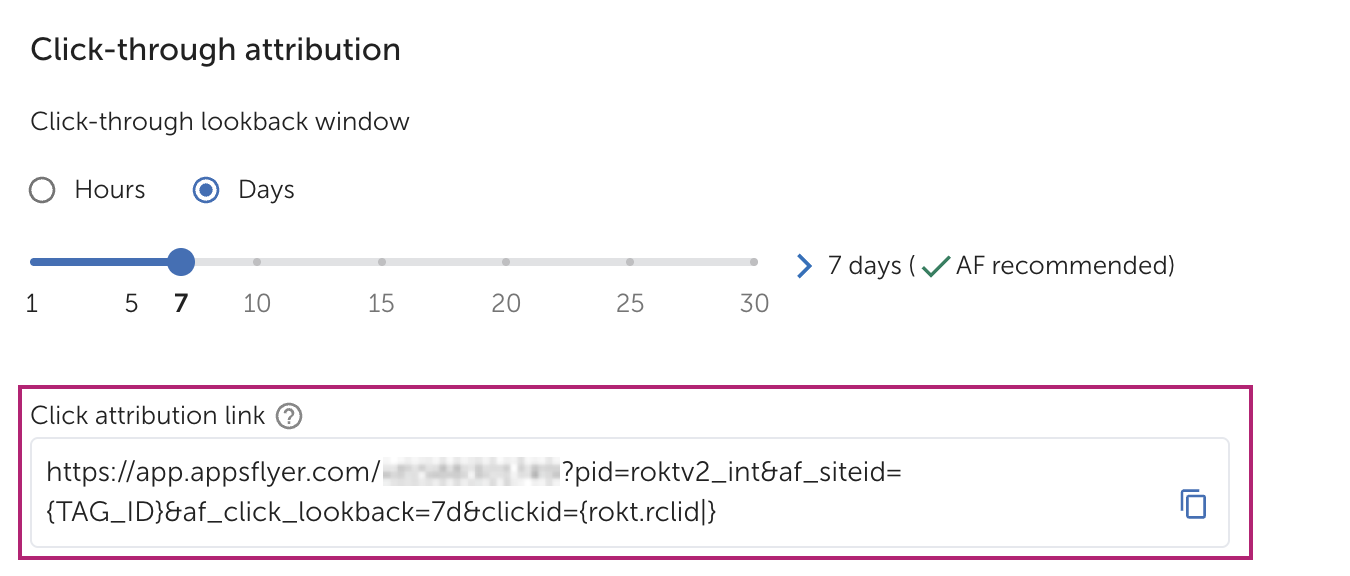
Go to the Attribution link tab. If needed, update the parameters and Click-Through Lookback window. Learn more on Appsflyer's website.
-
Find your Click attribution link, copy the generated link, and share it with your Rokt account manager.