Track conversions with Segment

The Rokt Conversions API destination for Segment sends conversion data to Rokt Ads, enabling Rokt's models to learn from every conversion and optimize campaign targeting and bidding.
Create the Rokt Conversions API destinationLien direct vers Create the Rokt Conversions API destination
Before you begin, reach out to your Rokt account manager to receive your API key and secret.
-
Log in to your Segment account.
-
Click Connections > Catalog in the left navigation, and then click Destinations.
-
Search for Rokt Conversions API, and click the tile to create the destination.
remarqueUse the Rokt Conversions API for all new integrations to receive improved performance and ongoing support. The legacy Rokt and Rokt Audiences destinations will be deprovisioned at a future date.
-
Click Add Destination, and select the source that you want to connect.
-
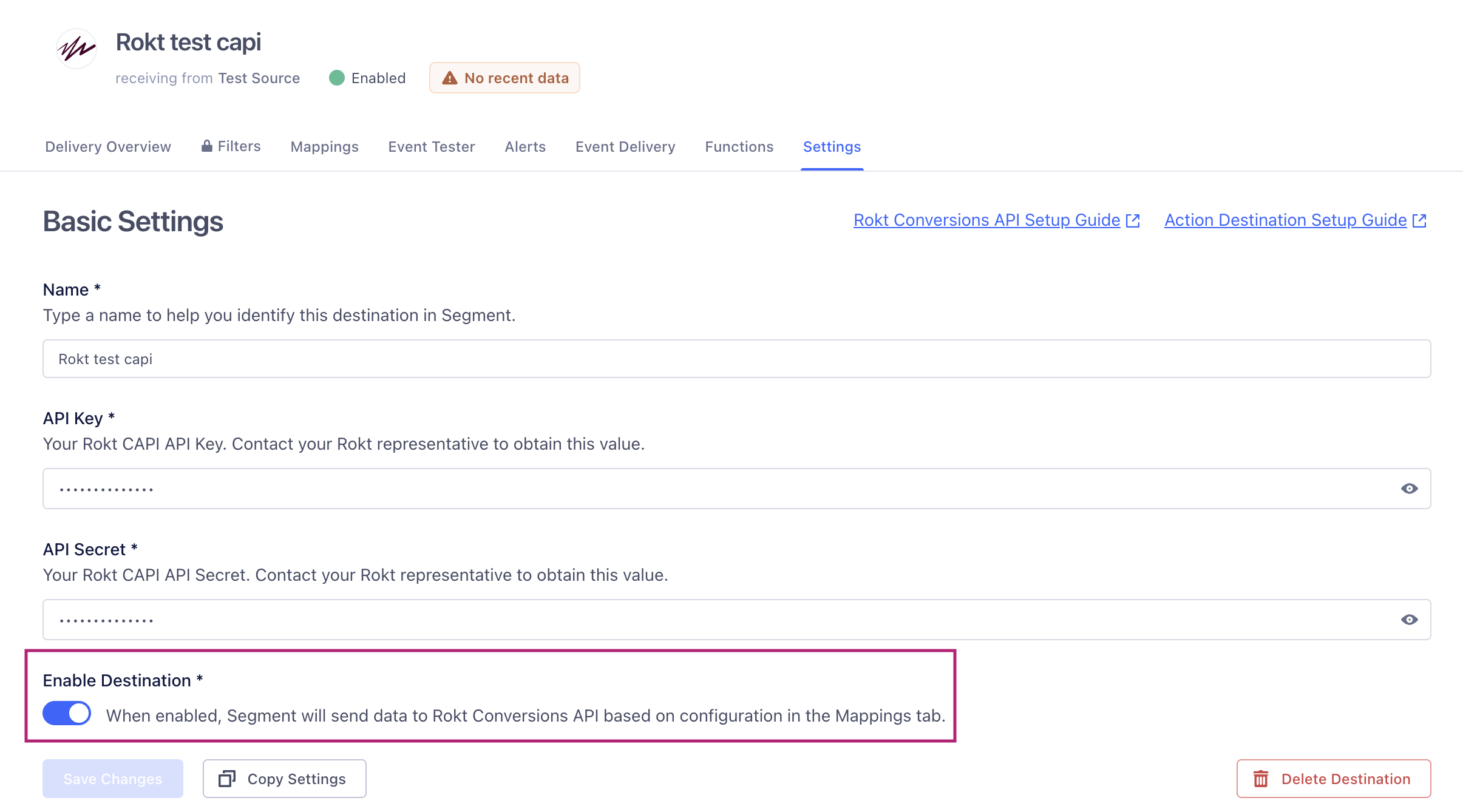
In Settings, enter your Rokt API key and secret, and then click Save Changes.
Configure and test the destinationLien direct vers Configure and test the destination
-
In your Rokt destination, open Mappings. Two preconfigured mappings are available:
- Rokt Browser Plugin: Automatically captures the Rokt Click ID from the page URL and forwards it with the conversion event. For more information, see Rokt Click ID.
- Send: Sends conversion data to Rokt.
-
Edit the preconfigured Send mapping.
-
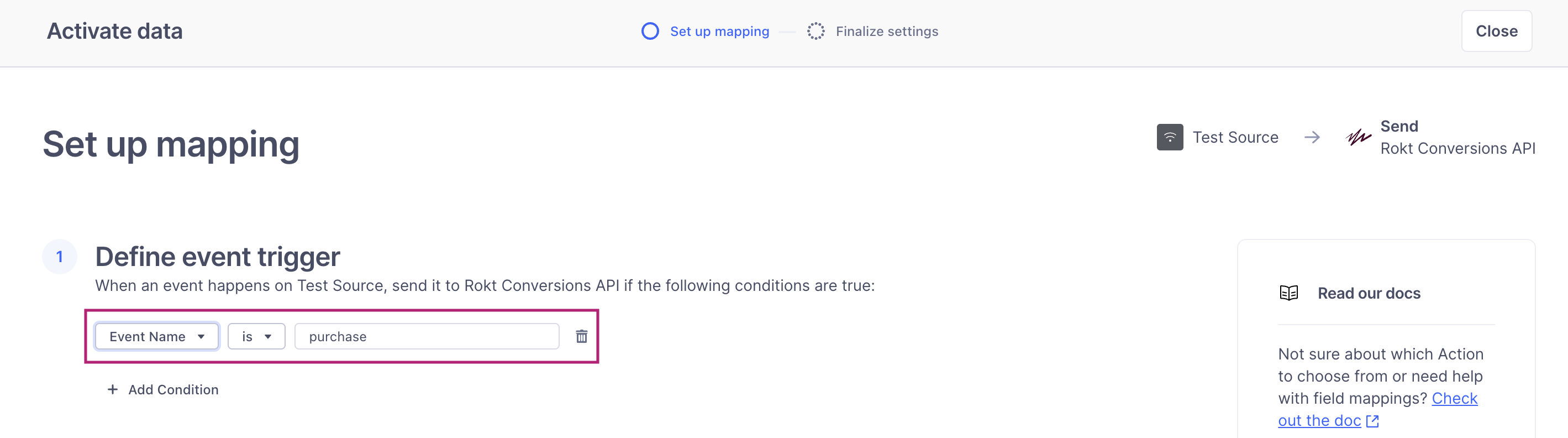
Under Define event trigger, edit the trigger condition to forward the desired conversion event to Rokt. In the dropdown, select Event Name, select is, and enter your event name.
remarqueForward all events that represent meaningful conversions in your business funnel. The more conversion data Rokt receives, the better it can optimize your campaigns.
-
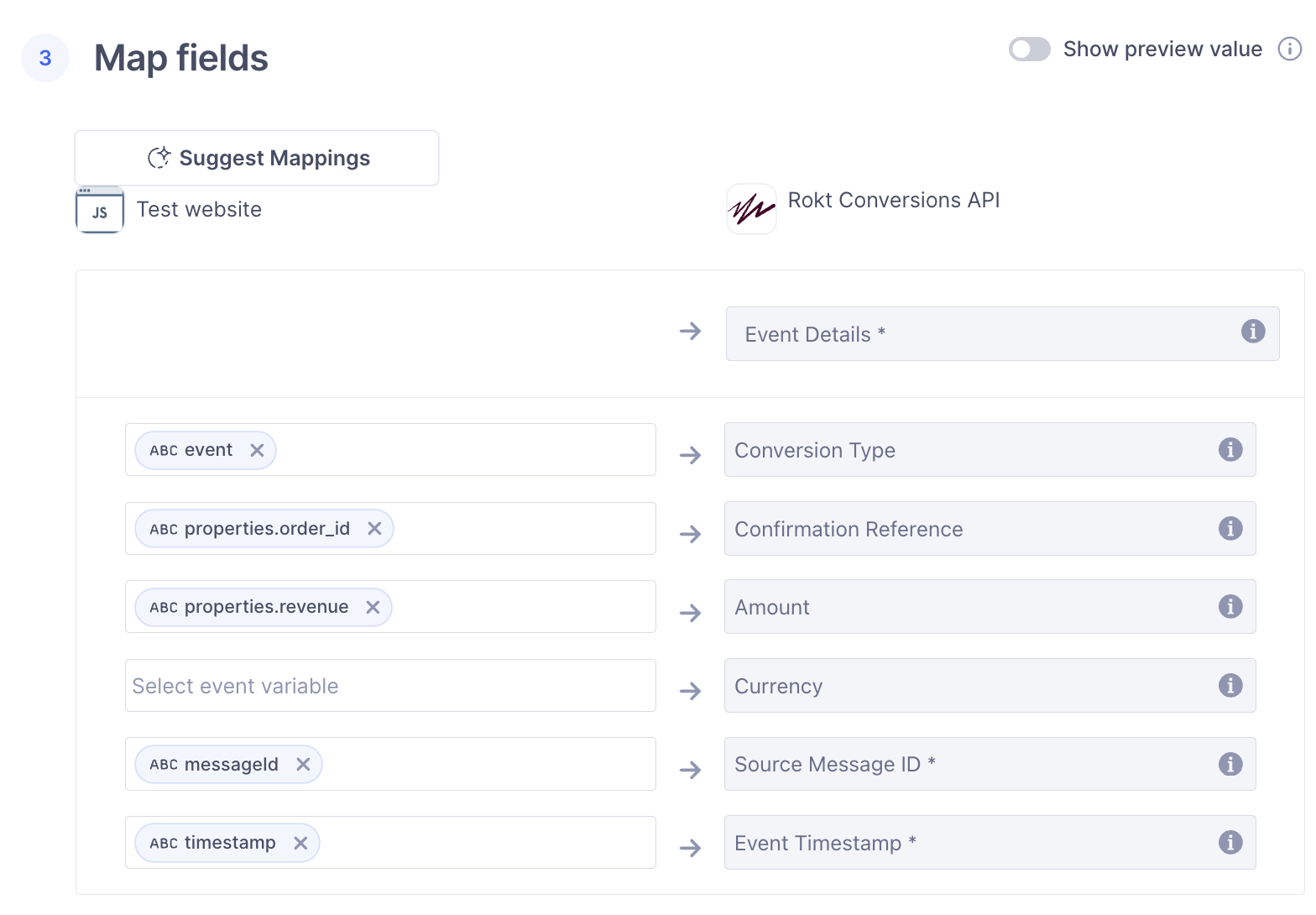
Under Map fields, map the Segment fields to the Rokt Conversions API format:
- Map Segment's
eventfield to Conversion Type. - If your source collects a confirmation reference, order ID, amount, or currency code, map it to the corresponding Rokt property. Remove unused Segment property references from the mapping.
- You can SHA-256 hash email, first name, last name, mobile phone number, and billing ZIP code before forwarding them. Select Yes/True in Hashing Configuration to enable hashing.
- By default, Segment's User ID maps to Rokt's Customer ID.
- By default, email and user attributes map from Segment's
context.traitsobject and fall back to itspropertiesobject. - You can map the following properties:
- Customer ID.
- Email, raw or SHA-256 hashed.
- Rokt Click ID.
- Mobile phone number, raw or SHA-256 hashed.
- Billing ZIP code, raw or SHA-256 hashed.
- First name, raw or SHA-256 hashed.
- Last name, raw or SHA-256 hashed.
- Date of birth.
- Gender.
- IP address.
- User agent.
- Identifier for Vendors.
- Identifier for Advertisers.
- Android Universally Unique Identifier.
- Google Advertising ID.
- Confirmation reference.
- Amount.
- Currency.
- Map Segment's
-
Click Next, enter a mapping name, and click Save.
-
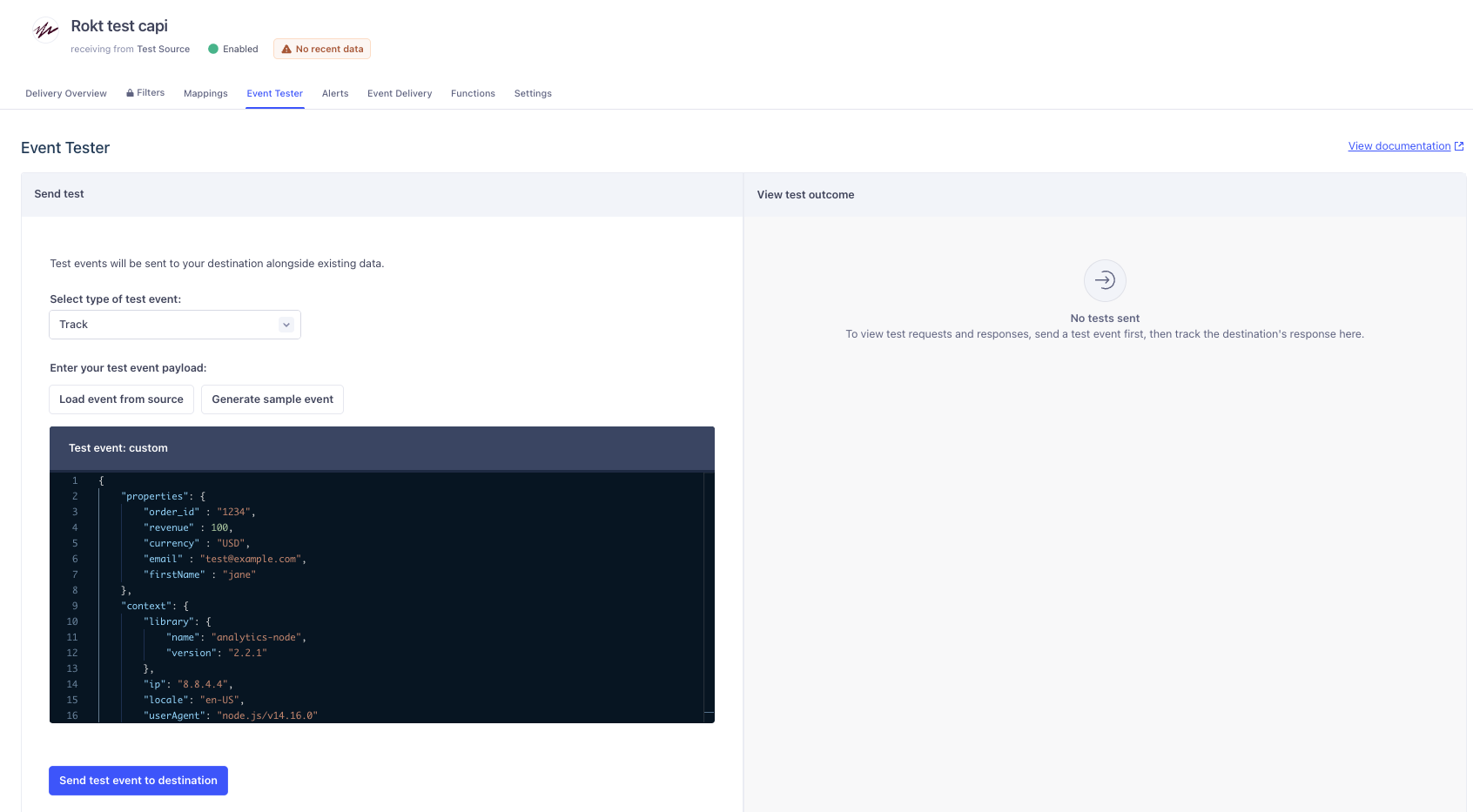
To test the event, open the Rokt Conversions API destination and select Event Tester.
- Select Track from the Call Type dropdown.
- Review the test payload and confirm that its key-value pairs match your configured mappings.
-
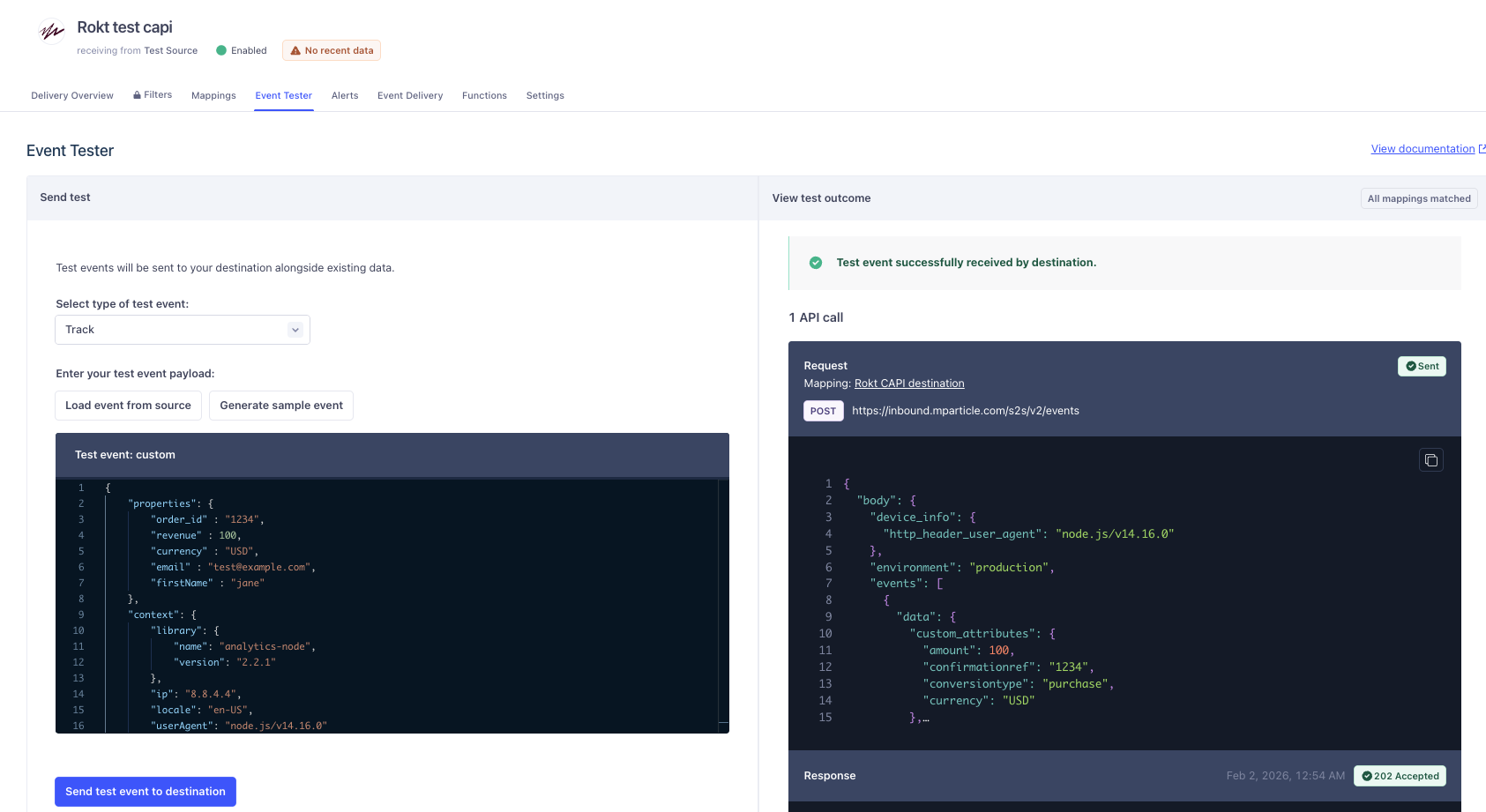
Click Send test event to destination.
 remarque
A successful connection returns
202 OK. Ask your Rokt account manager to confirm that Rokt captured the expected attributes. If you receive another response, contact your Rokt account manager for help troubleshooting it.
Activate the destinationLien direct vers Activate the destination
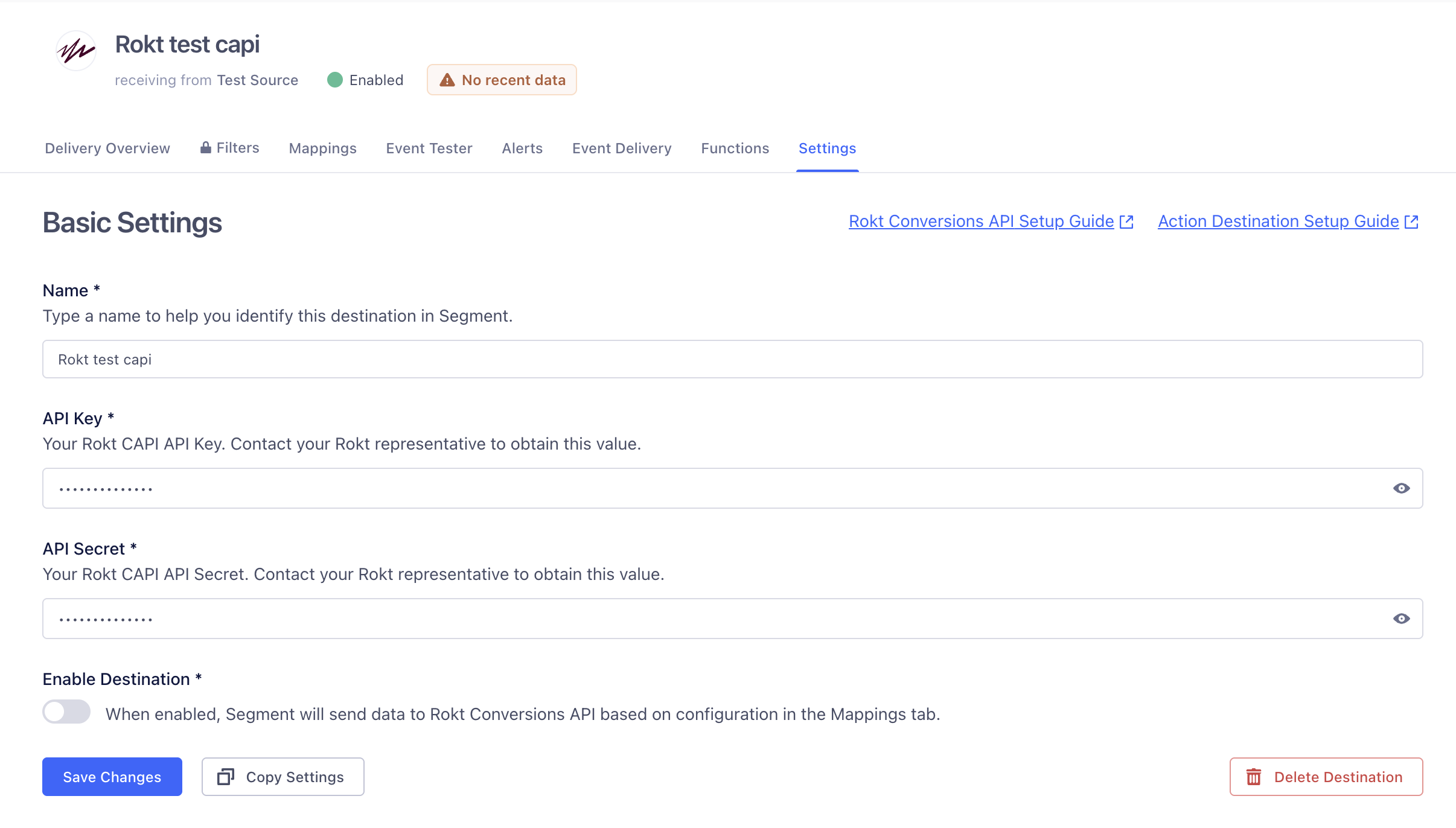
- From your Rokt Conversions API destination, open Settings and enable the destination.
- Under Connections, confirm that the destination is connected to your sources.