Amplitude
Amplitude is a digital analytics platform that helps teams understand how customers behave across their web and mobile experiences. It combines product and marketing analytics, session replay, experimentation, and audience management, so you can group users into cohorts based on behavior, such as customers who completed a purchase in the last 30 days or customers who abandoned a cart, and activate those cohorts in downstream tools.
This guide explains how to set up an audience integration in Amplitude to sync Amplitude cohorts to Rokt. Syncing your cohorts to Rokt turns the behavioral segments you already maintain in Amplitude into custom audiences you can use for seeding, retargeting, and suppression, without exporting and uploading lists by hand. Depending on the cadence you choose, Amplitude can update the Rokt audience once, on a schedule, or in near real time as cohort membership changes.
Audience SetupLien direct vers Audience Setup
Setting up an audience sync takes three stages: create a Rokt destination in Amplitude, add that destination to the cohort you want to share, and then sync the cohort.
Create and configure the Rokt destinationLien direct vers Create and configure the Rokt destination
-
Log in to your Amplitude account.
-
Navigate to the Destination catalog.
-
Search for and select the Rokt Destination.
-
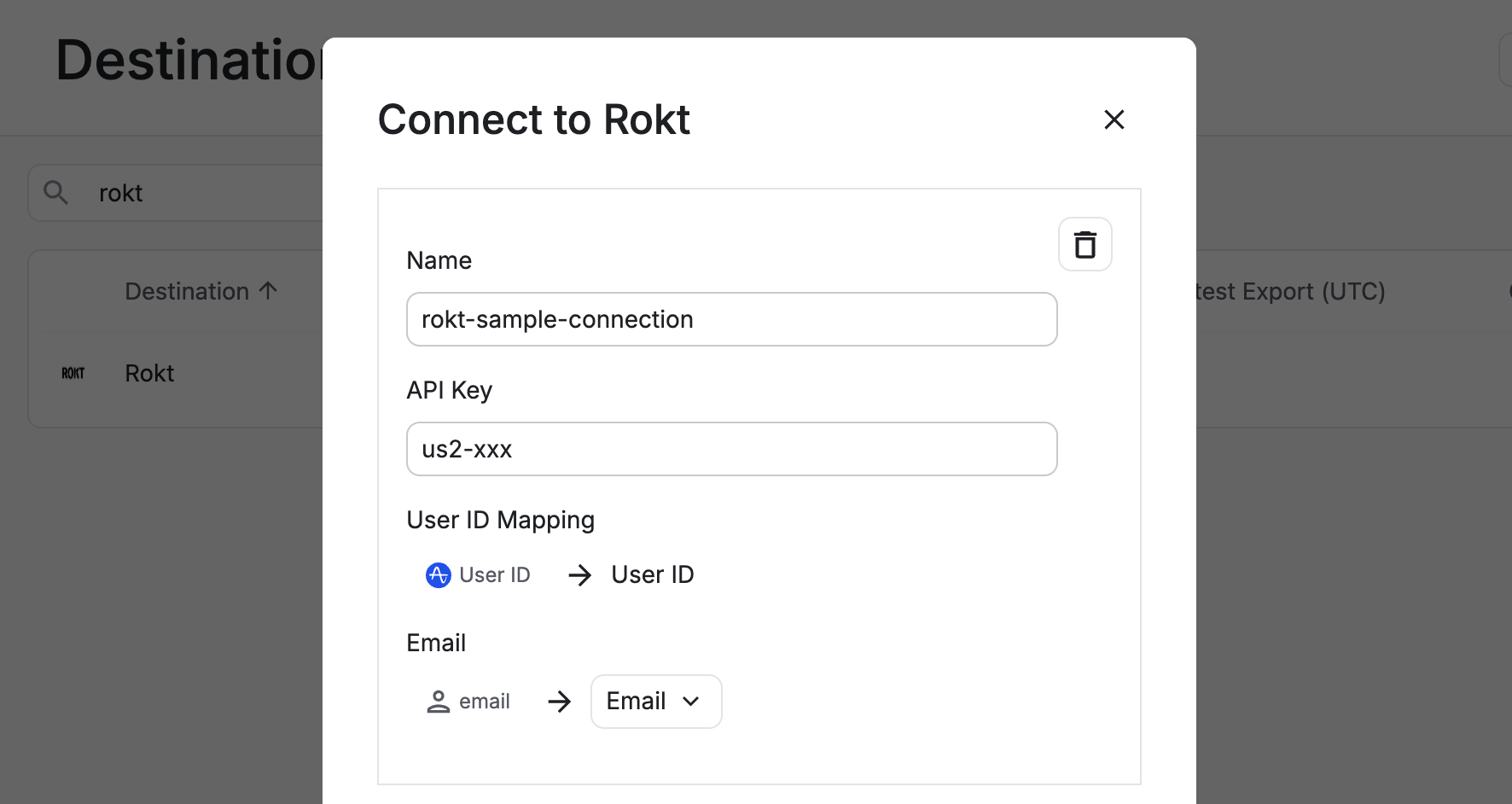
Configure the Destination.
- Enter a Name that clearly identifies the connection.
- Enter the API Key provided by your Rokt Account Manager.
- Under User ID Mapping, map the Amplitude property to the Rokt Customer ID attribute.
- Map email addresses to Email. Map SHA-256-hashed email addresses to Hashed Email. Always lowercase and trim email addresses before hashing them.
-
Save the Destination.
Sync a cohort to RoktLien direct vers Sync a cohort to Rokt
- In Amplitude, open the cohort you want to sync.
- Select Sync.
- Select Rokt, and then select the destination you configured.
- Choose an available cadence: One-Time Sync, Scheduled Sync, or Real-Time Sync.
- Select Sync to start the sync.
- Review the sync history and confirm that Amplitude completed the export successfully.
- Confirm with your Rokt Account Manager that Rokt accepted the audience.