Kochava
If you are using the measurement provider Kochava for attributions, follow the steps below to connect with Rokt.
-
Log in to your Kochava account.
-
Add an app. Learn how to set up an app from Kochava's website.
-
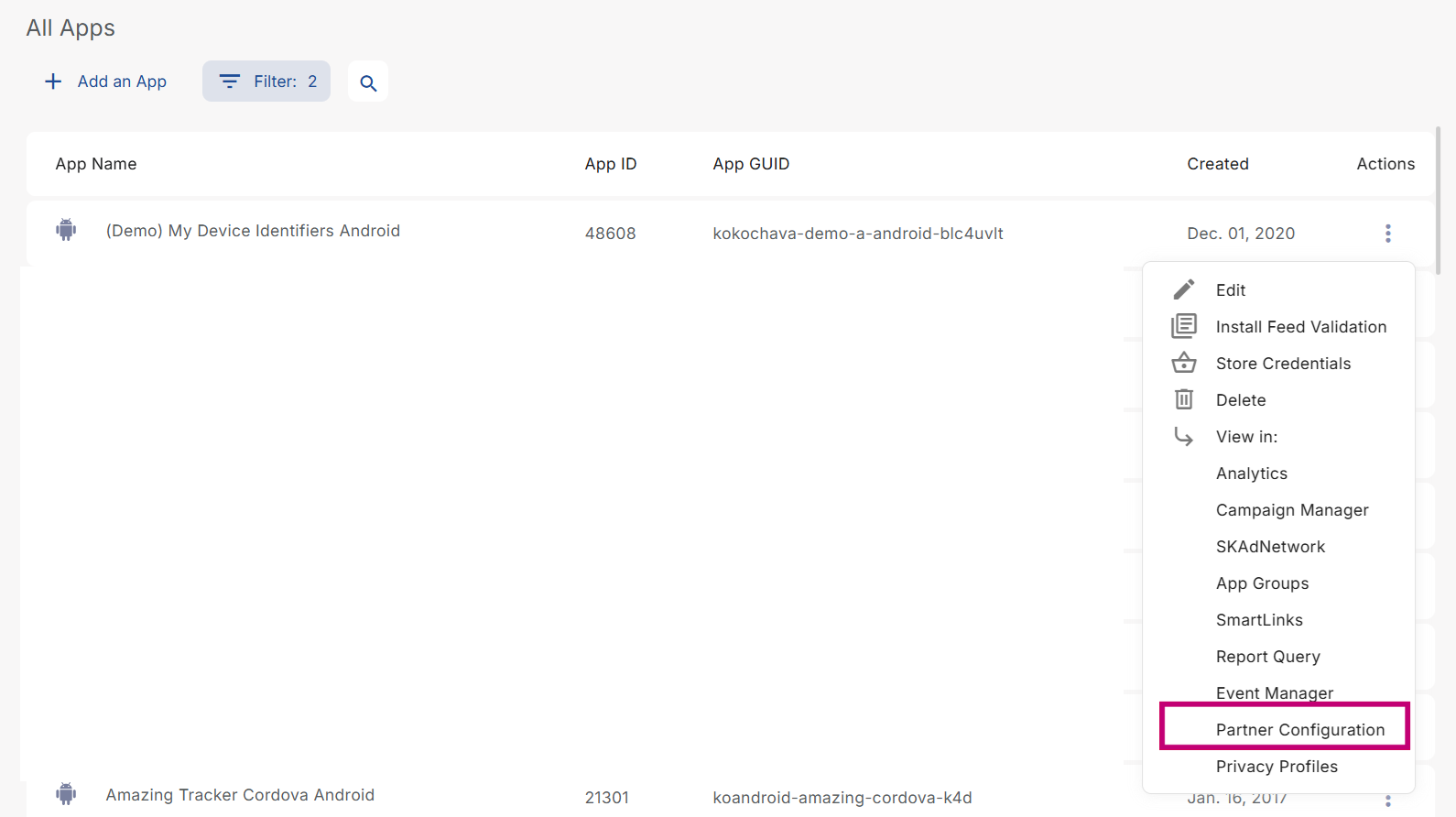
On your desired app, click on the three dot menu and select Partner Configuration.
-
Click Add a Configuration.

-
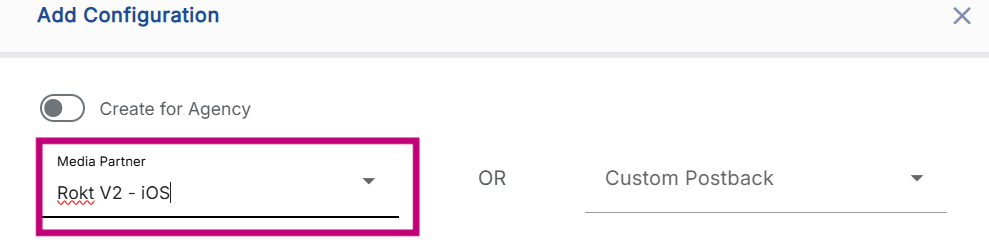
Under Media Partner, search for Rokt V2, and click Save. Note: Please use the Rokt V2 integration for all new implementations. The original Rokt integration is in the process of being deprecated and will be retired in a future release.
-
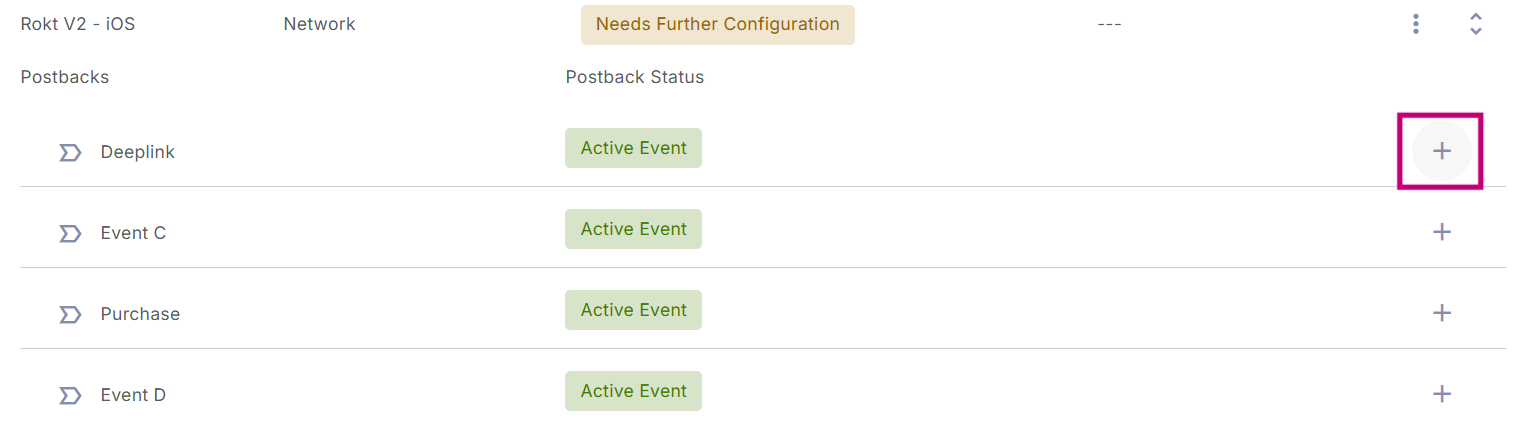
On your desired postback, click the + icon and select Edit Postback.
-
Update your postback. Learn more about editing postbacks from Kochava's website.
-
Locate the "mParticle Token" field and add the Token. For more information about this token, please contact your Rokt account team.
-
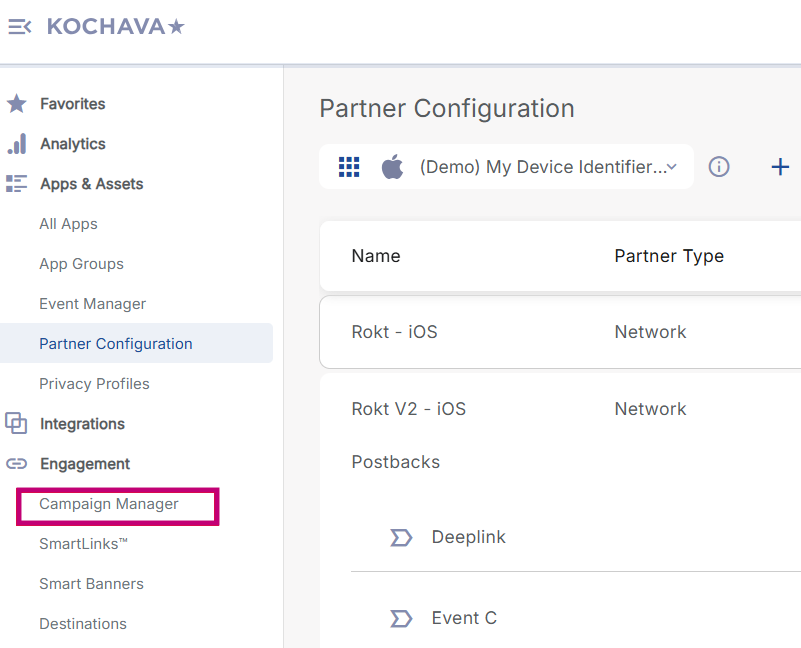
Navigate to Engagement > Campaign Manager and select your desired app.
-
Click Add a Tracker.

-
Learn how to set up a campaign on Kochava's website.
-
Under Media Partner, select Rokt V2.
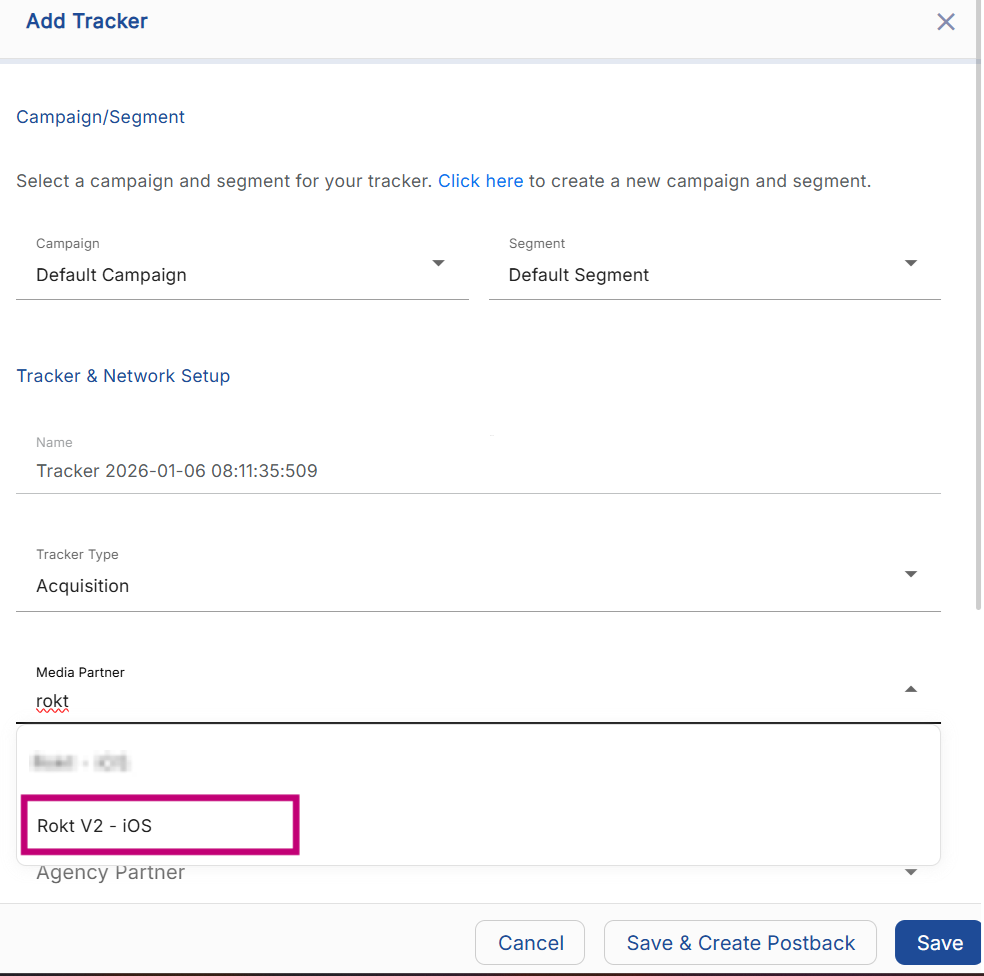
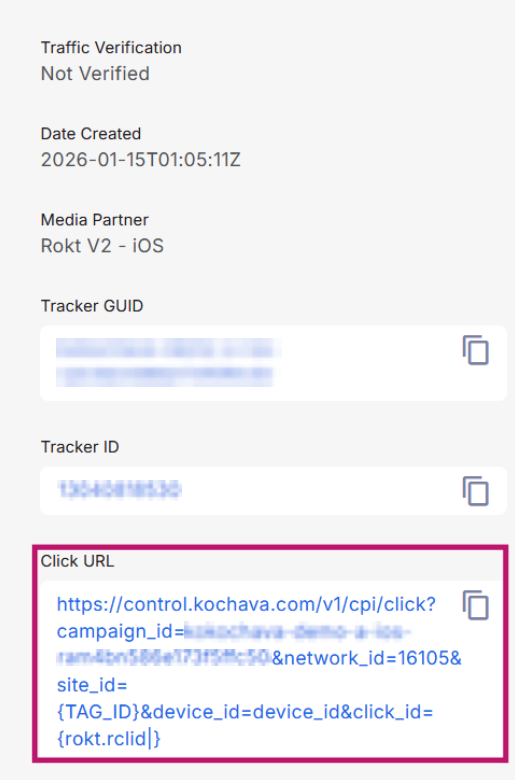
- After you have saved your tracker, select your desired tracker, copy the generated Click URL, and send it to your Rokt account manager.