Google Tag Manager Integration for Advertisers
This page explains how to implement Rokt Ads with Google Tag Manager to close the loop by linking conversions back to your campaigns. By linking conversions back to your Ads engagement, you can enable more accurate attribution, real-time optimization, and campaign measurement.
You'll learn how to:
- Create GTM variables that read values from your site's data layer
- Create GTM tags to initialize the Rokt SDK, identify users, and log conversion events
Before you startDirect link to Before you start
Make sure you have:
- Access to the correct Google Tag Manager container for your site
- A data layer already implemented on your site (typically done by your developers)
- Your Rokt API key (provided by your Rokt account manager)
Understanding the data layerDirect link to Understanding the data layer
Your developers should implement the data layer on your site.
A data layer is an object that contains all of the information that you want to share with Google Tag Manager (GTM). Information such as events or variables can be shared to Google Tag Manager via the data layer, and triggers can be set up in Google Tag Manager based on the values of variables (e.g., fire a remarketing tag when purchase_total > $100) or based on the specific events. Variable values can also be shared through to other tags (e.g., add purchase_total into the value field of a tag).
Refer to Google's GTM developer guide for comprehensive details on how the data layer works.
Example of a data layer:
window.dataLayer = window.dataLayer || [];

window.dataLayer.push({
  email: "jenny.smith@rokt.com",
  user: {
    firstname: "Jenny",
    lastname: "Smith",
  },
  ecommerce: {
    transaction: {
      amount: "12.36",
    },
  },
  event: "gtm.transactionComplete",
});
Identify your variable namesDirect link to Identify your variable names
Variables are set up in your GTM account and are matched to the data layer. Refer to the GTM developer guide for more details about variables.
The structure of your data layer on your page affects the data layer variable name in your GTM.
Example data layer script 1:
window.dataLayer.push({
  email: "jenny.smith@rokt.com",
});
Data layer variable name: email
Example data layer script 2:
window.dataLayer.push({
  user: {
    firstname: "Jenny",
  },
});
Data layer variable name: user.firstname
Example data layer script 3:
window.dataLayer.push({
  ecommerce: {
    transaction: {
      amount: "12.36",
    },
  },
});
Data layer variable name: ecommerce.transaction.amount
Create your variables in Google Tag ManagerDirect link to Create your variables in Google Tag Manager
- Log in to your Google Tag Manager container.
- Click Variables.
- Under User-defined variables, click New.
- Enter a name for your variable.
- Click Choose a variable type to begin setup...
- Under Page Variables select Data Layer Variable.
- Enter the Data Layer Variable Name. See the examples above to identify the variable name based on your data layer structure.
- Click Save.
Rokt recommends creating variables for the attributes you plan to send to Rokt, such as:
emailfirstnamelastnamemobileconversiontypeconfirmationrefbillingzipcodeamountpaymenttypecountrylanguagecurrency
Configure the Initialization and Log Page Views TagDirect link to Configure the Initialization and Log Page Views Tag
The mParticle by Rokt - Initialization and Log Page View tag can:
- Initialize the Rokt SDK
- Log page views
Use these steps to create the Initialization and Log Page Views tag:
- Click Tags in the left-hand navigation from your container and click New.
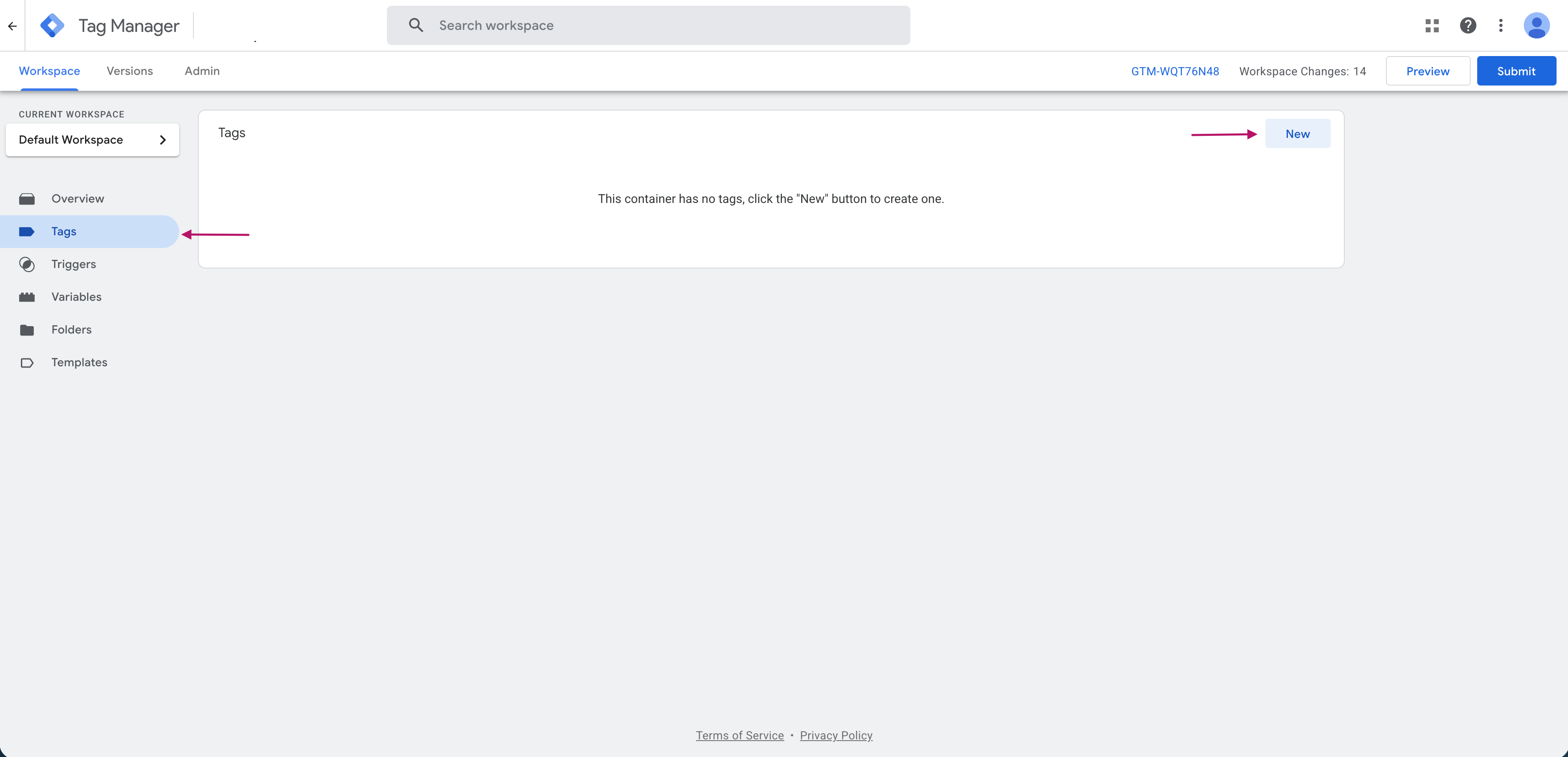
- Select Tag Configuration.
- Select Discover more tag types in the Community Template Gallery.
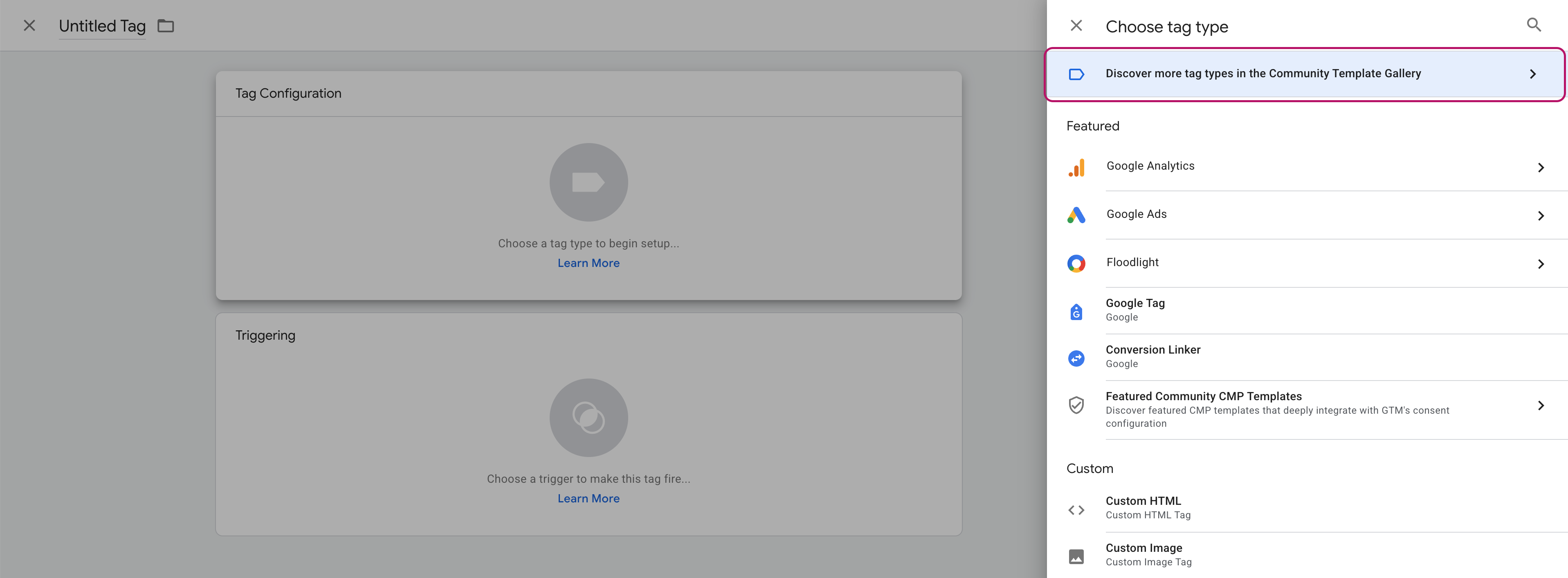
- Search for
Roktand select mParticle by Rokt - Initialization and Log Page View.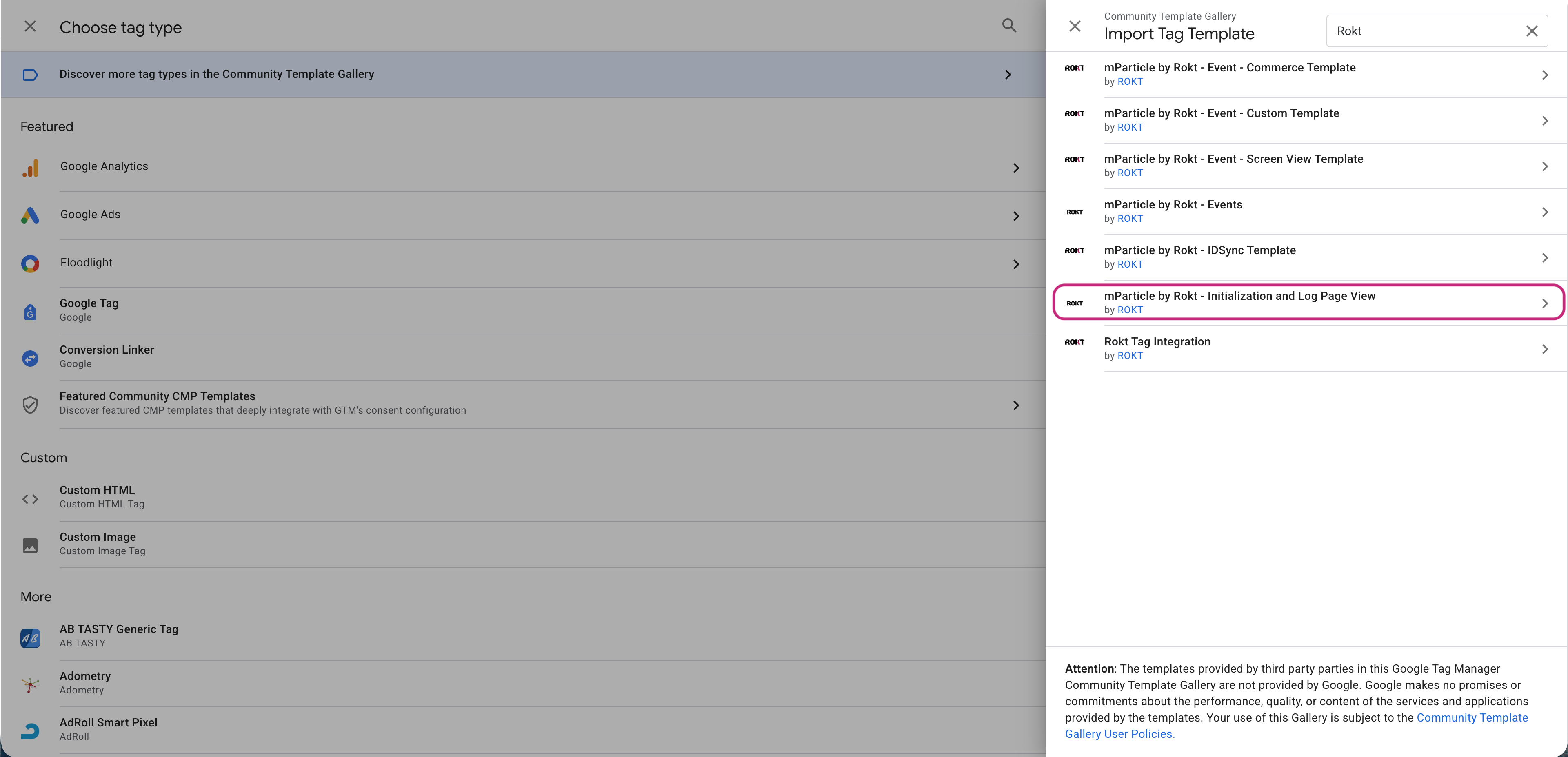
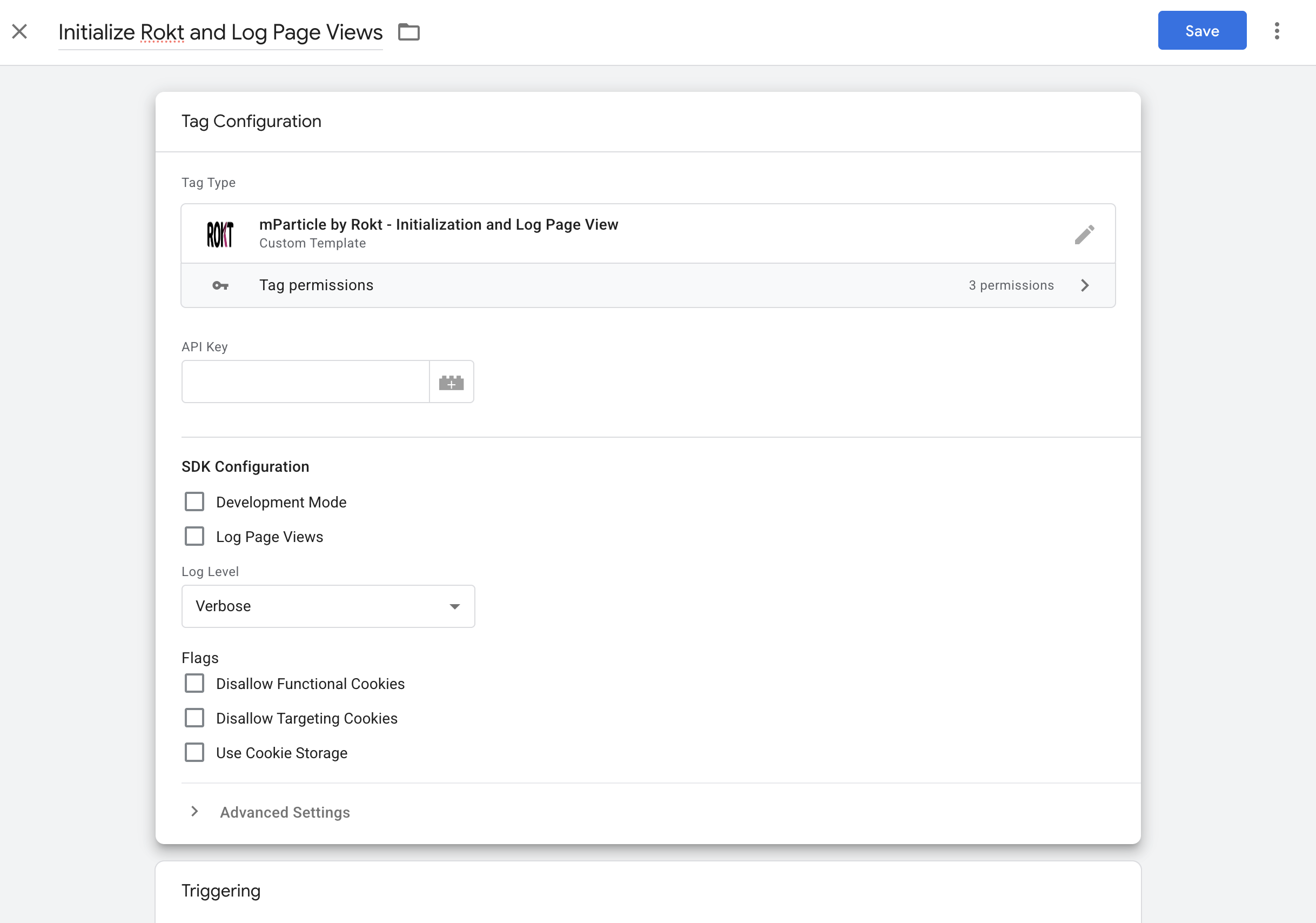
- Enter a descriptive name for your tag (for example,
[Rokt] Initialize and Log Page Views). - Enter configuration settings:
- API Key: Enter your Rokt API key (this is provided by your Rokt account manager).
- Development Mode: If you are testing your integration, check the Development Mode box. If you are ready to use your tag for production, uncheck this box.
- Log Page Views: Logging page views records a page view event (with attributes like screen_name, url, and referring-page) as soon as each page loads.
- Your page view event attributes will correspond to attributes on your site (for example, if you are on the "payment" screen, your
screen_namewill bepayment). - You should log page views as soon as each page in the user's transaction journey is loaded.
- Your page view event attributes will correspond to attributes on your site (for example, if you are on the "payment" screen, your
- Log Level: In the dropdown, select your preferred level of logging (Verbose, Warning, None).
- Disallow Functional Cookies: Functional cookies are used to enhance the usability and performance of a site or an app. For more details, see cookie preferences.
- Disallow Targeting Cookies: Targeting cookies are used to enable advertising, retargeting, and marketing personalization. For more details, see cookie preferences.
- Use Cookie Storage: Cookie storage for an SDK integration is used to persist key values (such as identifiers or consent state) so the SDK can maintain continuity across pages and sessions.
- Configure the trigger for this GTM tag. The next steps vary depending on whether your site is a multipage application (MPA) or a single-page application (SPA):
- Trigger configuration for multipage applications
- Select All Pages from the list.
- Trigger configuration for single page applications
- Select All Pages and History Change from the list.
The Initialization & Log Page View tag should be loaded on all pages. The exact trigger configuration may vary depending on your implementation. If you have questions about the implementation strategy, reach out to your Rokt account manager.
- Enter a descriptive name for your trigger, like All Pages or History Change.
- Add exceptions if necessary.
- Click Save.
As part of the Initialization & Log Page View tag execution, a custom event roktInitComplete will be pushed to the data layer when initialization completes. It is highly recommended to use a GTM Custom Event trigger with event name roktInitComplete for subsequent mParticle by Rokt - Events tags.
Configure the Events TagDirect link to Configure the Events Tag
The mParticle by Rokt - Events tag can:
- Identify users
- Log conversion events
- Send user and event attributes to Rokt
Although you can enable multiple actions in a single Events tag, some implementations require one GTM tag per action (for example, one tag for Identity and one tag for Log Event). If you have questions about the implementation strategy, reach out to your Rokt account manager.
Ensure the Initialization & Log Page View tag runs before any Events tags. Use the roktInitComplete data layer event in your triggers so Events tags fire only after initialization.
Use these steps each time you create a new Events tag (for example, one for Identity and one for Log Event):
- Click Tags in the left-hand navigation from your container and click New.
- Select Tag Configuration.
- Select Discover more tag types in the Community Template Gallery.
- Search for
Roktand select mParticle by Rokt - Events.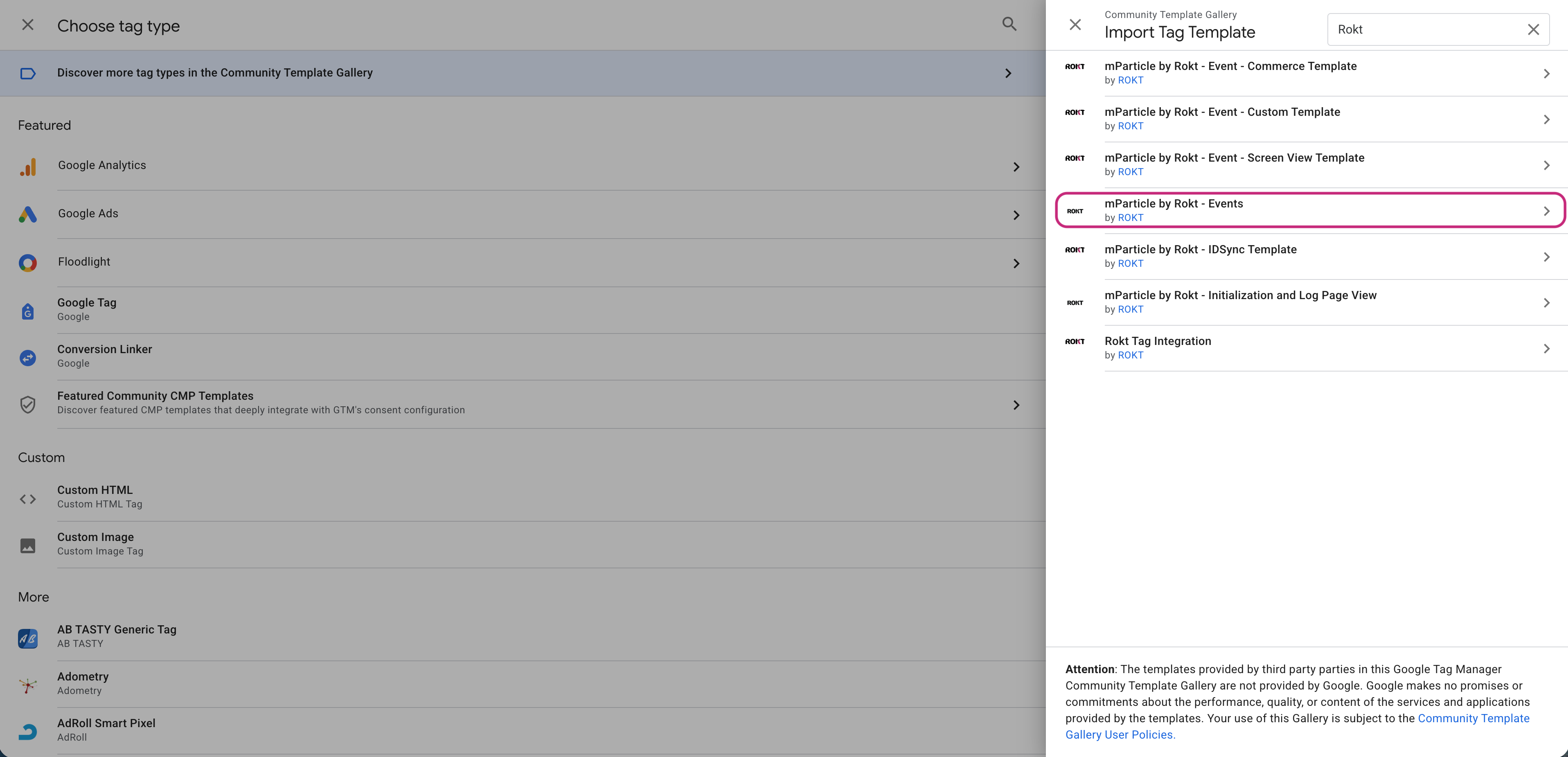
- Enter a descriptive name for your tag (for example,
[Rokt] Identify user,[Rokt] Log conversion).
You can enable one or more actions in a single Events tag (Identity, Log Event, and/or Select Placements). Configure all the actions you want for this tag instance first, then click Save when you are finished.
If you need the tag to fire multiple times (for example, once to identify a user and later to log an event), create multiple GTM tags using the same Events template.
Identify the UserDirect link to Identify the User
Rokt recommends identifying the current user (for example, by email) so conversion events can be attributed correctly. Configure this tag to fire as soon as the user's email is available in your data layer.
- In the mParticle by Rokt - Events tag, navigate to the Identity section and select Enable Identity.
- Under the IDSync Method dropdown, select Identify.
- Under Identity Type, click Add Row and select your desired identity type:
- If you are sending a raw email address, select
Emailfrom the Key dropdown and enter your GTM variable for raw email.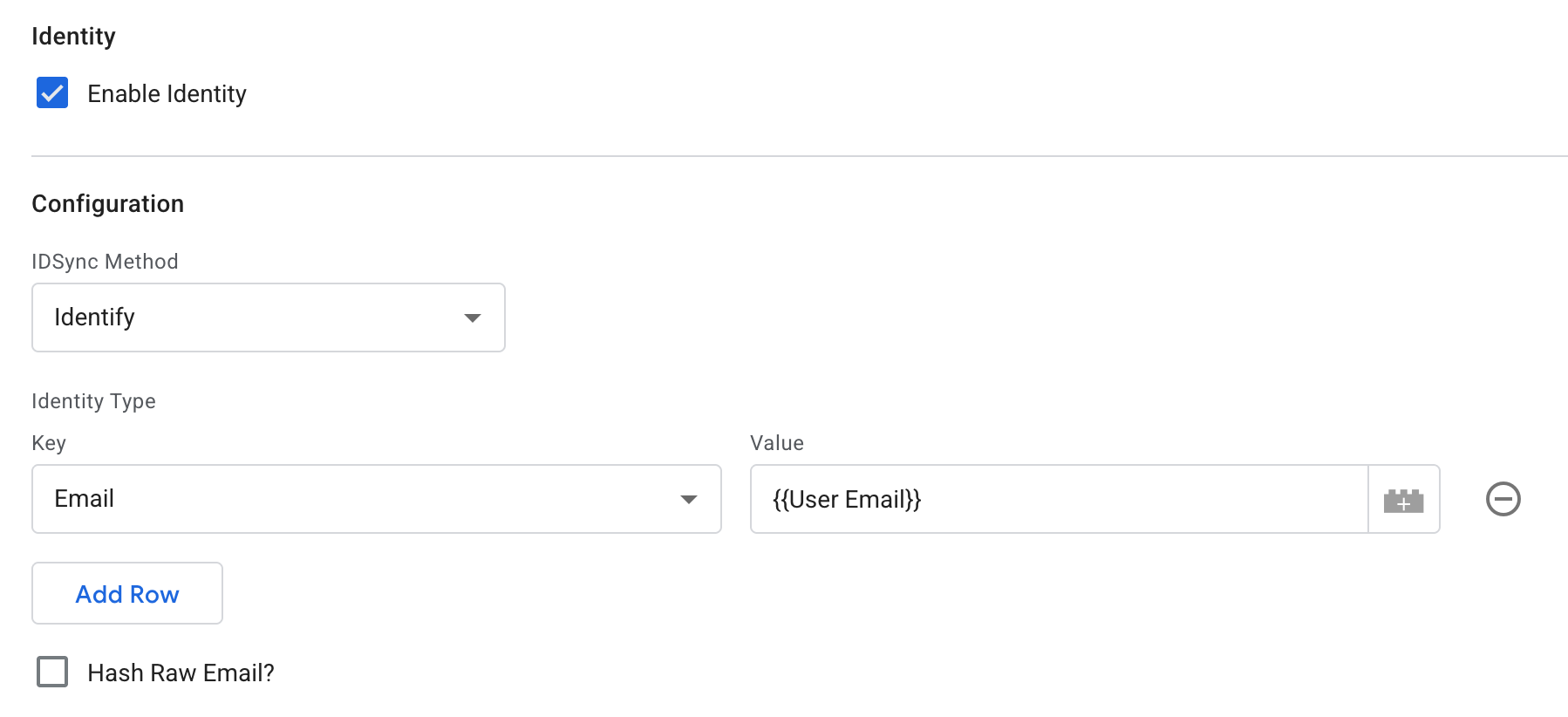
- If you are sending a hashed email value, select
Otherfrom the Key dropdown and enter your GTM variable for hashed email.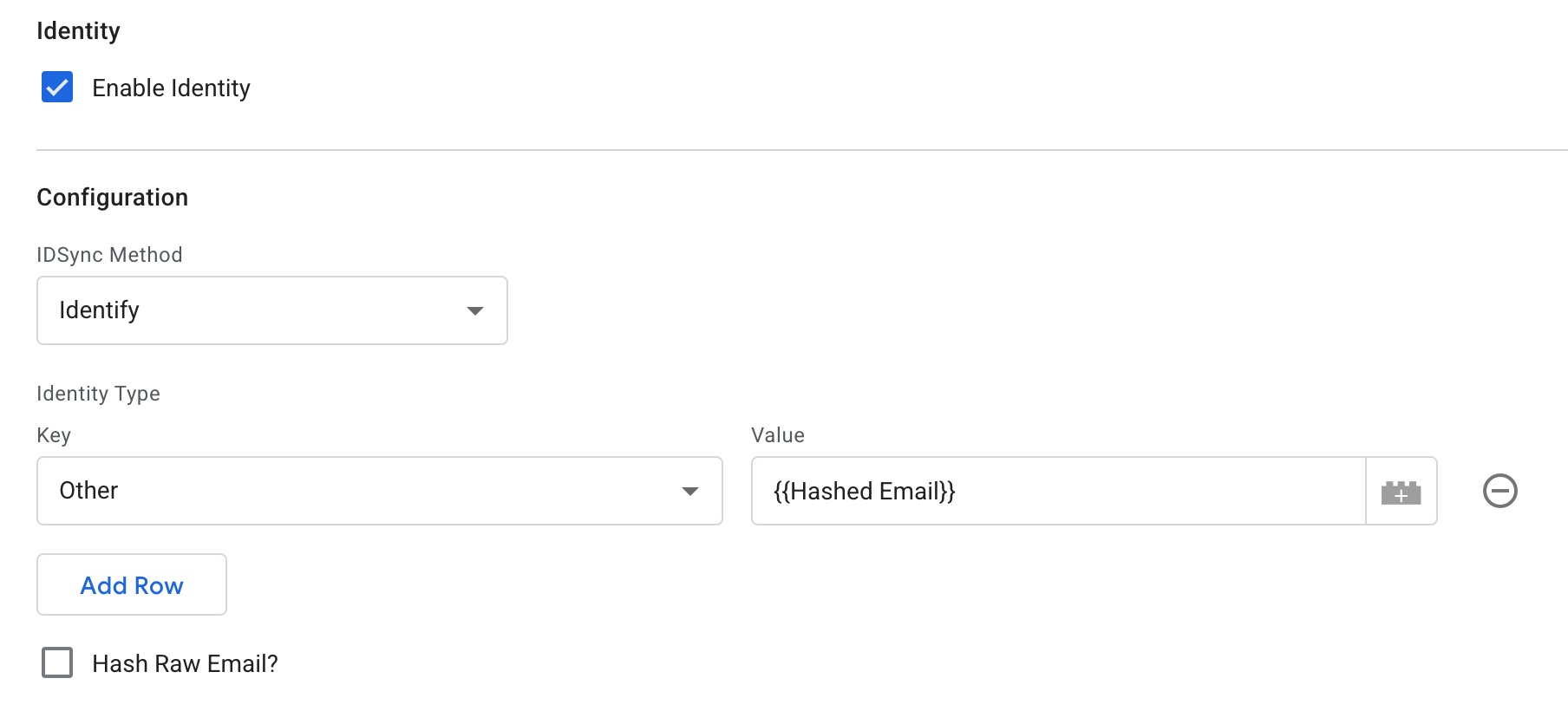
- If you are sending a raw email address, select
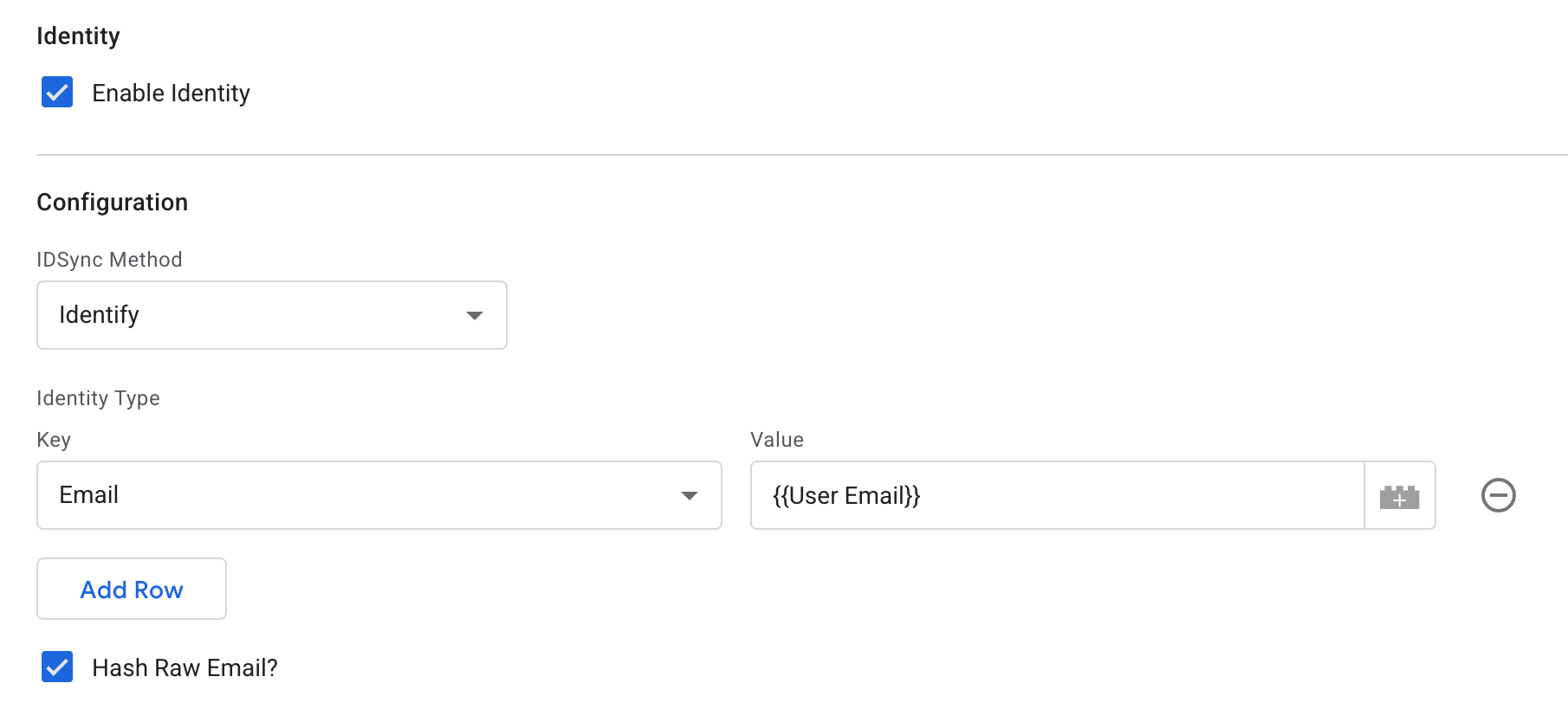
- (Optional) Select Hash Raw Email? if you want the tag to hash the raw email value before it is sent to Rokt.
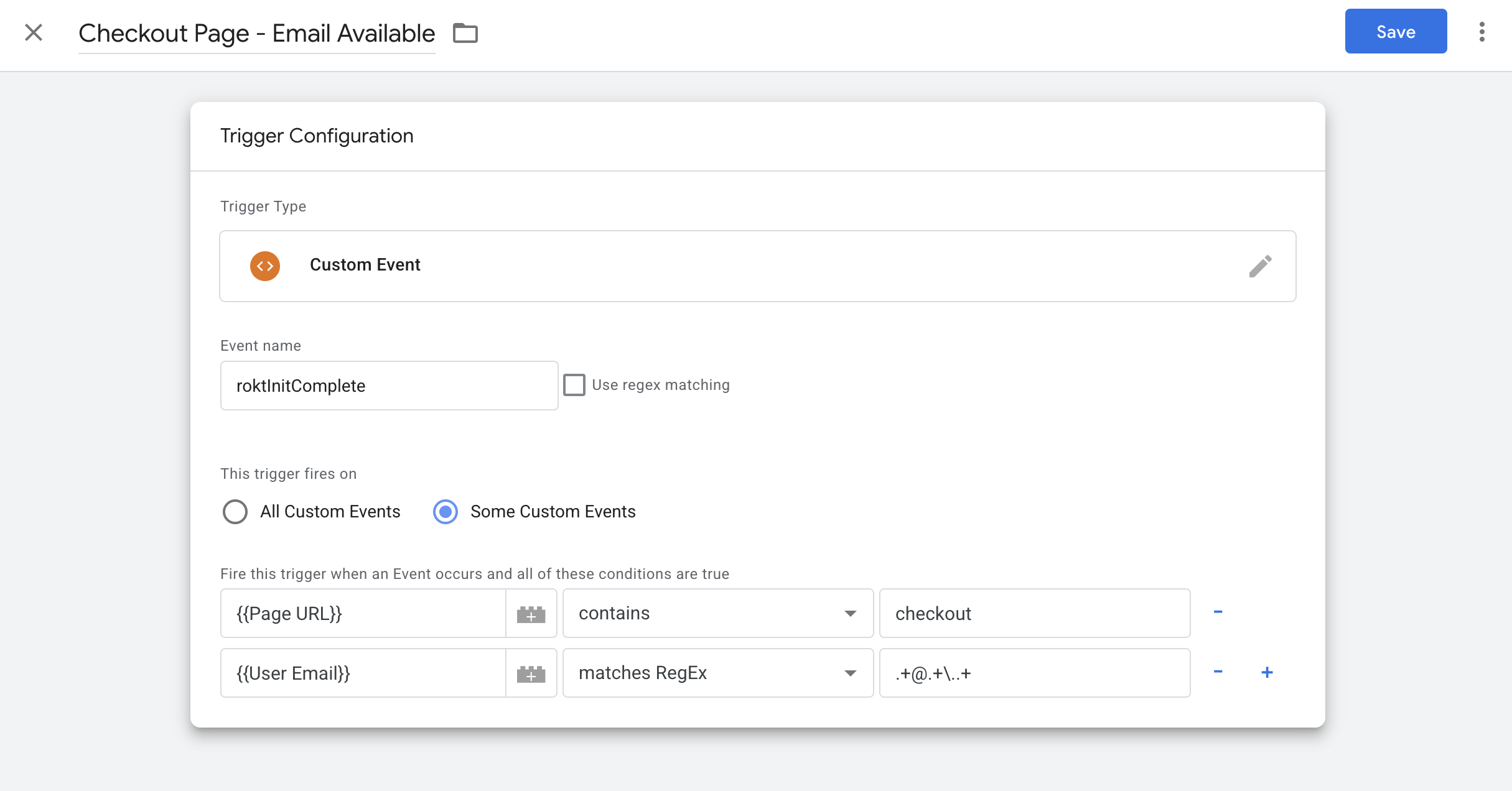
- Configure Triggering so the tag fires only after initialization and only when the email value is available.
- Example (email is already present on a checkout page load):
- In Triggering, click + to create a new trigger.
- Under Trigger Configuration, select Custom Event.
- Set Event name to
roktInitComplete. - Set the trigger to fire on Some Custom Events.
- Add conditions that match your implementation, for example:
- Page URL contains
checkout {{User Email}}matches RegEx.+@.+\..+
- Page URL contains
- Click Save to save the trigger.
- Example (email is already present on a checkout page load):
 6. When you are done adding actions to this Events tag, click Save.
Log a Conversion EventDirect link to Log a Conversion Event
The Log Event action sends conversion events to Rokt. Configure this tag to fire on the page (or event) that happens after a conversion, such as a purchase confirmation or "thank you" page.
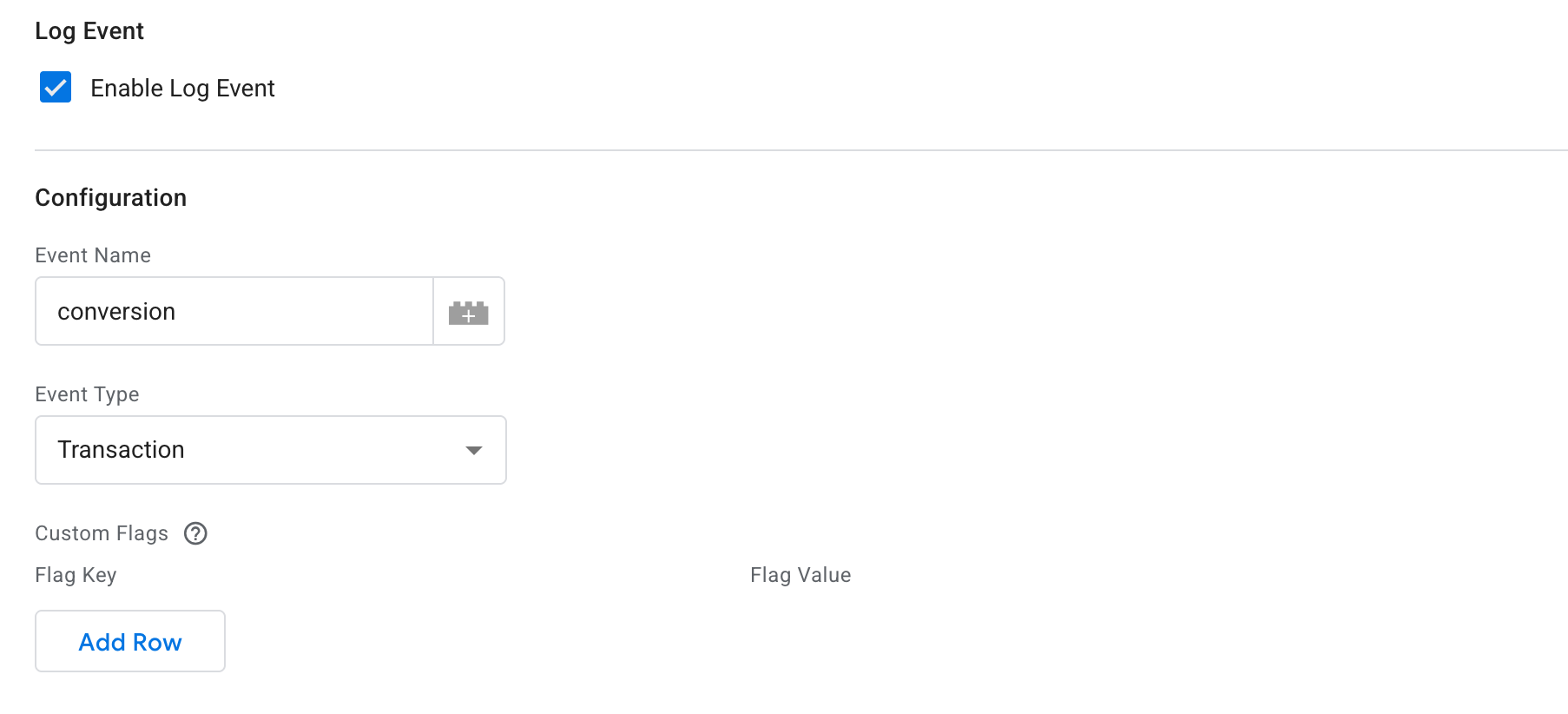
- In the mParticle by Rokt - Events tag, navigate to the Log Event section and select Enable Log Event.
- Under Configuration, enter
conversionas the Event Name and selectTransactionas the Event Type. - (Optional) Add any custom flags you need under Custom Flags.
- A custom flag is a key/value pair containing information about the page/event, usually specific to a technology partner (for example,
SnapchatConversions.ClickId). Custom flags are sent only to the specific partner they are intended for, unlike custom attributes.
- A custom flag is a key/value pair containing information about the page/event, usually specific to a technology partner (for example,
 4. Configure the trigger for this GTM tag. The next steps vary depending on whether your site is a multipage application (MPA) or a single page application (SPA):
- Trigger configuration for multipage applications
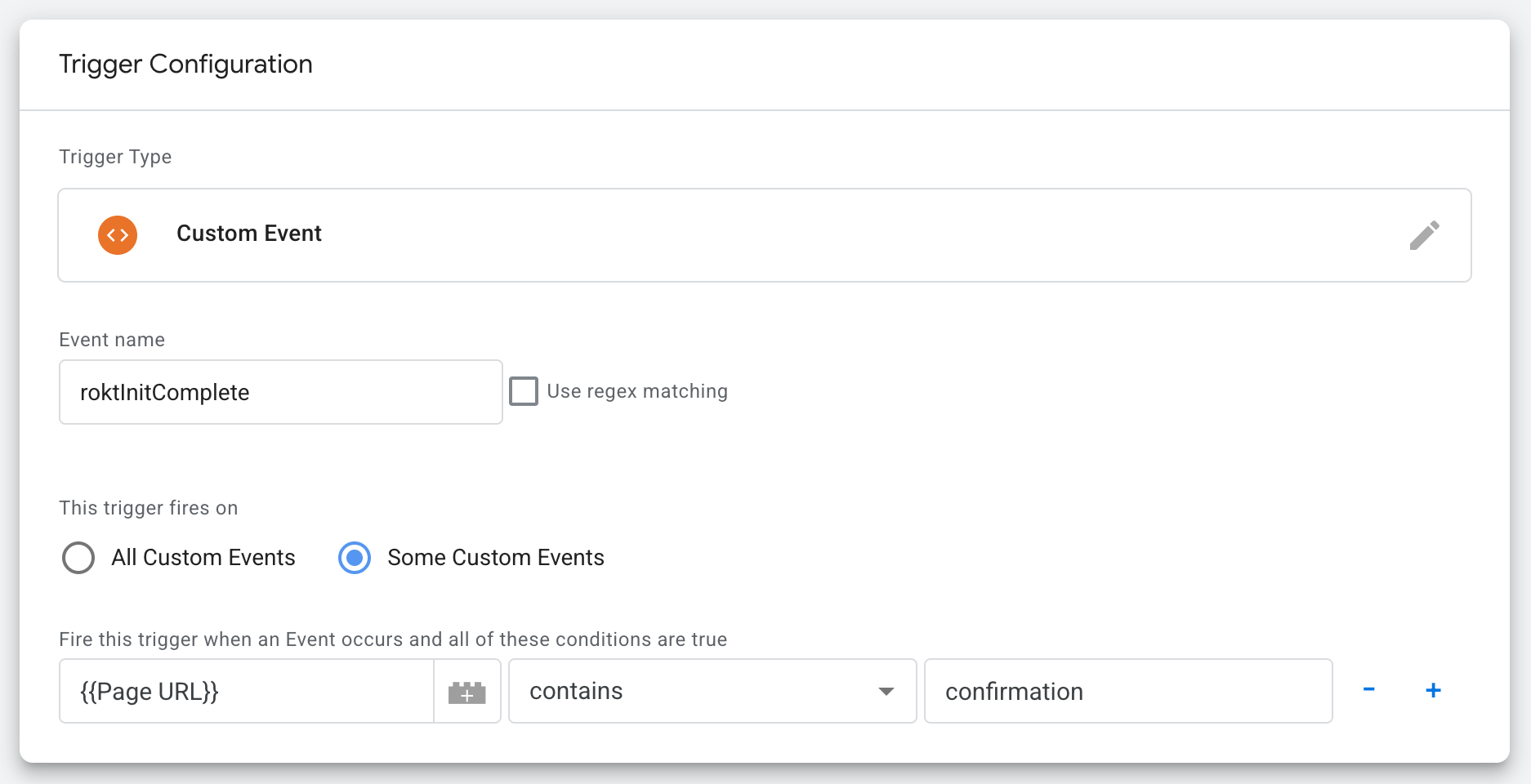
- Select Custom Event from the list.
- Enter
roktInitCompleteas the event name. - Change the trigger firing rules to Some Custom Events.
- Enter the URL parameter(s) that identify each unique page where the tag should fire. For example, if your confirmation page is
example.com/cart/payment/confirmation, the identifying parameter can be any ofcart,payment, orconfirmation.
- Trigger configuration for single page applications
- Select History Change from the list.
- Change the trigger firing rules to Some History Changes.
- Enter the URL parameter that identifies the page where the tag should fire. For example, if your confirmation page is
example.com/cart/payment/confirmation, the identifying parameter can be any ofcart,payment, orconfirmation.
- Click Save to save the trigger.
- When you are done adding actions to this Events tag, click Save.
Adding AttributesDirect link to Adding Attributes
Along with identifying a user and logging conversion events, Rokt recommends sending additional attributes to improve campaign optimization.
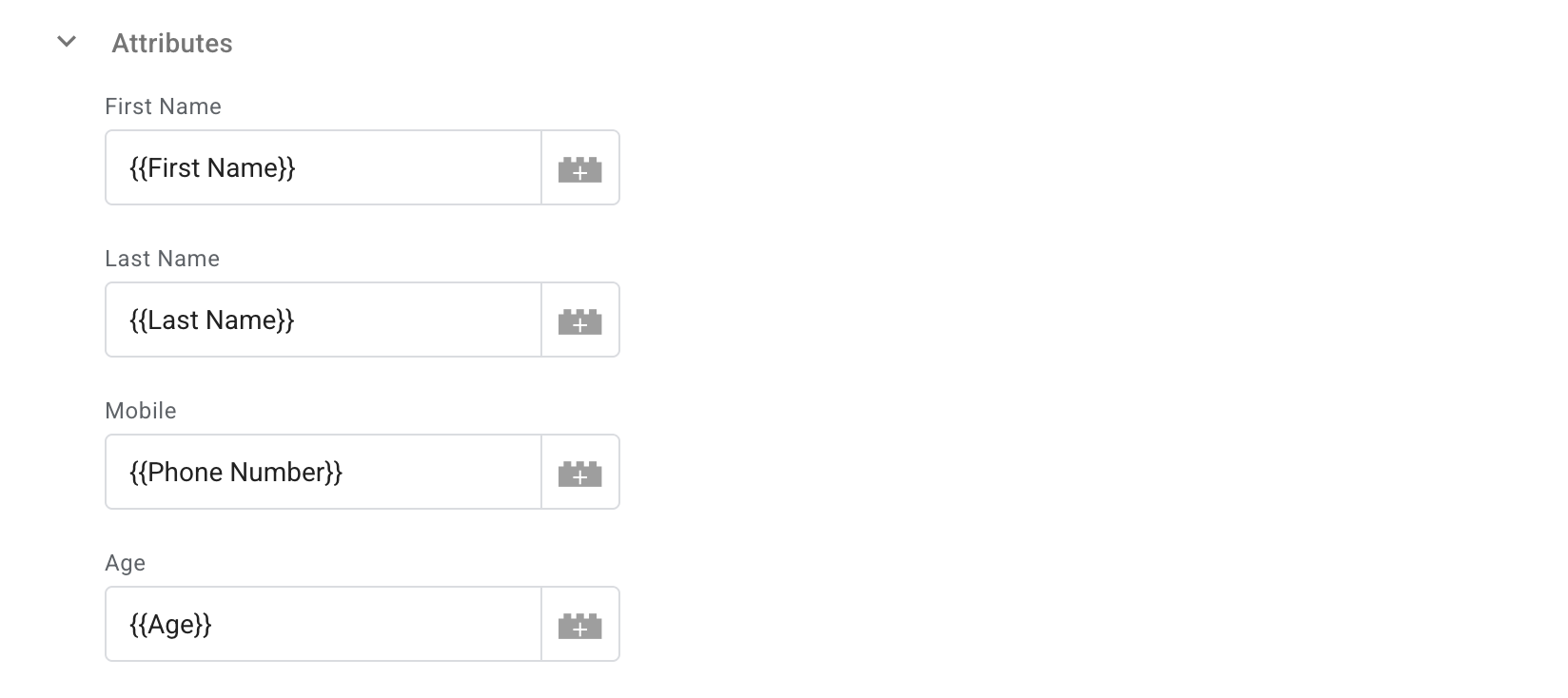
- In the mParticle by Rokt - Events tag, navigate to the Attributes section.
- Enter as many attributes as you have available that are related to the user or event. For predefined attributes, Rokt will automatically categorize them as a user attribute or an event attribute, as shown below.
Predefined AttributesDirect link to Predefined Attributes
| Attribute Key | Example Value | User Attribute | Notes |
|---|---|---|---|
| First Name | John | ✓ | The customer's first name. |
| Last Name | Doe | ✓ | The customer's last name. |
| Mobile | 3125551515 | ✓ | Phone numbers can be formatted either as 1112345678 or +1 (222) 345-6789. |
| Age | 33 | ✓ | The customer's age. |
| Date of Birth | 19900717 | ✓ | Date of birth. Formatted as yyyymmdd. |
| Gender | M | ✓ | The customer's gender. For example, M, Male, F, or Female. |
| Payment Type | Credit Card | Payment method used for the transaction. For example, Credit Card, PayPal, Apple Pay. | |
| Confirmation Reference/Transaction ID | ORD-123456 | Unique transaction or confirmation reference ID for the purchase. | |
| Amount | 52.25 | The total transaction amount. | |
| Conversion Type | Purchase | Type of conversion event. For example, Purchase, Signup, Lead. | |
| Passback Conversion Tracking ID | TRACK-789 | Rokt Click ID. | |
| Address Line 1 | 123 Main Street | ✓ | The customer's primary address line. |
| Address Line 2 | Apt 4B | ✓ | The customer's secondary address line (apartment, suite, etc.). |
| City | Brooklyn | ✓ | The customer's city. |
| State | NY | ✓ | The customer's state or province. |
| ZIP Code | 11201 | ✓ | The customer's ZIP or postal code. |
| Country | US | ✓ | The customer's country. |
| Title | Mr | ✓ | The customer's title. For example, Mr, Mrs, Ms, Dr. |
| Language | en | ✓ | Language associated with the customer or purchase. |
The Conversion Type and Confirmation Reference/Transaction ID attributes allow Rokt to optimize your campaign effectively and deduplicate events and conversions appropriately. These are required launch attributes.
Please confirm the attributes with your Rokt account manager before you complete the integration.
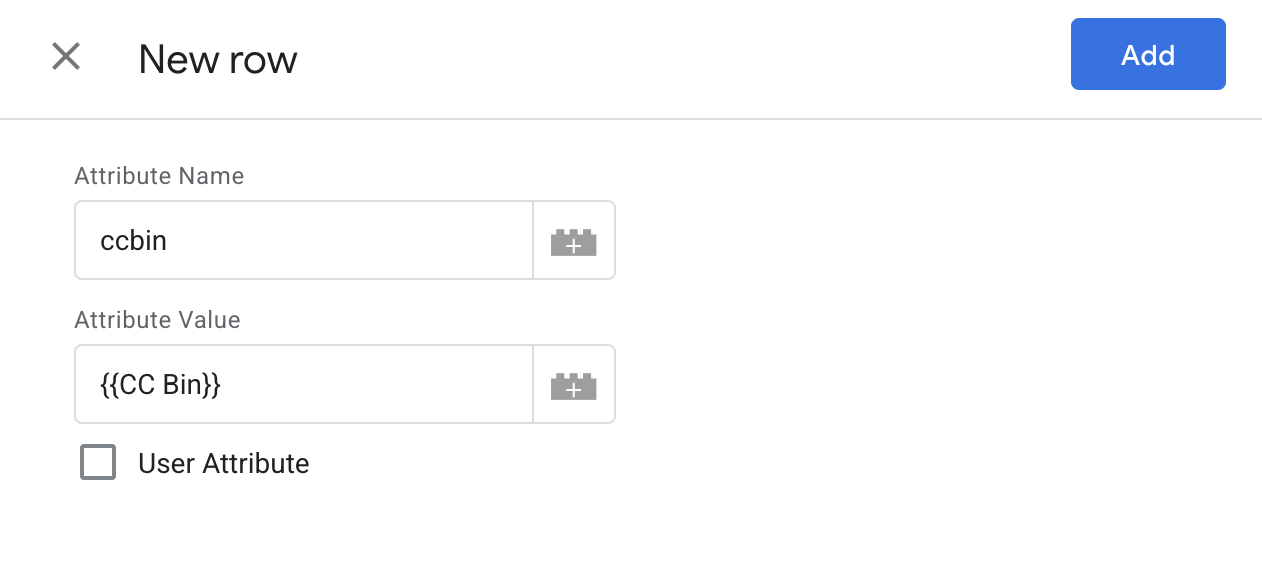
- If there are additional attributes you want to send that aren't already defined, click Add Row under Custom Attributes.
- Enter the attribute name and value under Attribute Name and Attribute Value.
- If the attribute is related to the user (not the conversion event), select User Attribute.
- When you are done adding actions to this Events tag, click Save.