Onboarding to Catalog as a Partner on WooCommerce
This guide walks you through the steps to get set up on Rokt Catalog as a Partner using WooCommerce.
Before you startDirect link to Before you start
- You need the WooCommerce plugin installed and activated in WordPress.
- The WooCommerce Shipment Tracking extension is required for fulfillment and tracking to work on Catalog.
- Your host environment must meet WooCommerce's minimum requirements, including SOAP Client Support.
Receive an invitation or sign upDirect link to Receive an invitation or sign up
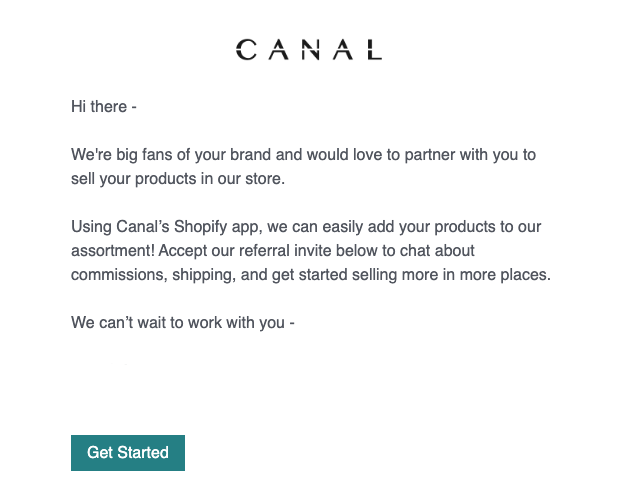
Accept the invitation to join Catalog sent via email by your partnered Brand, or navigate to catalog.rokt.com/signup to create an account.
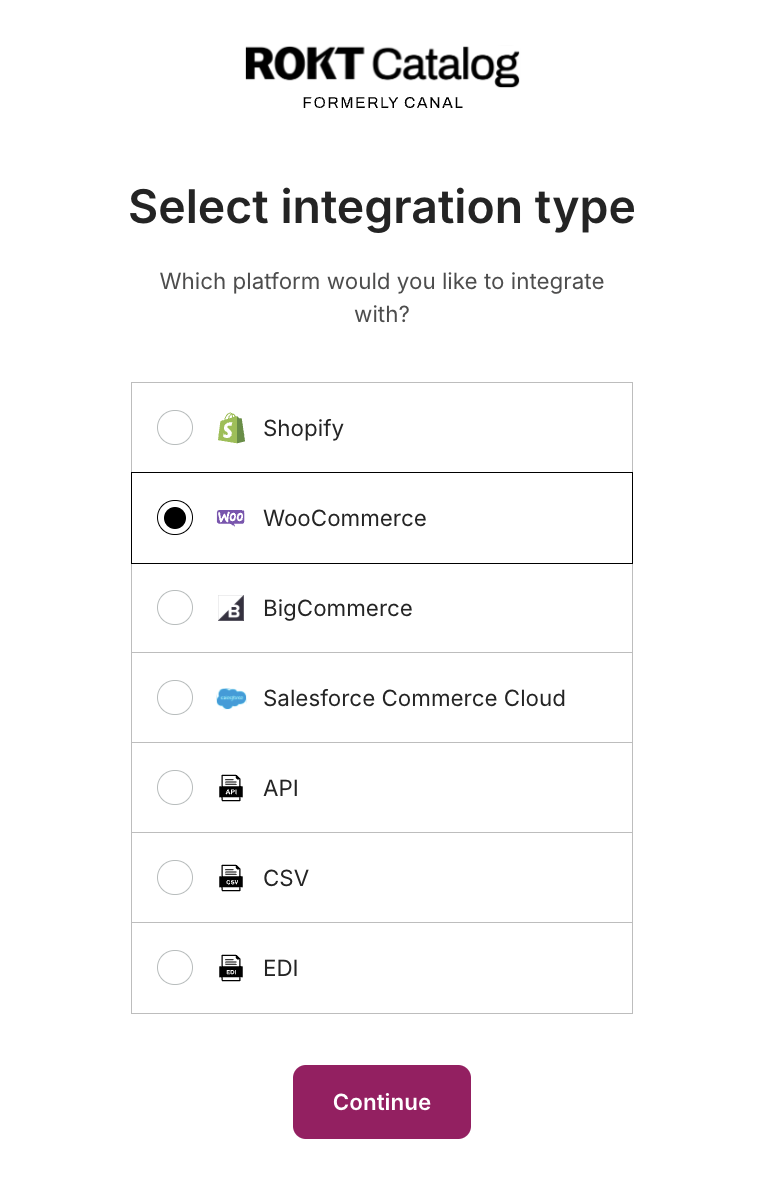
Select WooCommerce as your integration typeDirect link to Select WooCommerce as your integration type
After selecting WooCommerce, you'll be directed to install the Catalog app.
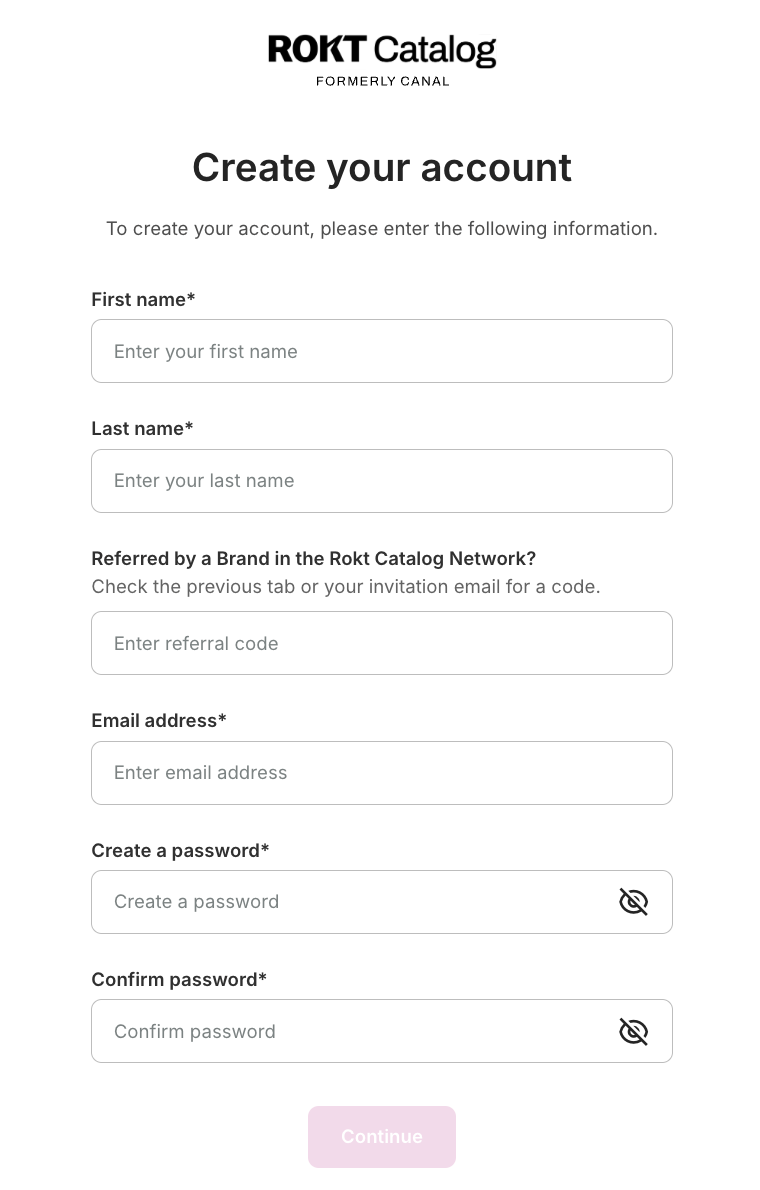
Create your accountDirect link to Create your account
Complete in-app onboardingDirect link to Complete in-app onboarding
After account creation, you'll be prompted to complete the onboarding steps:
- Enter contact information — your primary contact email and customer service email.
- Specify brand information — your brand name, description, logo, and banner image.
- Add payment information — ACH or credit card.
- Select shipping settings — configure how shipping is handled for Brand products.
Have additional questions? Reach out to roktcatalogsupport@rokt.com.