Events Log
Events Log is a read-only feed of the development events Rokt receives from your inputs. It lists each batch in the order Rokt received it, with the events inside it, and lets you open any batch or event to see its full details. The list refreshes when you click Refresh events, and new events can take up to 5 minutes to appear.
Events Log shows development data only. To see event volume and identity coverage for production and development, use Events Manager.
Key featuresDirect link to Key features
- Event feed. See development events in the order Rokt received them, grouped by batch.
- Batch details. See the user attributes, user identities, and device identities sent with each batch.
- Event details. See each event's attributes alongside the batch it arrived in.
- Search and filters. Find events by name, filter by input, and show or hide system events.
- Copy as JSON. Copy any batch or event in JSON format.
Using Events LogDirect link to Using Events Log
To find Events Log in One Platform, open Resources > Events Log from the left-hand navigation.
The Events Log has a toolbar across the top and an event list below it, with the most recent batches listed first. Click View batch details or View to open a batch or event in a side panel.
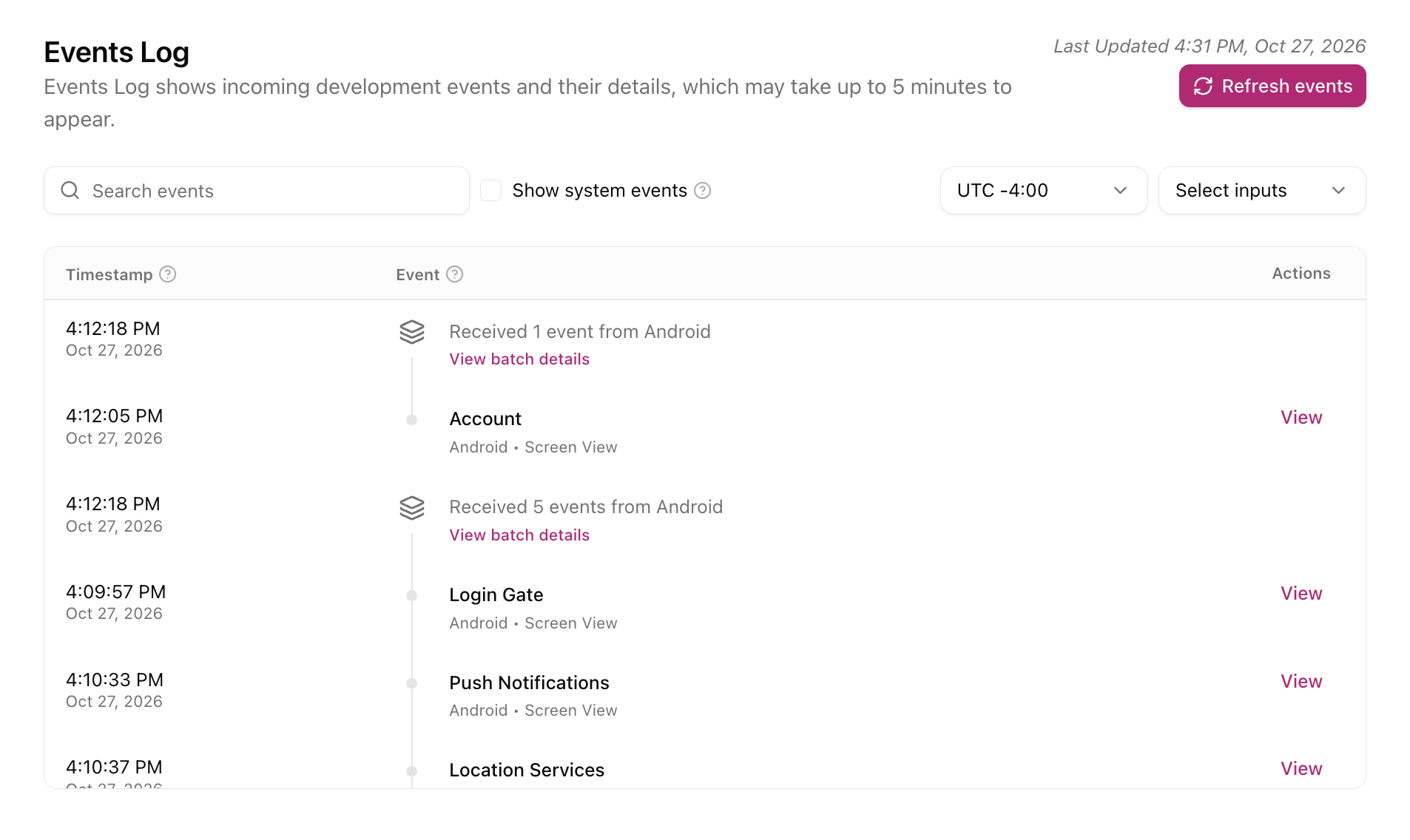
ToolbarDirect link to Toolbar
| Control | What it does |
|---|---|
| Search events | Shows only events whose name matches your search. |
| Show system events | Adds events the SDK sends automatically, such as Session Start, App Initialized, App Background, identity and attribute changes, and push notifications. Hidden by default. |
| Time zone | Sets the time zone used for timestamps. It defaults to your account's time zone. |
| Select inputs | Shows only events from the inputs you choose, such as Web. |
| Refresh events | Loads the latest events. Last Updated shows when the list last refreshed. |
Search and input filters apply only to the batches already loaded on the page.
Event listDirect link to Event list
The list shows the most recent batches first. A batch is a single request that bundles data about one user, including who they are, what's known about them, and the events they triggered.
- Batch rows show when the batch was received, how many events it contained, and which input sent it, such as "Received 2 events from Web."
- Event rows sit under their batch and show the event name, the input, and the event type, such as page view (Screen View for Web inputs) or conversion (Custom Event for Web inputs).
Timestamp is when an event happened, as reported by the user's device, and when Rokt received a batch. Times are shown in your selected time zone.
Batch detailsDirect link to Batch details
Click View batch details on a batch row to open its details in a side panel.
| Section | What it shows |
|---|---|
| Summary | Total events in the batch, the input that sent it, and when it was received. |
| User attributes | Details about the user sent with the batch, such as first name or ZIP code. Rokt uses these to personalize offers. |
| User identities | Identifiers for the user, such as Email and Customer ID, that were sent with the batch. Rokt Click ID is always listed and shows Not received if the batch didn't carry one. An identifier that was sent with no value shows Unavailable. |
| Device identities | Details about the device or browser that sent the batch, such as IP address and user agent. These help Rokt improve match rates. |
Event detailsDirect link to Event details
Click View on an event row to open its details.
- Header: the event name, its type (such as Screen View or Custom Event), the input, and when the event happened, as reported by the user's device.
- Event attributes: the custom details your team sent with the event, such as
urlfor a page view, orconversiontypeandconfirmationreffor a conversion. - Batch details: the user attributes, user identities, and device identities from the batch the event arrived in.
Click Copy as JSON in either panel to copy its contents. Click Back to return to the list.
FAQDirect link to FAQ
Why don't I see my latest events?
New events can take up to 5 minutes to appear. Click Refresh events to load them.
Why don't I see production events?
Events Log shows development events only. Use Events Manager to view production data.
Why doesn't my search find an event?
Search and input filters only look at the batches already loaded on the page. When you open Events Log, it loads the 50 most recent batches, and each refresh adds newer ones. Click Refresh events to load newer batches.
Can I change data from Events Log?
No. Events Log is read-only.
Who can I contact with questions?
Contact your Rokt Account Manager.