Onboarding to Catalog as a Brand on WooCommerce
This guide walks you through the steps to get set up on Rokt Catalog as a Brand using WooCommerce.
Before you startBefore you start への直接リンク
- You need the WooCommerce plugin installed and activated in WordPress.
- The WooCommerce Shipment Tracking extension is required for fulfillment and tracking to work on Catalog.
- Your host environment must meet WooCommerce's minimum requirements, including SOAP Client Support.
Select WooCommerce as your integration typeSelect WooCommerce as your integration type への直接リンク
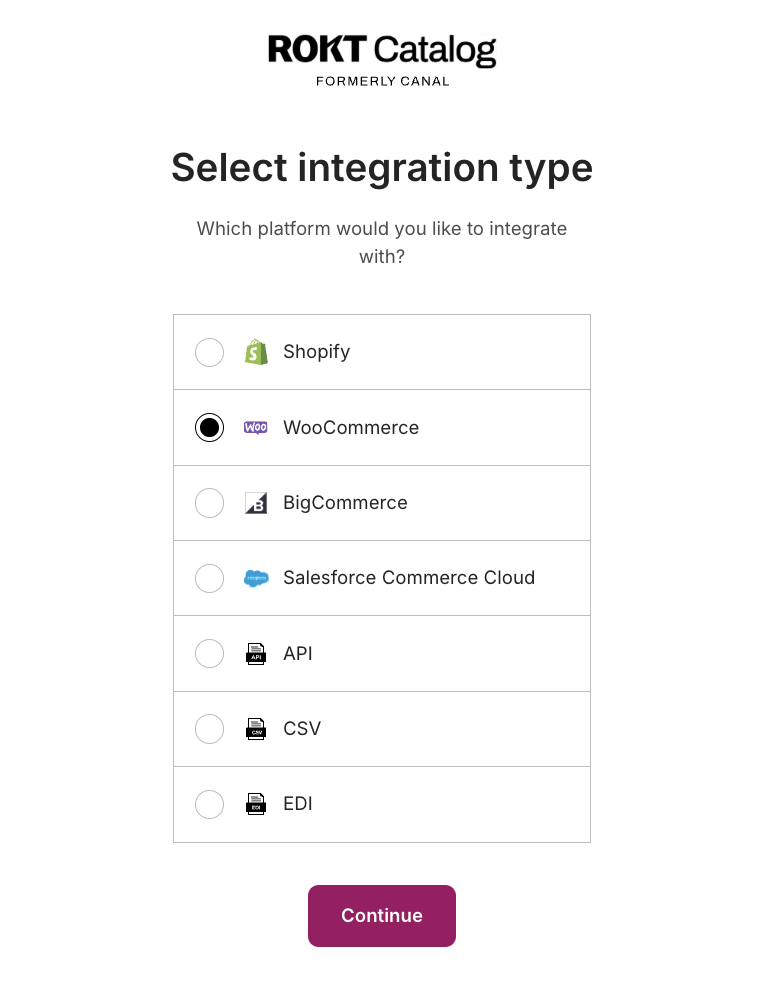
Install the Catalog app and enter your store URLInstall the Catalog app and enter your store URL への直接リンク
You may need to navigate back to your WooCommerce account and select Onboard to Catalog under the Catalog plugin to prompt next steps.
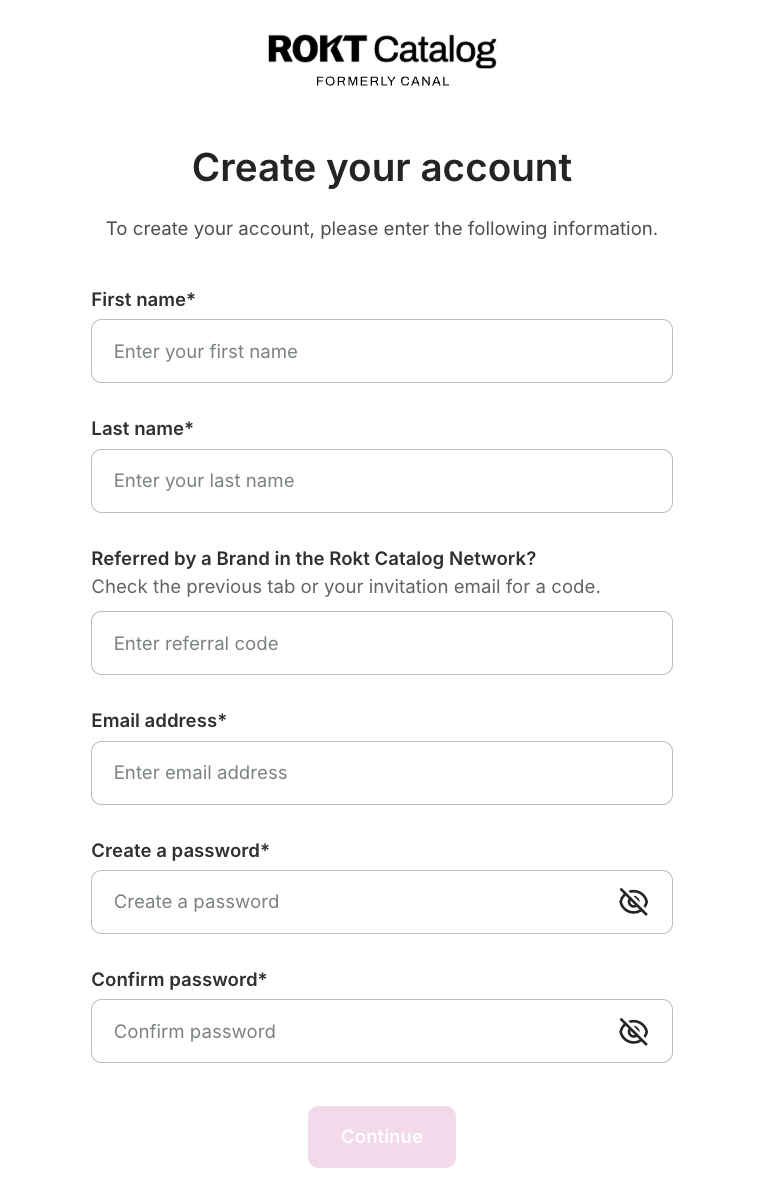
Create your accountCreate your account への直接リンク
The email and password you create on this step are used to log in to Catalog going forward.
Complete your brand profileComplete your brand profile への直接リンク
After your account is created, you'll be prompted to complete the onboarding steps:
- Specify your brand name that Partners see.
- Enter email contacts for primary and customer service communication.
- Add payout information to receive payments.
- Select shipping settings for how Brand products are shipped.
Pre-approve existing Partners to sell your productsPre-approve existing Partners to sell your products への直接リンク
You can learn more about how pre-approval works in the How Pre-Approved works article.
List your products to CatalogList your products to Catalog への直接リンク
You have the option to list your entire product catalog or select specific products. If you skip this step, you need to manually add your products before Partners can send you a proposal.
Set your desired partnership termsSet your desired partnership terms への直接リンク
Terms listed here are displayed on your profile for potential Partners to see. You always have the chance to renegotiate or set new terms before a partnership is established.