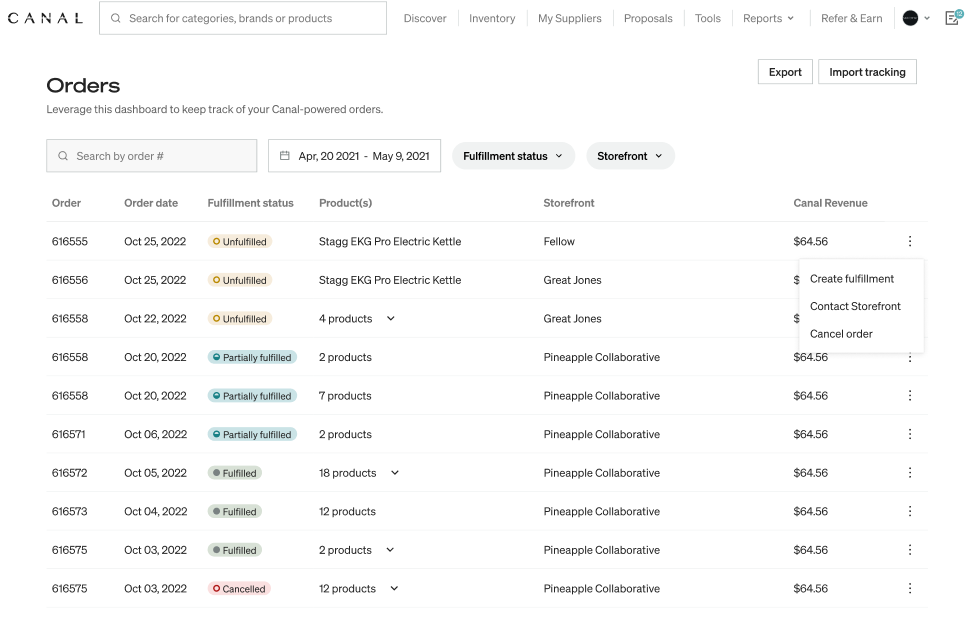
How Fulfillment works
Fulfillment, along with refunds and cancellations, is handled on the Orders page in the Catalog app.
Fulfilling ordersFulfilling orders への直接リンク
Fulfillment can be done on an order-by-order basis, or you can import tracking for multiple orders at once. Orders are not marked as fulfilled until there is a tracking number associated with the order.
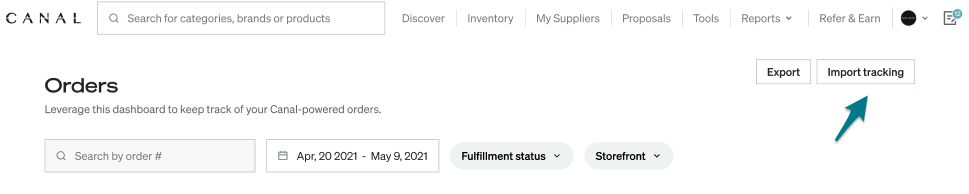
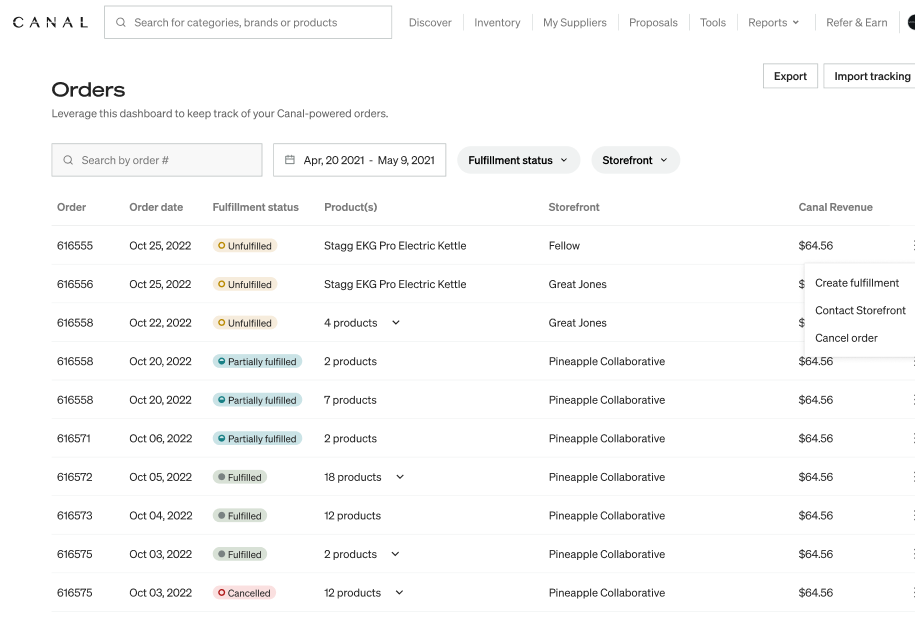
To add tracking individually, select the three dots to the right of the order you want to fulfill > Create fulfillment. You are required to add the carrier, tracking number, and tracking URL before an order can be marked as fulfilled.
Exporting ordersExporting orders への直接リンク
To export orders, select Export. You can then choose to export all orders, unfulfilled orders, or selected orders.

RefundsRefunds への直接リンク
Refunds are only available for orders that have been marked as fulfilled. To refund a customer, select the order you want to refund and select Refund order in the top right of the screen.
You can also refund directly from the Orders page by selecting the three dots to the right of the order > Refund order.
Order cancellationOrder cancellation への直接リンク
Orders are only eligible for cancellation if they are not marked as fulfilled in Catalog. Similar to refunds, you can cancel an order from the order detail page or by selecting the three dots to the right of the order > Cancel order. Cancelling an order issues a complete refund to the customer.