Events Manager
Events Manager is a read-only dashboard in One Platform that shows the event data Rokt receives from each of your inputs. It displays event volume, user attributes, and identity coverage, and lets you open any event to see its attributes.
Events Manager doesn't change your setup or send any data. It displays data Rokt has already received.
Key featuresKey features への直接リンク
Events Manager brings your event data together in one view.
- Input status. See which inputs are live and when each one last sent data.
- Event volume. View event counts over the last 24 hours or 7 days, in total or by input.
- User attributes. See which user attributes Rokt receives and how often.
- Identity coverage. See the share of users whose events include each identifier, such as email or customer ID.
- Event attributes. Open any event to see its trend, the fill rate of each attribute, and, for conversion events, its conversion type values.
- Production and development data. Switch environments to view live and test traffic separately.
Using Events ManagerUsing Events Manager への直接リンク
To find the Events Manager in One Platform, open Resources > Events Manager from the left-hand navigation. The page opens on All inputs, showing Production data for the Last 24 hours.
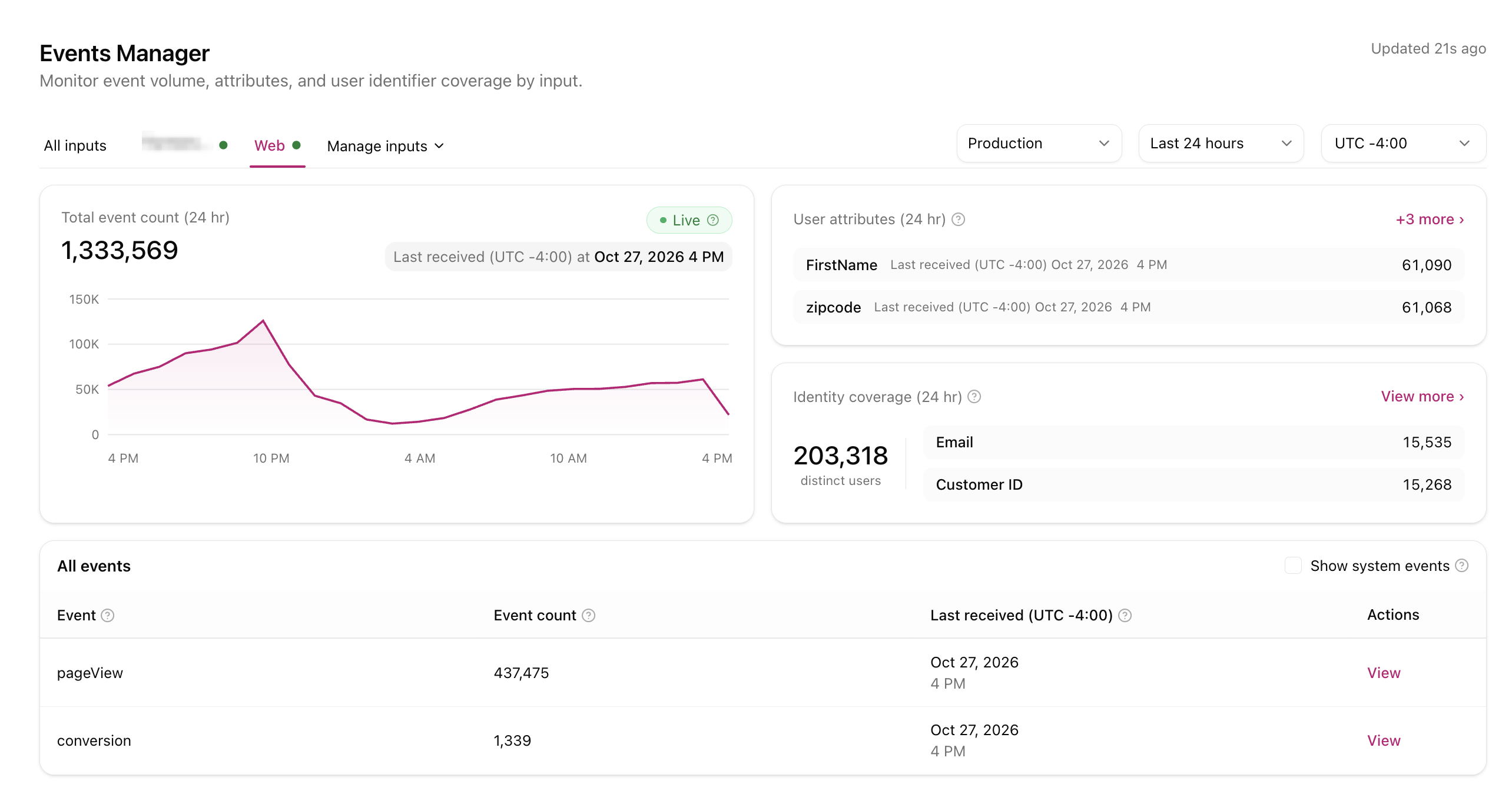
The Events Manager includes four main areas: input tabs and filters across the top, two summary cards, an identity panel, and an event table. Hover over the ? icon for a definition of that metric.
Input tabsInput tabs への直接リンク
An input is a source that sends events to Rokt, such as the Web SDK, a mobile SDK, or a server-to-server connection.
- All inputs combines data within the selected time frame.
- Each input has its own tab. A green dot means the input is Live and has received data since being configured.
- Select an input tab to scope every card and table on the page to that source only.
Manage inputs opens a list of all inputs on your account with their status (Live or No data). Toggle View on for up to four inputs to show as tabs, then click Save. This only changes what's displayed, not what's collected.
FiltersFilters への直接リンク
Three dropdowns on the right apply to the whole page.
| Filter | Options | Use it to |
|---|---|---|
| Environment | Production, Development | Switch between live traffic and test traffic. |
| Time range | Last 24 hours, Last 7 days | Change the window for every count on the page. |
| Time zone | For example, UTC -4:00 | Set the time zone used for charts and Last received timestamps. |
Total event countTotal event count への直接リンク
The chart shows how many events Rokt received over the selected time range, with the total above it.
- Hover over the line to see the count at that point, broken down by input.
- Last received shows the timestamp of the most recent event.
- On a single input tab, a Live badge confirms the input is sending data.
User attributesUser attributes への直接リンク
This card lists the user attributes Rokt received, such as first name or ZIP code, with how many times each was received and when it was last seen.
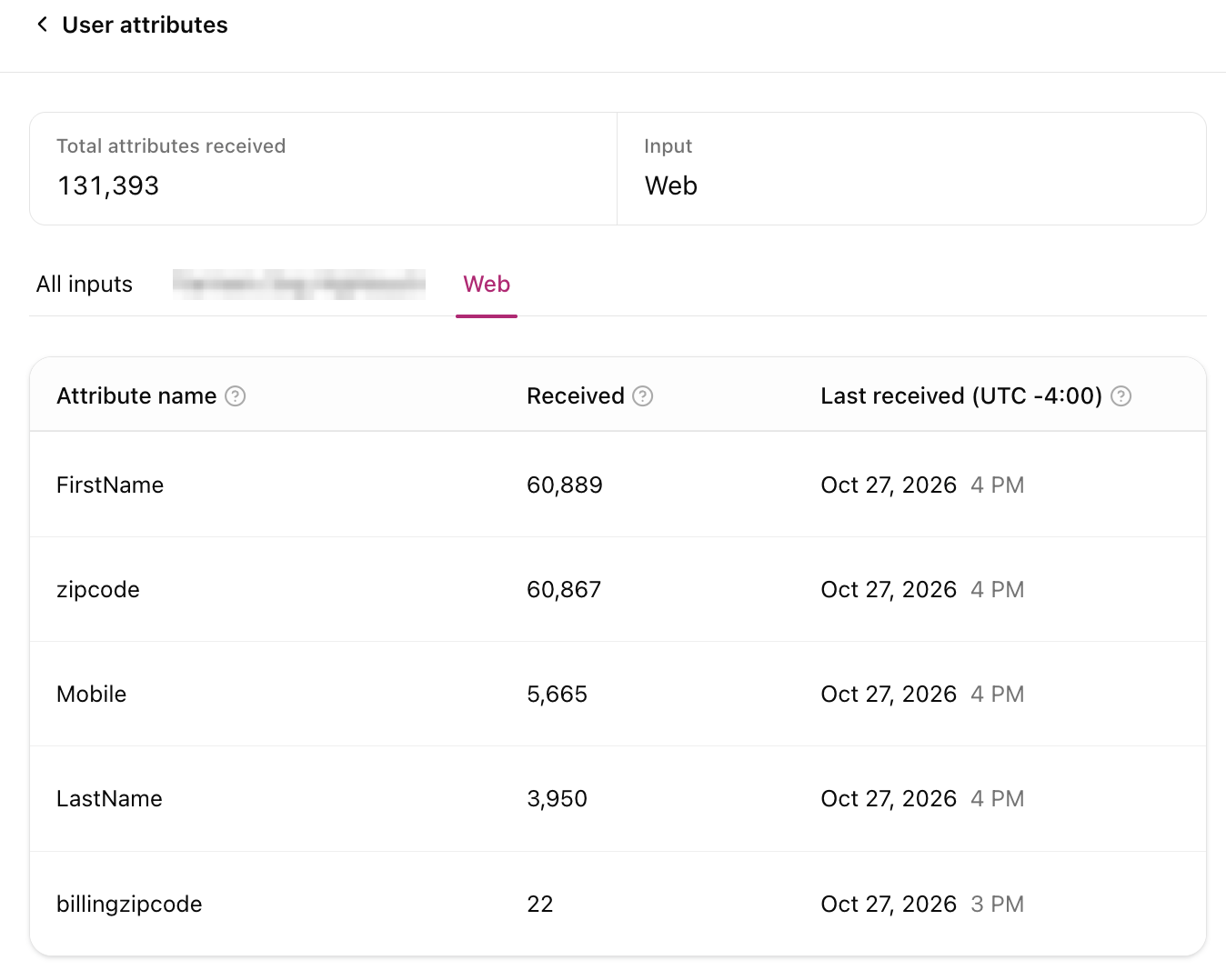
Click +N more to open the full list in a side panel. The panel shows Total attributes received and has its own input tabs, so you can see which attributes each source sends.
Identity coverageIdentity coverage への直接リンク
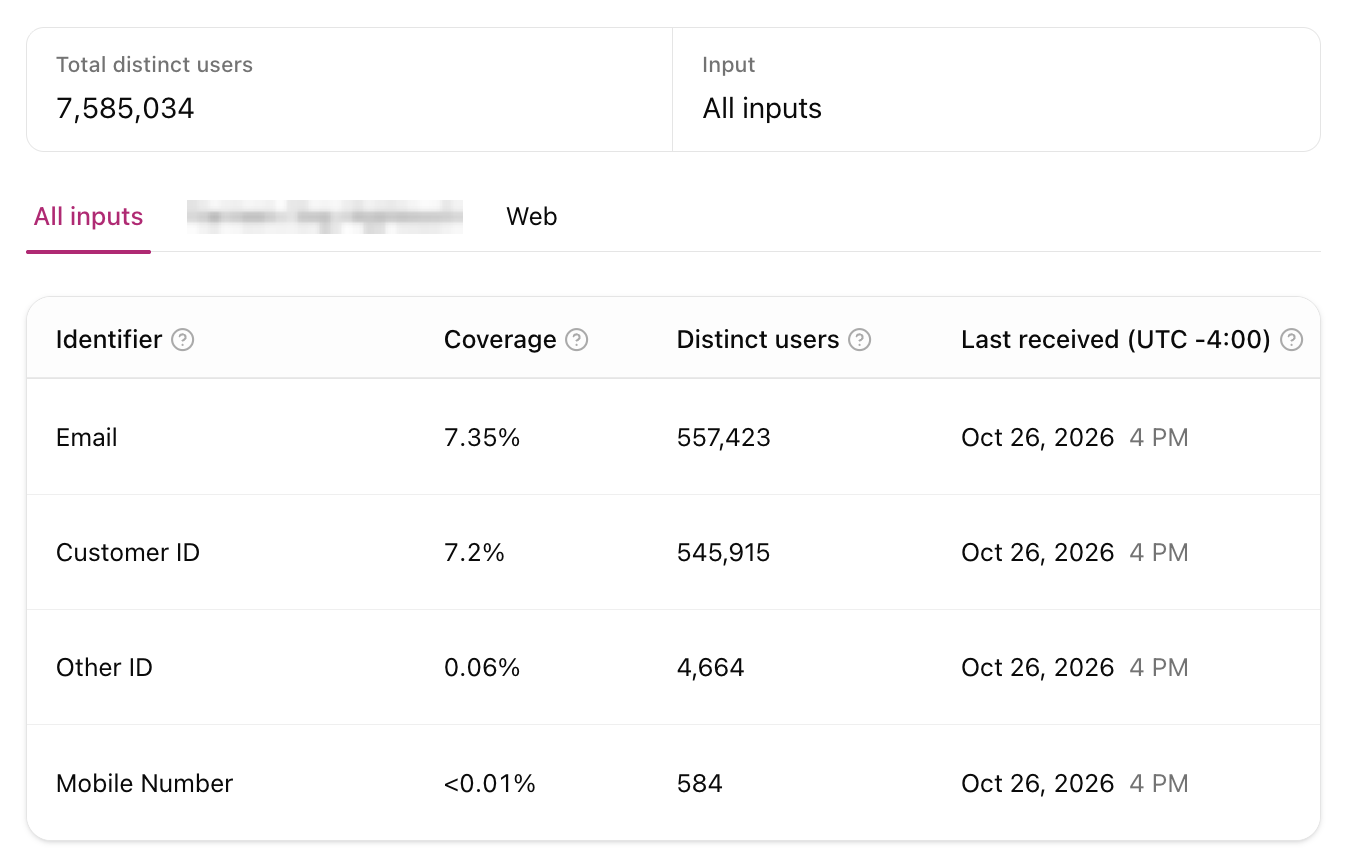
This card shows how many distinct users Rokt saw in the period and how many of them carried each identifier, such as Email or Customer ID.
Click View more to open the full breakdown:
| Column | What it means |
|---|---|
| Identifier | The identity type, such as Email, Customer ID, Other ID, or Mobile Number. |
| Coverage | The share of distinct users whose event data included this identifier. 80% means 8 in 10 users had it. |
| Distinct users | The number of distinct users whose event data included this identifier. |
| Last received | When this identifier was last seen. |
Coverage is calculated over the selected time range.
Events tableEvents table への直接リンク
The table lists every event type Rokt received in the selected period.
| Column | What it means |
|---|---|
| Event | The event name, such as page view or conversion. |
| Inputs | The inputs that sent this event. Shown on the All inputs tab only. |
| Event count | How many times this event was received. The event counts displayed here automatically refresh every 30 seconds. |
| Last received | When this event was last seen. |
| Actions | View opens the event detail panel. |
Show system events adds events the SDK sends automatically, such as Session Start, Session End, Install, and Application State Transition. They're hidden by default so your own events are easier to find.
Event detailEvent detail への直接リンク
The event detail panel shows how a single event is arriving, including its volume over time, which attributes are sent with it, and how often each is filled, so you can confirm the event is set up correctly and spot missing data.
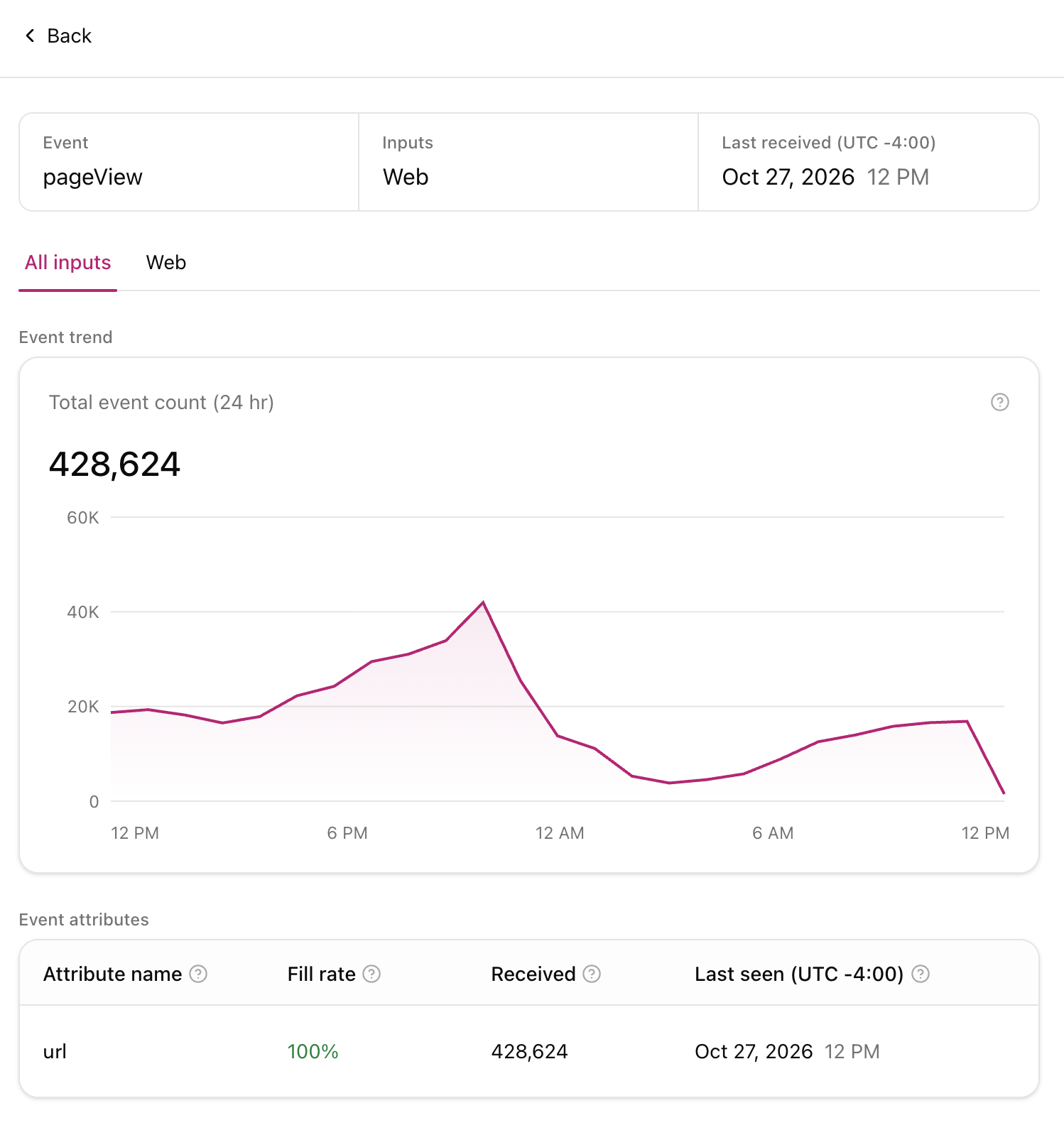
Click View on any event to open its detail panel.
- Summary at the top: event name, the inputs that sent it, and when it was last received.
- Input tabs to scope the detail to one source.
- Event trend: a chart of this event's volume over the selected time range.
- Conversion type: on conversion events only, each conversion type value sent and how often it was received.
- Event attributes: every attribute sent with this event.
| Column | What it means |
|---|---|
| Attribute name | The attribute key, such as conversiontype or ProductName. |
| Fill rate | The percentage of events that include this attribute. |
| Received | How many times the attribute was received with this event. |
| Last seen | When this attribute was last seen on this event. |
On conversion events, a Conversion type card appears above Event attributes. It shows a sample of the conversion type values Rokt is seeing from your events, so it may not list every value you send.
| Column | What it means |
|---|---|
| Value | The type of conversion event recorded, such as purchase, install, or sign-up. |
| Received | The number of times the value was received as a conversion type during the selected period. |
| Last seen | When this value was last seen. |
Click Back to return to the main page.
FAQFAQ への直接リンク
Can I change my integration from this dashboard?
No. Events Manager is read-only. To change what you send, update your SDK or connection.
Why don't I see an input?
Up to four inputs can show as tabs. Open Manage inputs to choose which ones appear. Inputs marked No data haven't sent events in the selected period.
Why don't I see session or install events?
They're system events, hidden by default. Turn on Show system events above the event table.
Can I see the actual email addresses or values sent?
Events Manager shows whether identifiers are present and how often, not the identifier values themselves.
Who can I contact with questions?
Contact your Rokt Account Manager.