TUNE (formerly HasOffers)
TUNE does not have a preconfigured integration with Rokt, however, you can manually integrate with the following instructions.
-
Send your TUNE signup link to your Rokt account manager. Once Rokt signs up, this will send a request to your TUNE account for acceptance.
-
Accept Rokt as a partner to your account.
-
Log in to your TUNE account.
-
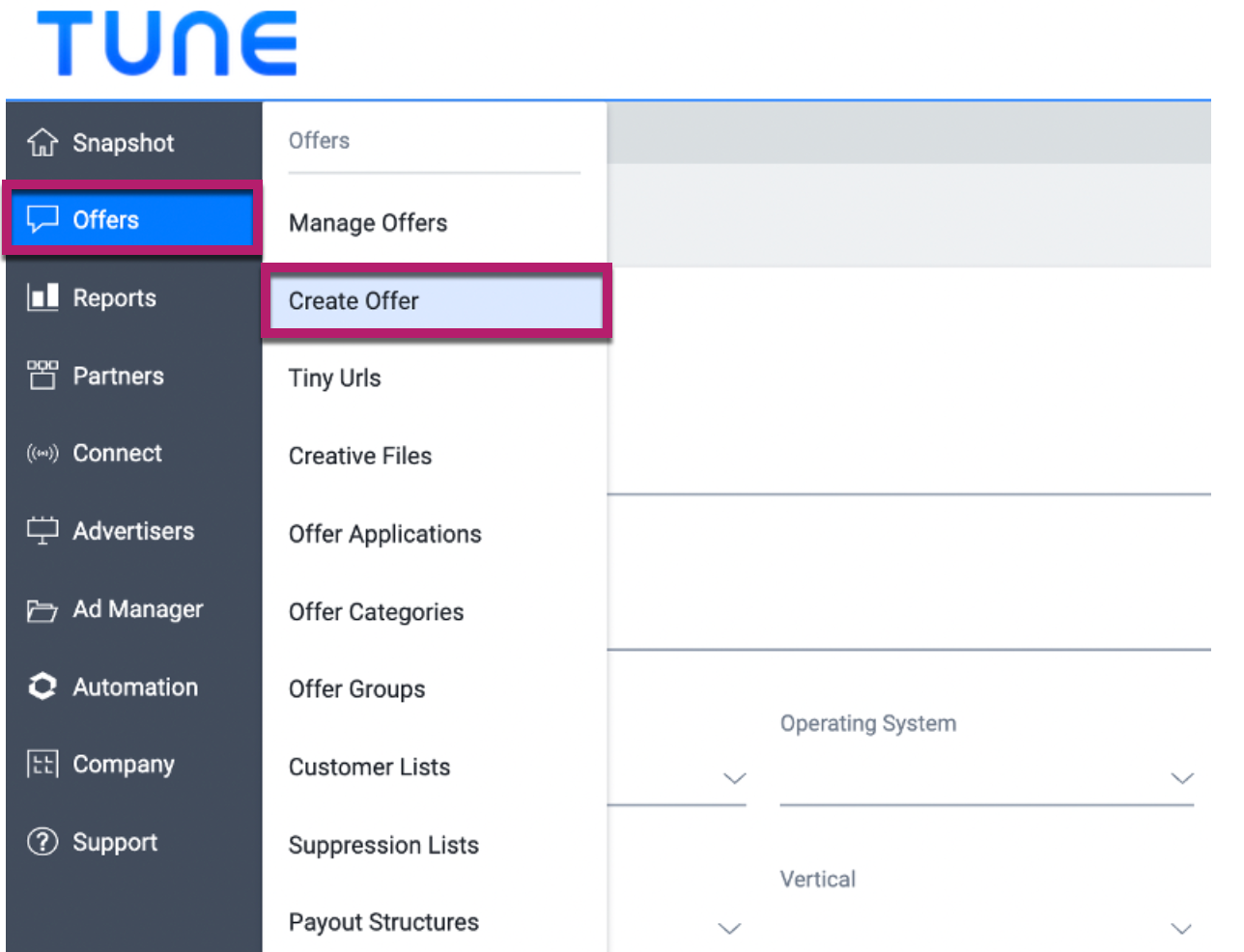
Go to Offers > Create Offer. Update your offer details, revenue, and payout. Learn more about creating an offer on TUNE's website.
-
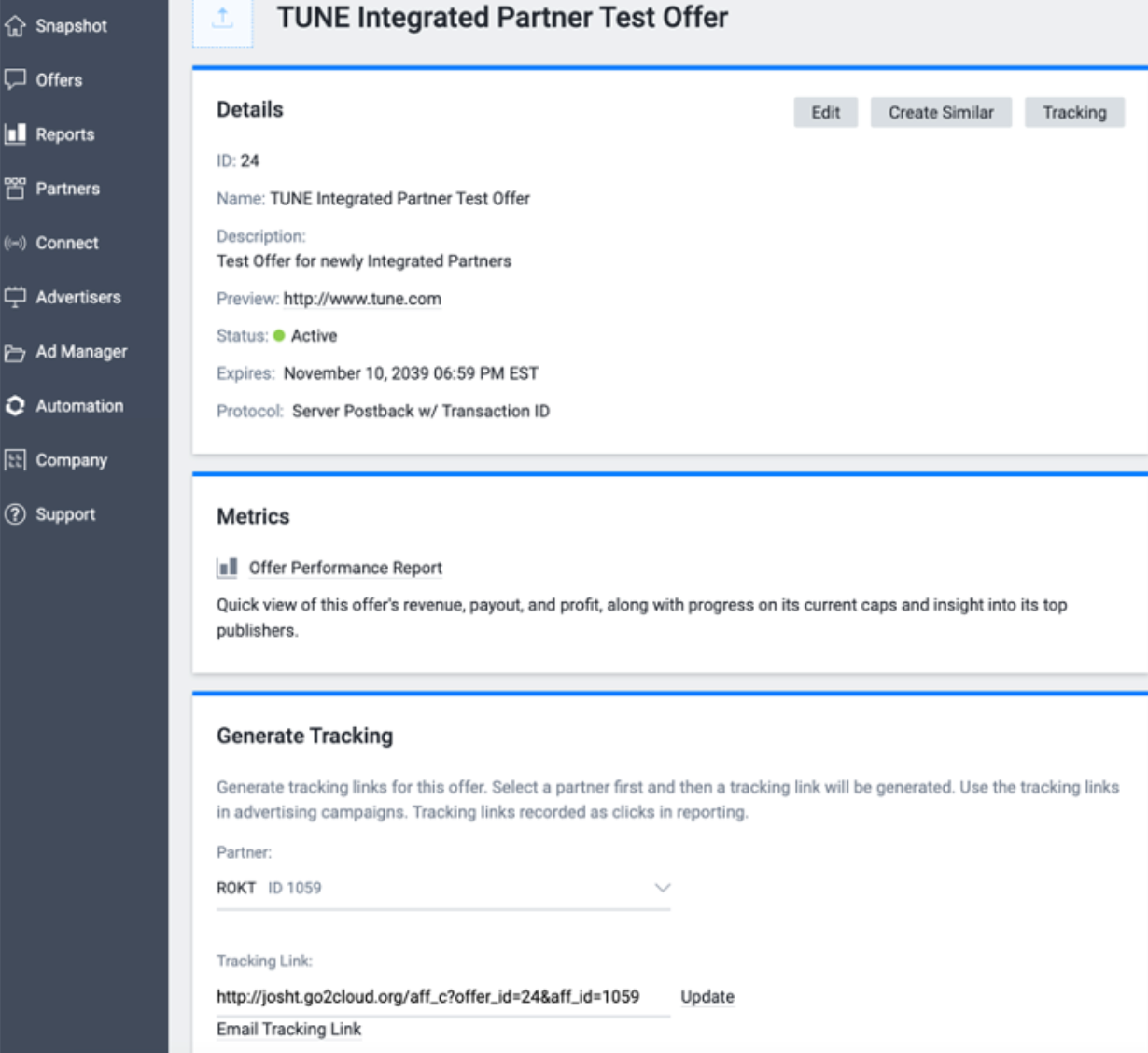
Once you have created an offer, you need to generate tracking links. Go to Offers > Manage offers, and select the offer you want to use.
-
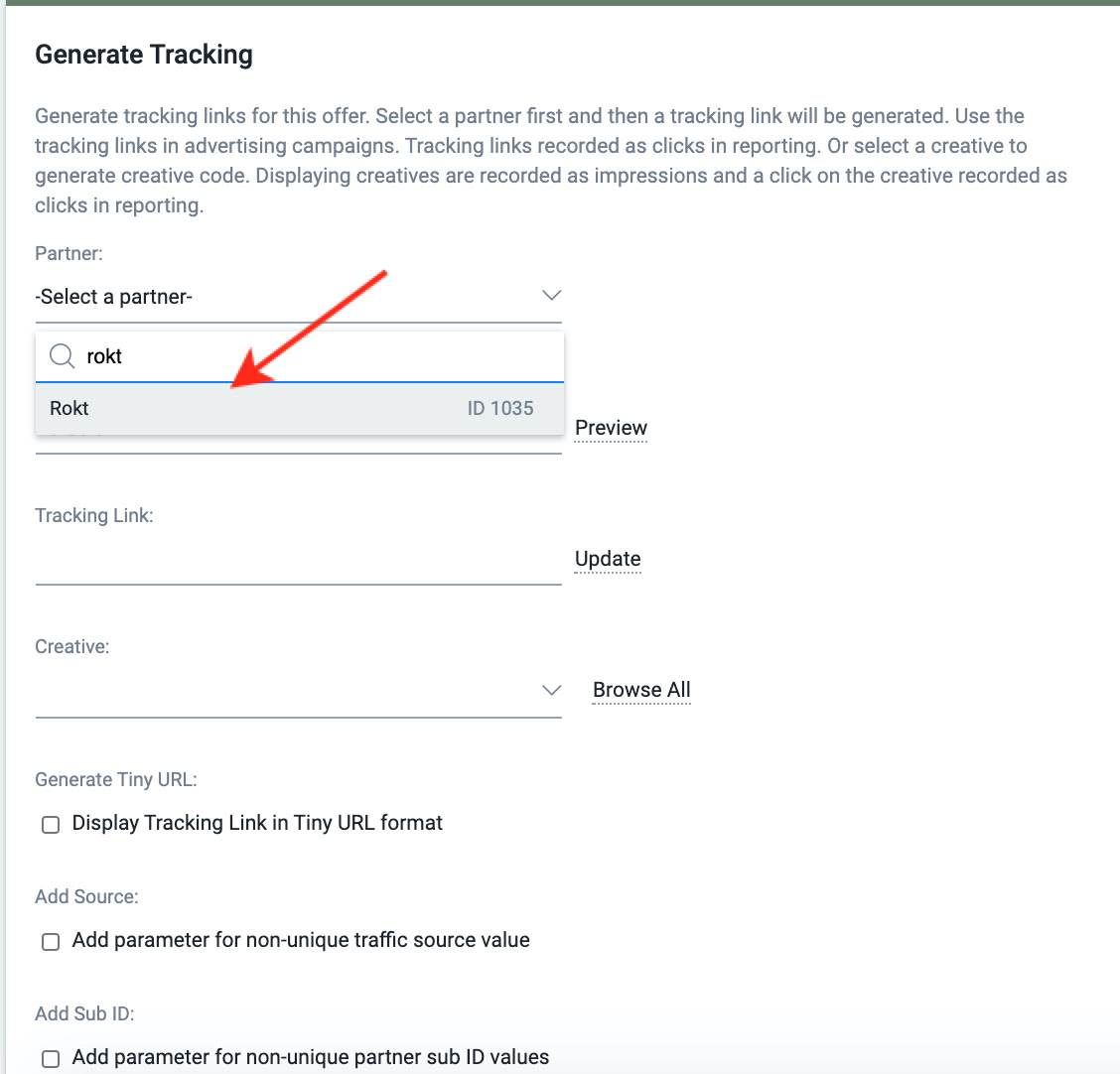
Go to Generate Tracking > Partner, search for and select Rokt to continue.
-
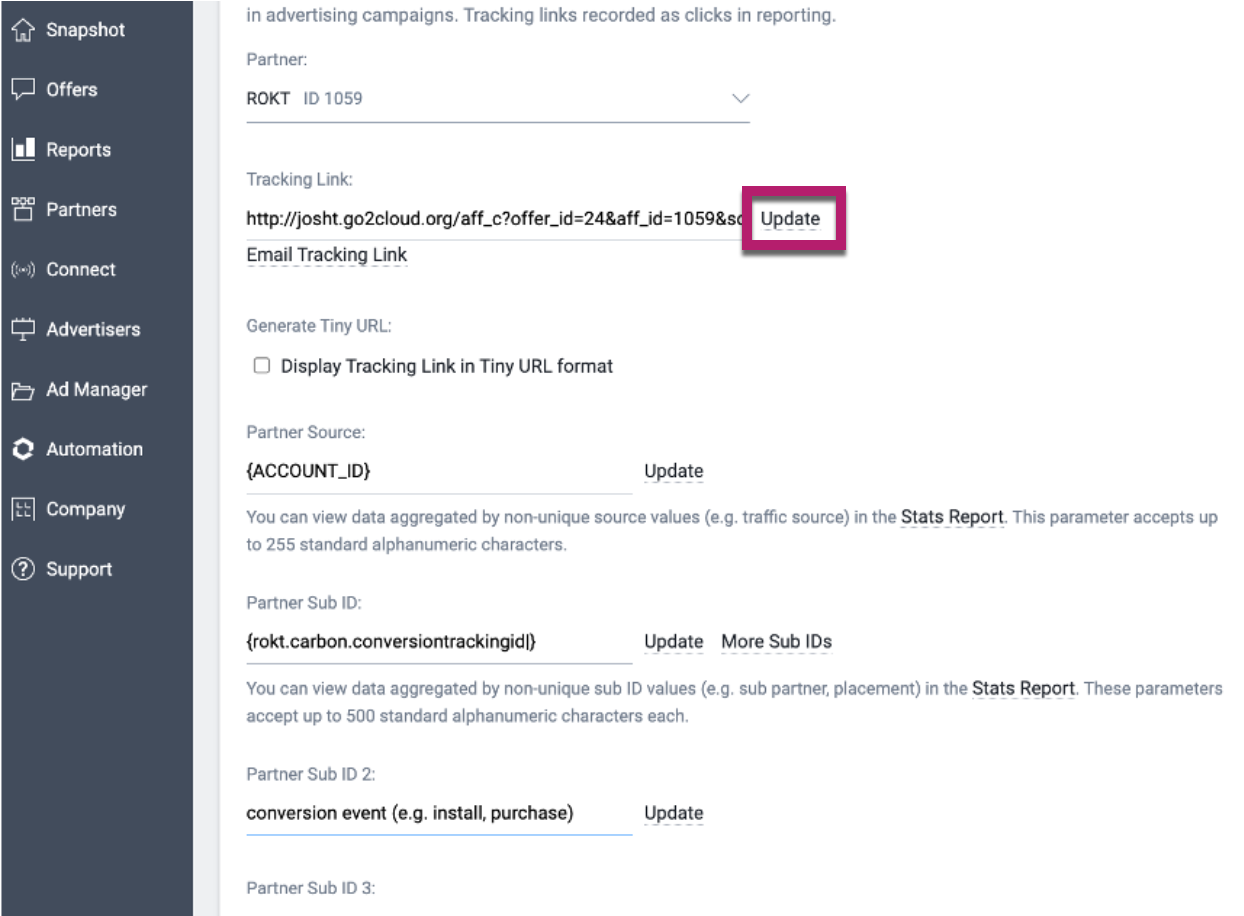
Check the Add source and Add sub ID box.
-
In the input box that appears, enter:
- Source = {ACCOUNT_ID}
- Sub ID = {rokt.carbon.conversiontrackingid|}
- Sub ID 2 = conversion event (e.g. install, purchase)
-
Click update to generate your tracking link.
- Example:
https://demo.go2cloud.org/aff_c?offer_id=1&aff_id=1&aff_sub={rokt.carbon.conversiontrackingid|}&source={ACCOUNT_ID}&aff_sub2=install
- Example:
-
Copy the generated link and send it to your Rokt account manager.
-
To set up the postback, go to Partners > Conversion Pixels/URLs.
-
Click Add conversion Pixel/URL.
-
Select the offer you want to use and set Partner to Rokt.
-
Set Type to PostbackURL.
-
Copy the following postback URL and paste it in the Conversion Pixel Code/URL textbox:
https://apps.rokt.com/api/conv?id={source}&passbackconversiontrackingid={aff_sub}&conversiontype={aff_sub2}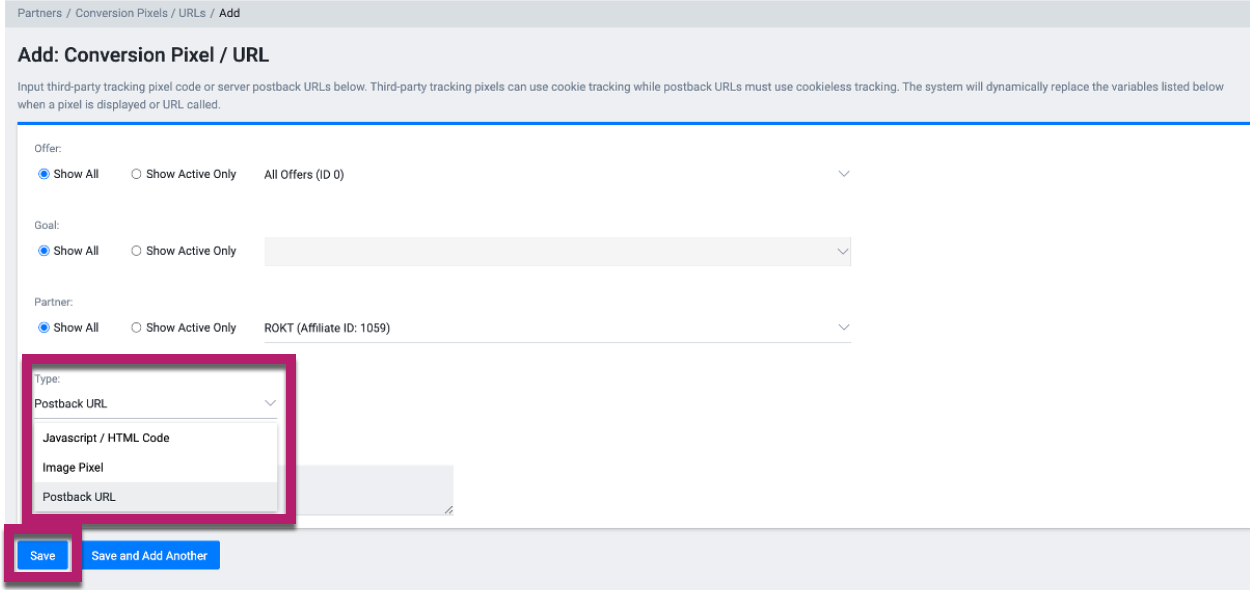
-
Click Save.