Branch
If you are using the measurement provider Branch for attributions follow the steps below to establish the preconfigured integrations with Rokt.
- Log in to your Branch account.
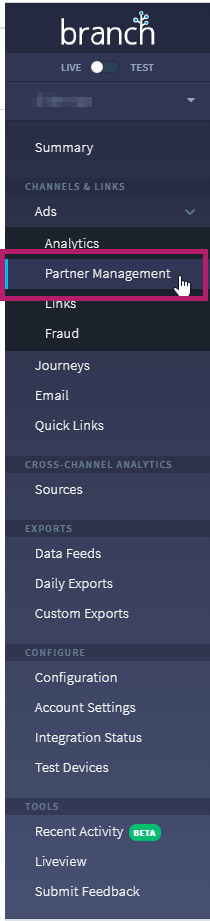
- Go to Ads > Partner management.
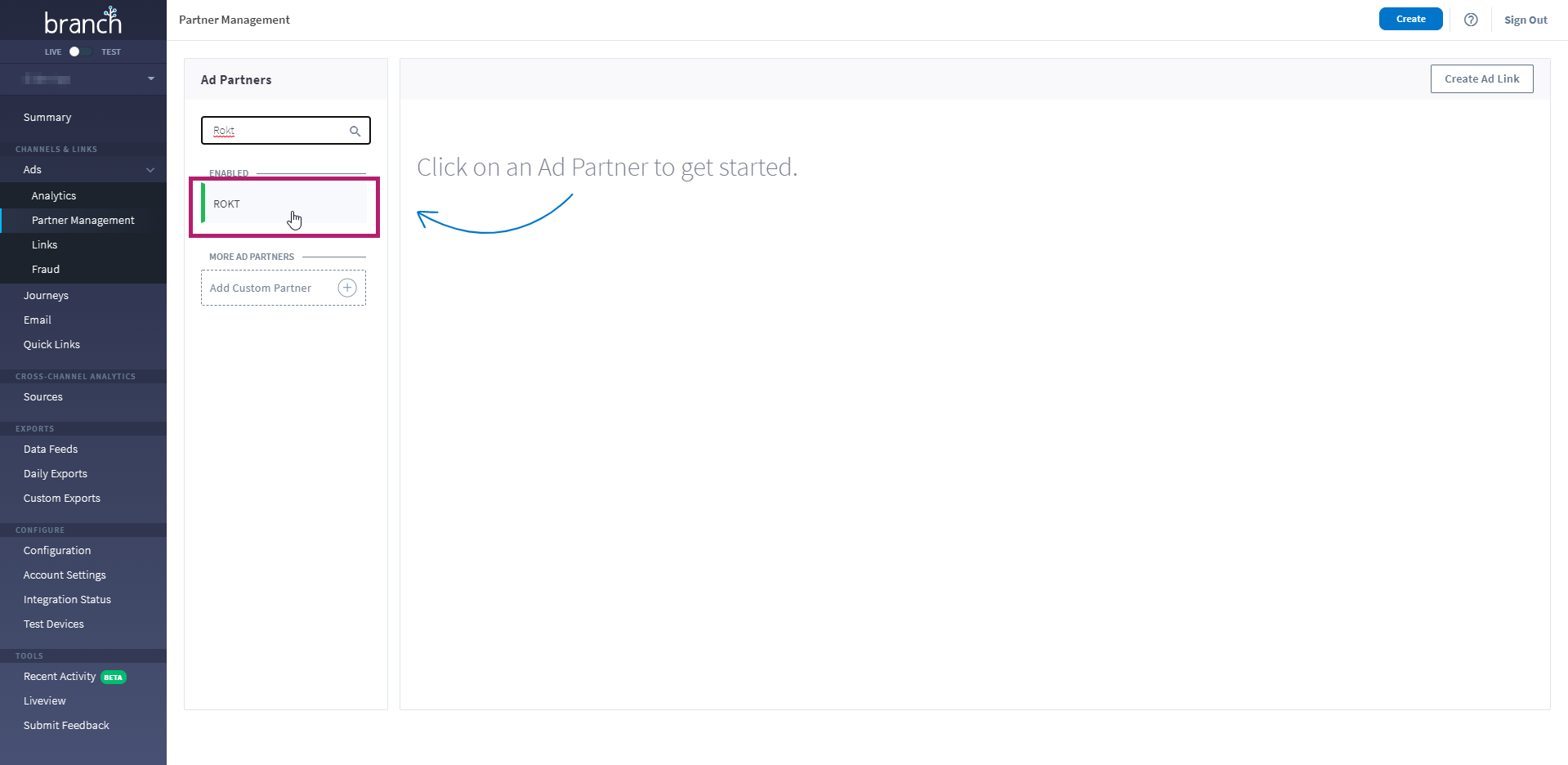
- Search and select Rokt to continue.
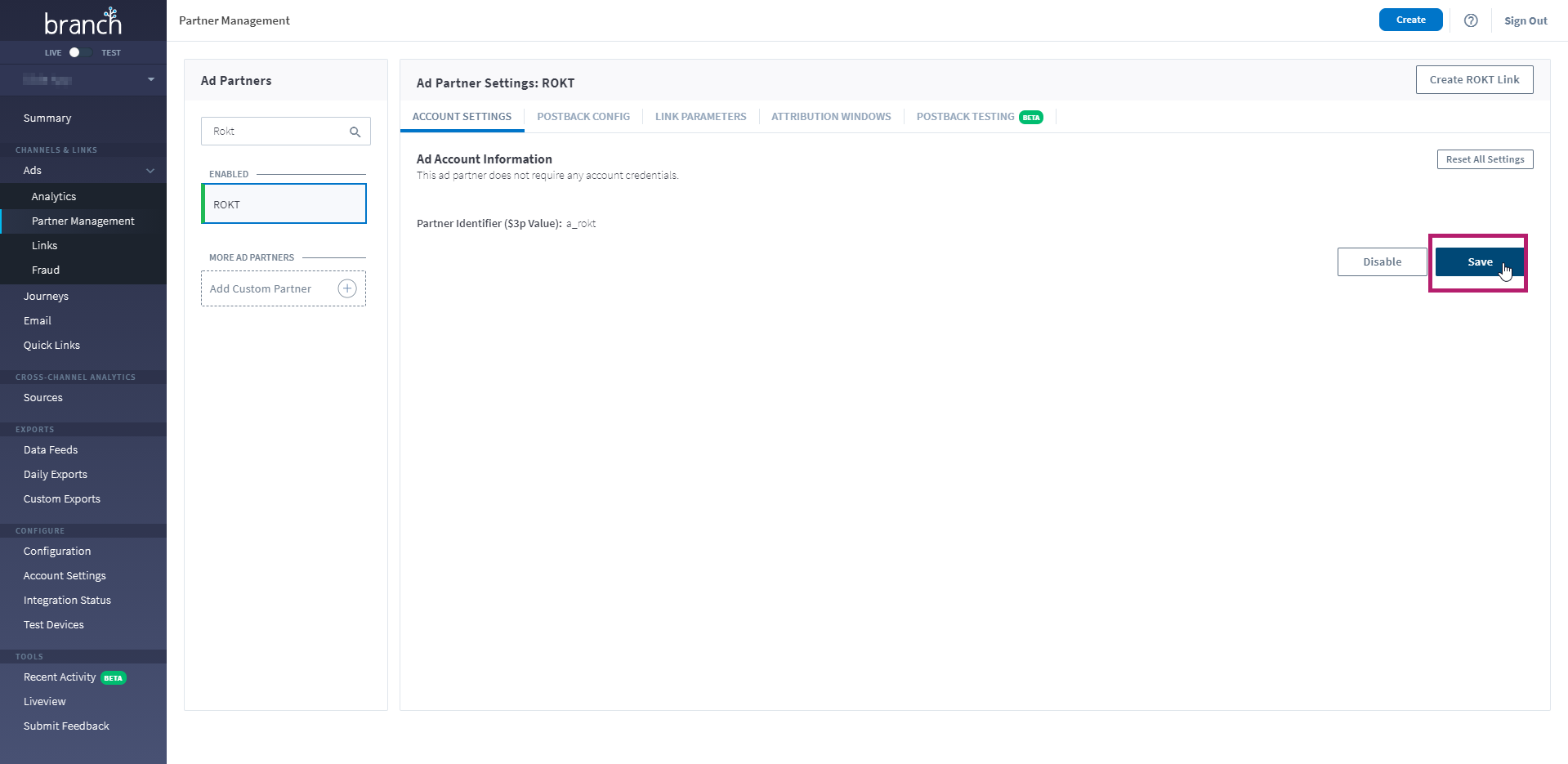
- Rokt does not require any account credentials, therefore click Save.
- Configure, edit, and add postback URLs and click Save.
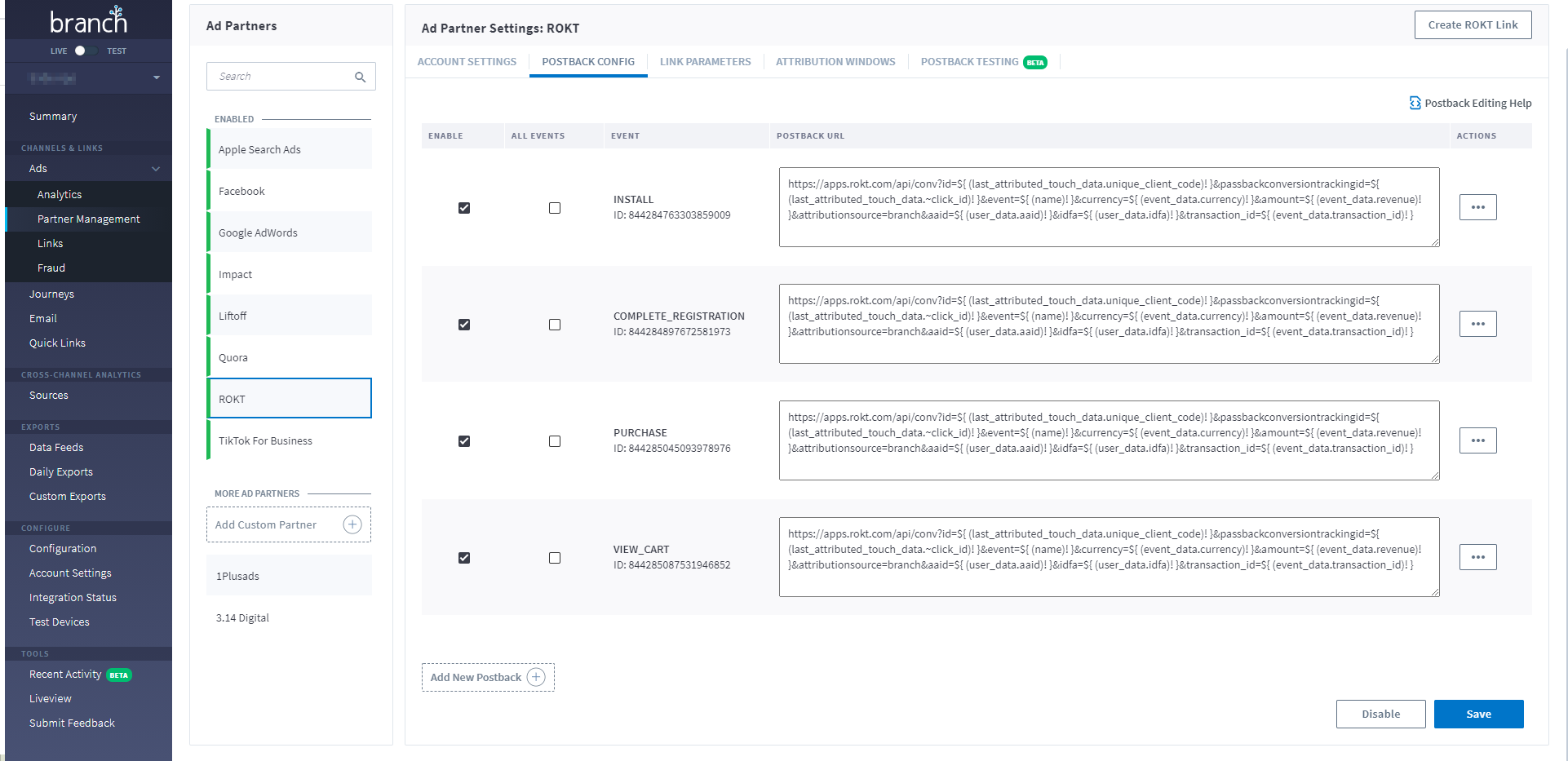
- Select Create Rokt Link.
- Select one of the ad formats.
- For app install or app engagement campaigns, select the App Only format.
- For search or display campaigns where the user should go to the web if they don't have the app, select Cross-Platform Search or Cross-Platform Display.
- Product links are for shopping or dynamic remarketing campaigns.
- In the Define section, complete the following:
- Choose which link domain you want to use (available for former TUNE clients only):
- Branch domain—Create a link using your Branch domain. Note that links created with this domain use Branch link parameters by default.
- TUNE domain—Create a link using your TUNE domain. Note that links created with this domain use TUNE link parameters/macros by default.
- Name your link.
- Select Rokt as the ad partner.
- Click Configure Options when you are done.
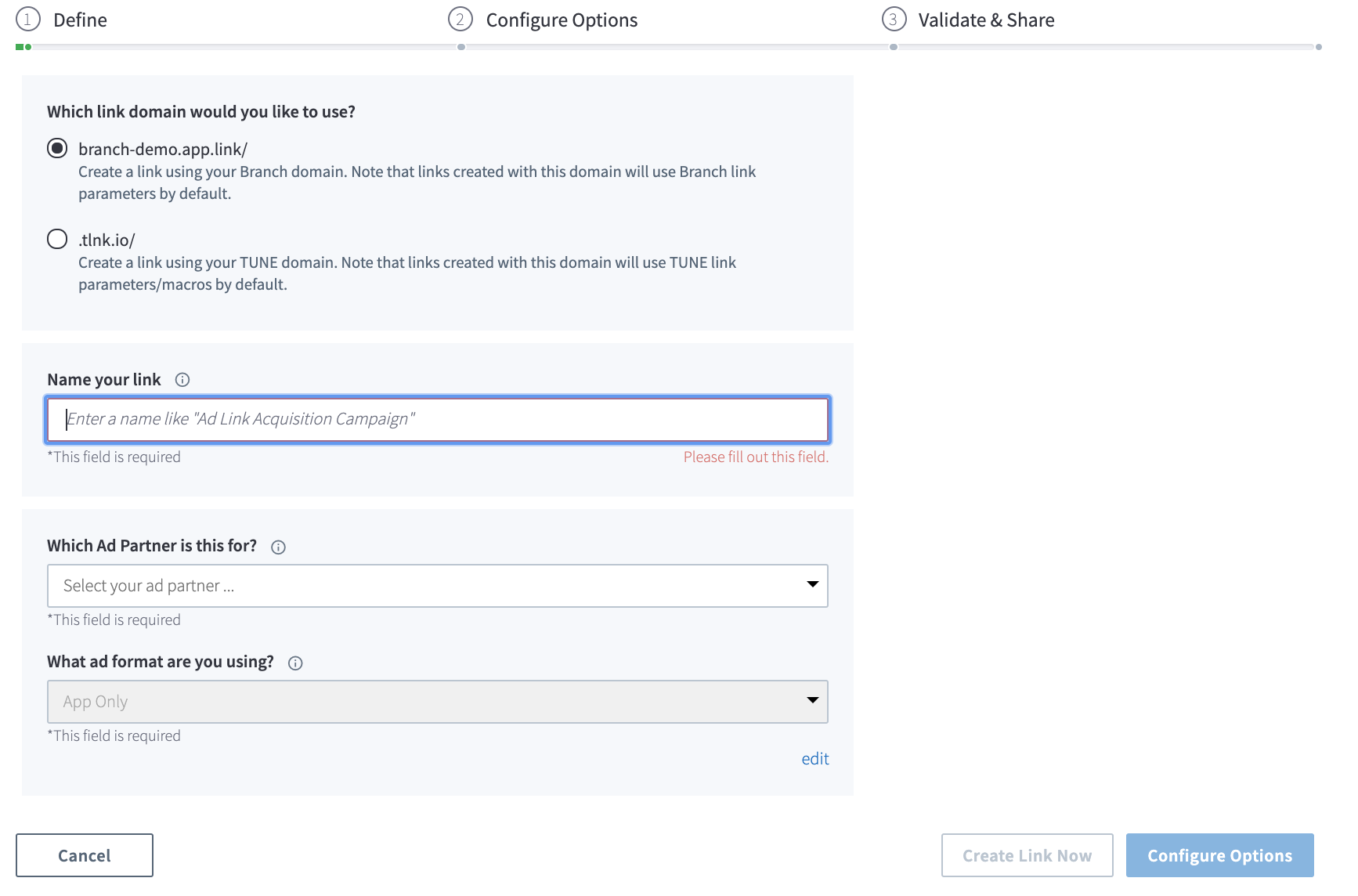
- Choose which link domain you want to use (available for former TUNE clients only):
- Learn more about configuration options on Branch's website.
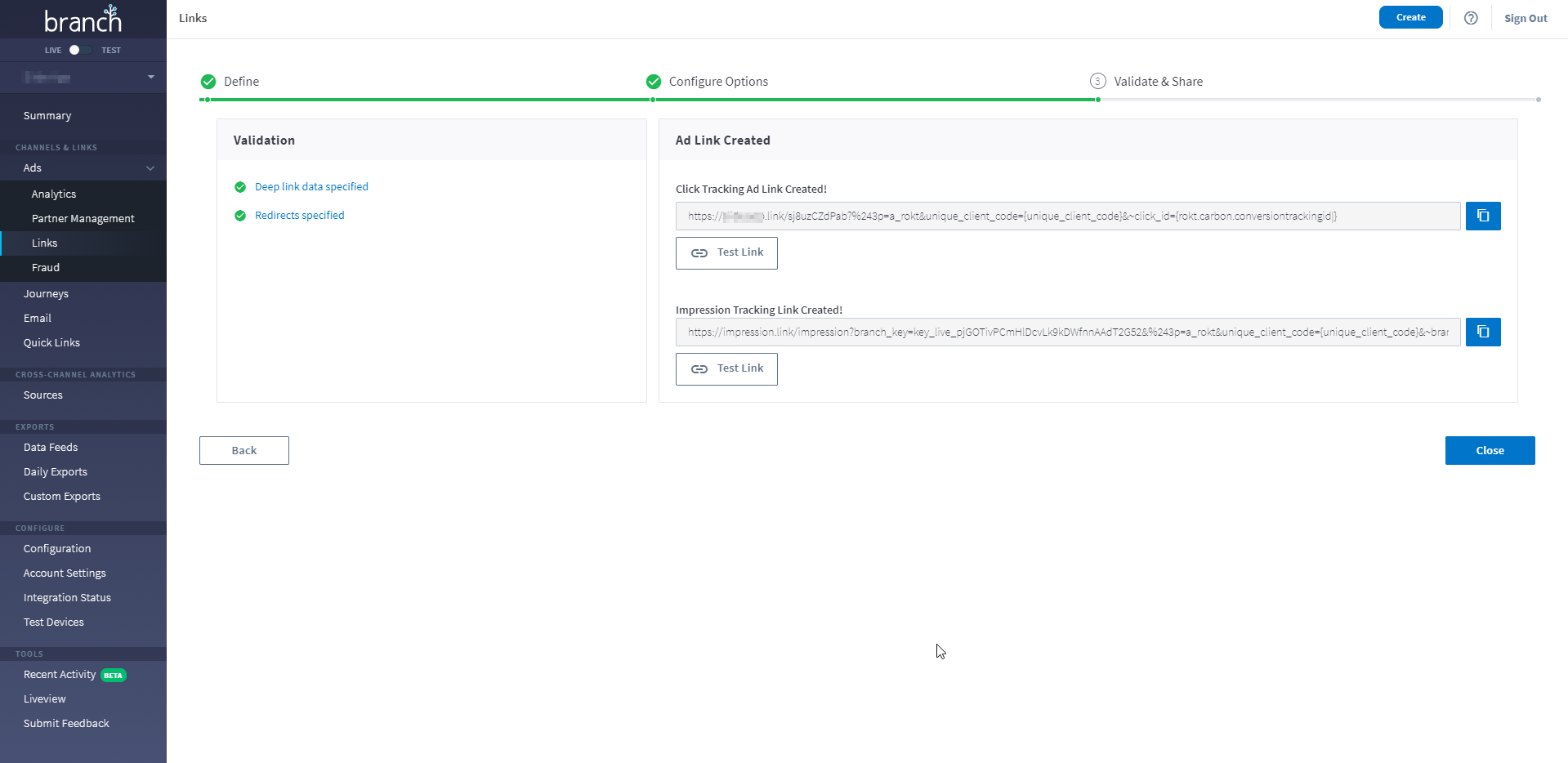
- Once you have completed your configuration, continue to Validate & Share. Copy the click tracking link and share with your Rokt account manager**.**