AppsFlyer
If you are using the measurement provider Appsflyer for attributions, follow the steps below to connect with Rokt. Before getting started, please reach out to your Rokt account manager to obtain your unique token.
Use the Rokt V2 Integration for all new implementations. The original Rokt integration is in the process of being deprecated and will be retired in a future release.
-
Log in to your Appsflyer account.
-
Go to Configuration > Integrated partners.
-
Navigate to Collaborate using the left-hand menu, then search for and select Rokt V2. The integration setup page will open.
-
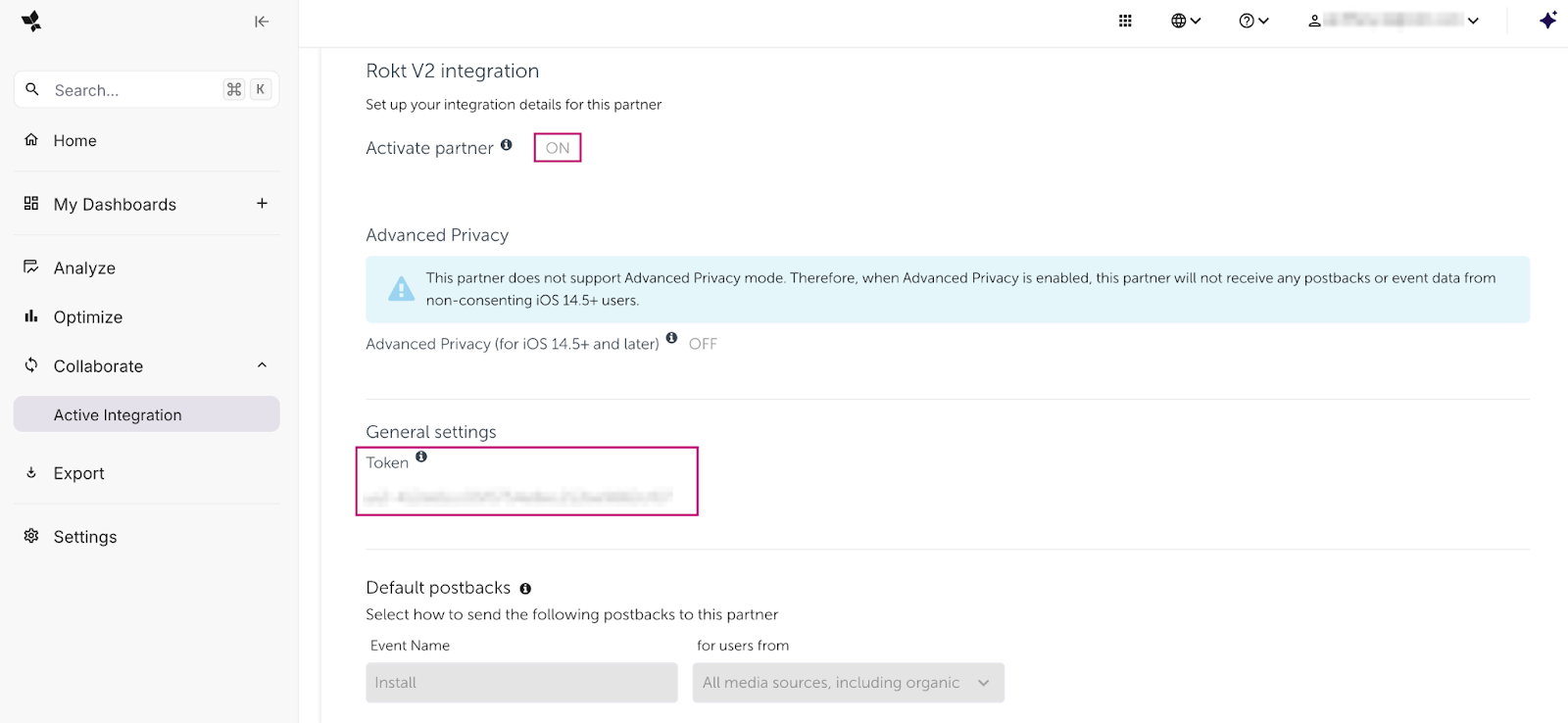
Under the Integration tab, turn on Activate partner and add the token provided by your Rokt account manager under General Settings.
-
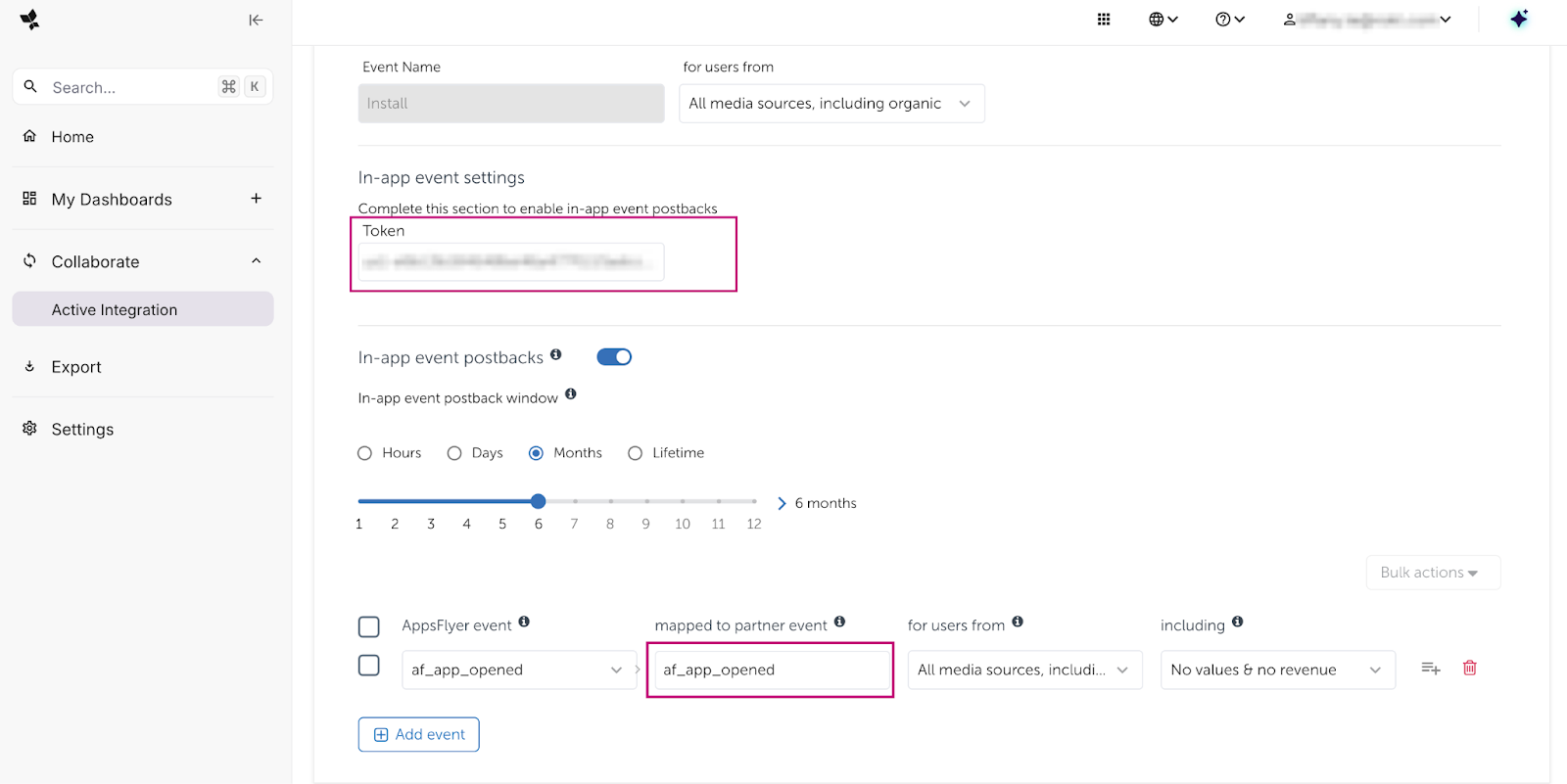
(Recommended) To help Rokt optimize your campaigns, configure in-app event postbacks to send post-install event data (e.g., purchases, registrations). If you only need to track installs, you can skip this step.
- Under In-app event settings Token, input the same token you added in General Settings.
- In the mapped to partner event column, enter the name of the conversion event you want to send to Rokt (e.g.,
purchase,registration). You may use the same name as the Appsflyer event. Learn more about in-app events postback on Appsflyer's website.
-
Click Save Integration.
-
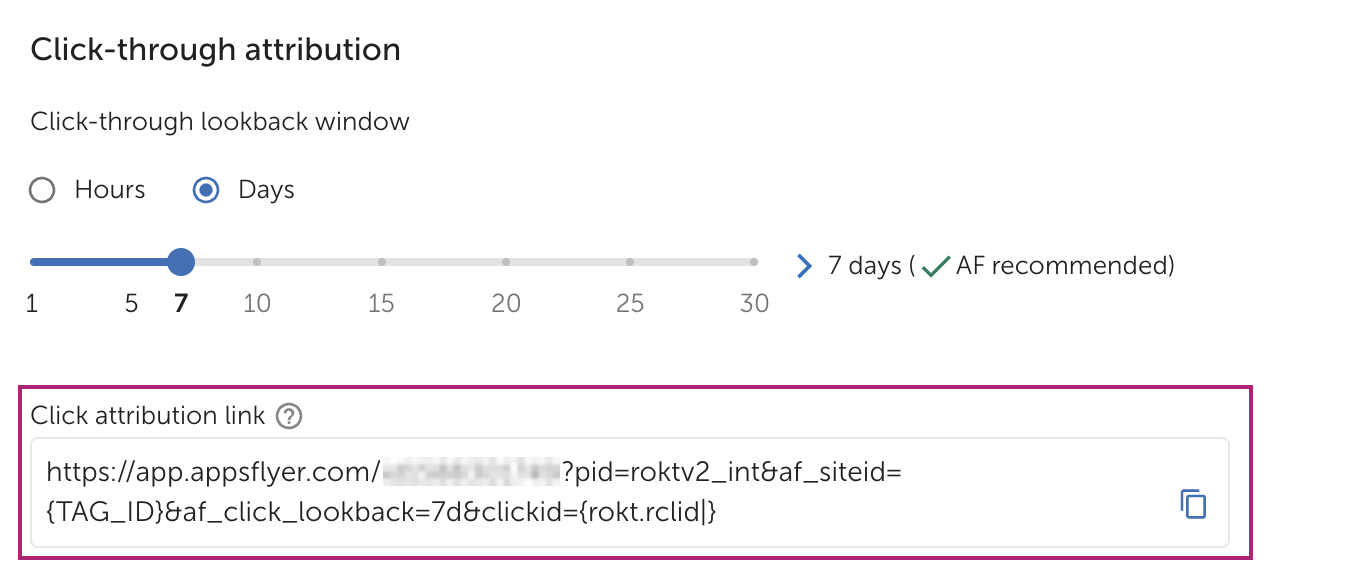
Go to the Attribution link tab. If needed, update the parameters and Click-Through Lookback window. Learn more on Appsflyer's website.
-
Find your Click attribution link, copy the generated link, and share it with your Rokt account manager.
Passing hashed email to RoktLien direct vers Passing hashed email to Rokt
To enable Rokt to receive a hashed email via the postback, you must include it in the in-app event payload. AppsFlyer does not automatically forward hashed emails collected via setUserEmails() to integrated partners.
To integrate hashed email with Rokt:
- Normalize the user's email address by converting it to lowercase and removing any leading or trailing whitespace, then hash the email address using SHA-256.
- When logging the conversion event in the AppsFlyer SDK, include the hashed email as a custom event parameter using the exact key name
userHashinside the event'seventValueJSON object. - Confirm with your Rokt Account Manager that hashed emails are being received correctly.